In Visual Studio Code, comparing two files is very easy. Here are the best ways:
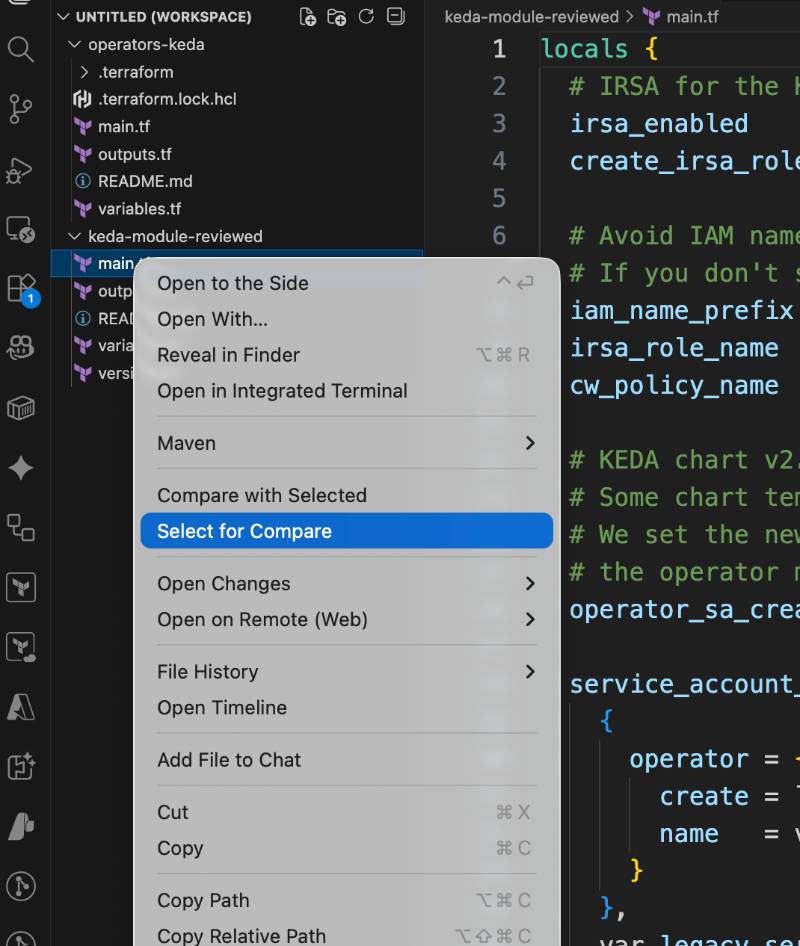
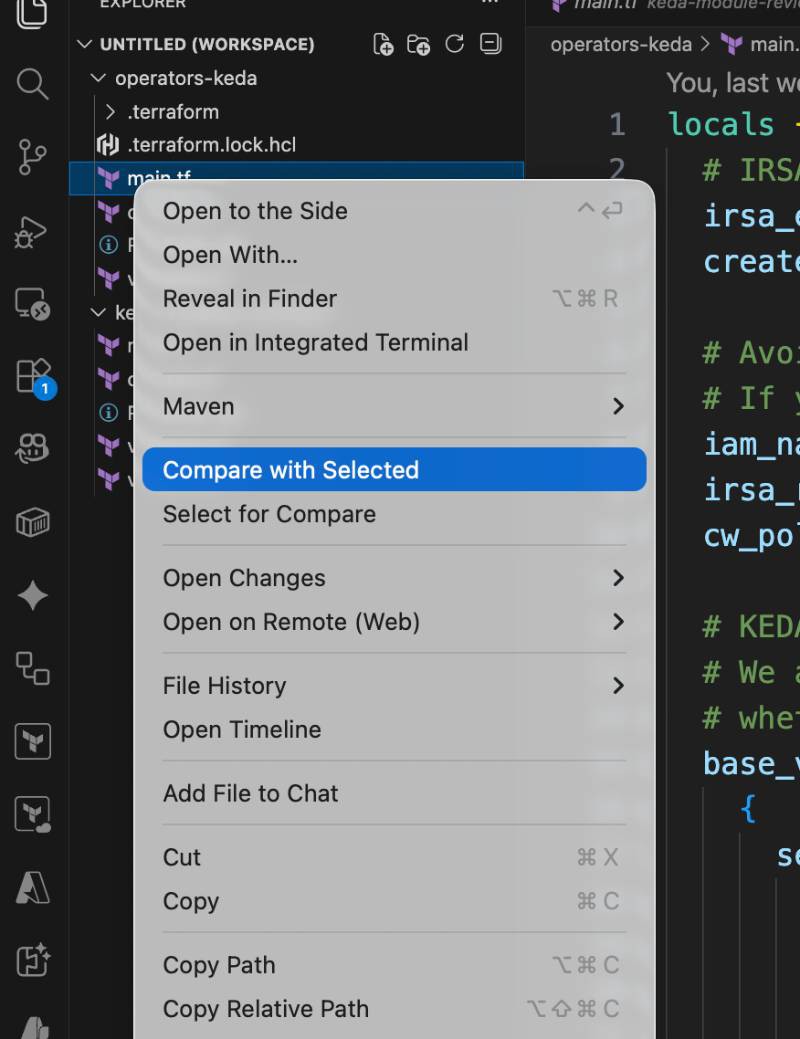
Method 1: Right-Click Compare (Easiest)
Open both files in VS Code.
In the Explorer sidebar:
VS Code opens a side-by-side diff view:
Method 2: Command Palette
Press:
Cmd + Shift + P (Mac)
Ctrl + Shift + P (Windows/Linux)
Type:
Compare Active File With...
Select the other file to compare.
Method 3: From Open Tabs
- Open both files.
- Right-click the tab of the first file → Select for Compare.
- Right-click the tab of the second file → Compare with Selected.
Method 4: Compare Unsaved Changes
To compare with last saved version:
- Open the file.
- Right-click in the editor → Compare with Saved.
Method 5: Compare with Git Version
If your project is a Git repo:
- Open file.
- Click Source Control icon.
- Click the file under “Changes”.
- VS Code shows diff vs last commit.
Shortcuts to Navigate Differences
Pro Tip
You can also compare any two files from terminal:
code --diff file1.txt file2.txt
This opens VS Code in diff mode directly.
If you tell me your OS (Mac/Windows/Linux), I can give you exact shortcuts optimized for your setup.