Azure Portal: Get all 4 Terraform authentication values
You can do this entirely through the Azure Portal web interface. No terminal commands or Azure CLI are required. Follow these steps in order.
Step 1 — Create the Terraform application

Open Microsoft Entra admin center.
- Select Entra ID → App registrations.
- Click New registration.
- Enter the name
terraform-deployer. - Select Accounts in this organizational directory only.
- Leave Redirect URI blank.
- Click Register.
If the application already exists, open it instead of creating another one.
Official guide: Register an application in Microsoft Entra ID.
Microsoft Learn
Step 2 — Get ARM_CLIENT_ID
On the newly created application’s Overview page:
Application (client) ID
Copy the displayed GUID
This is your ARM_CLIENT_ID.
Copy the actual ID displayed in your Azure Portal. Do not use the Object ID.
Step 3 — Get ARM_TENANT_ID
On the same Overview page, find:
Directory (tenant) ID
Copy the displayed GUID
This is your ARM_TENANT_ID.
You can also find it under Entra ID → Overview.
Step 4 — Create and get ARM_CLIENT_SECRET

- Open your
terraform-deployerapplication. - Select Certificates & secrets.
- Open Client secrets.
- Click New client secret.
- Enter a description, such as
Terraform. - Choose an expiration period.
- Click Add.
- Immediately copy the Value column.
Important
The client secret’s Value is your ARM_CLIENT_SECRET, not its Secret ID. Azure displays the value only once. If you leave the page without copying it, create a new secret.
Microsoft recommends certificates or federated credentials for production workloads rather than long-lived client secrets.
Microsoft Learn
Step 5 — Get ARM_SUBSCRIPTION_ID

- Open Azure Portal.
- Search for Subscriptions.
- Select the subscription Terraform will manage.
- On the Overview page, copy Subscription ID.
This is your ARM_SUBSCRIPTION_ID.
Step 6 — Give the application permission to manage resources
Creating the application and secret does not automatically grant access to your Azure subscription.
- In Azure Portal, open Subscriptions.
- Select your subscription → Access control (IAM).
- Click Add → Add role assignment.
- Select Contributor.
- Click Next.
- Select User, group, or service principal as the member type.
- Click Select members and search for
terraform-deployer. - Select the application/service principal and click Review + assign.
You need permission to assign roles yourself. If Contributor is unavailable, an authorized subscription administrator may need to complete this step. Some Terraform configurations require additional permissions beyond Contributor.
Step 7 — Your four values are ready
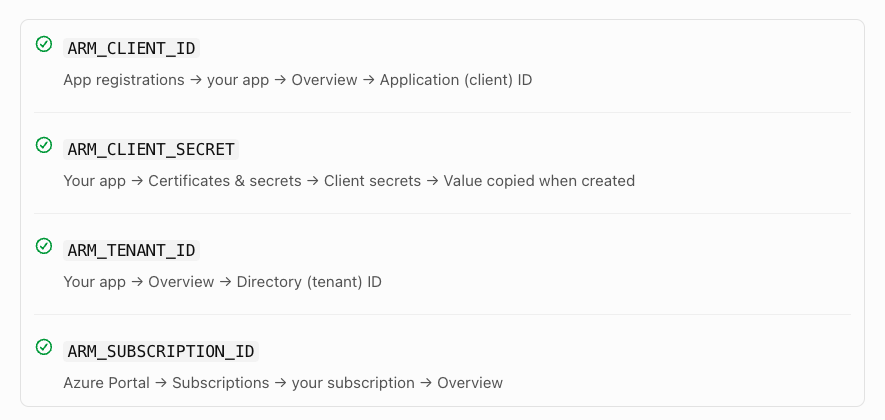
ARM_CLIENT_ID
App registrations → your app → Overview → Application (client) ID
ARM_CLIENT_SECRET
Your app → Certificates & secrets → Client secrets → Value copied when created
ARM_TENANT_ID
Your app → Overview → Directory (tenant) ID
ARM_SUBSCRIPTION_ID
Azure Portal → Subscriptions → your subscription → Overview
Official Terraform reference: Authenticate the AzureRM Terraform provider using a service principal and client secret.
Terraform Registry
That’s it: All four values are obtained through the Azure Portal. You only need to use Terminal afterward if you want to configure them as environment variables for Terraform.

