HCP Terraform Cloud — CLI Command Summary
Organization: motoshare | Project: proezi
| # | Cloud operation | Command / Example | Usage |
|---|---|---|---|
| 1 | Login to Terraform Cloud | terraform login | Authenticate with HCP Terraform |
| 2 | Login to specific hostname | terraform login app.terraform.io | Authenticate explicitly with Terraform Cloud |
| 3 | Logout | terraform logout | Remove locally saved credentials |
| 4 | Authenticate using token | export TF_TOKEN_app_terraform_io="$TFC_TOKEN" | Authenticate from CI/CD without interactive login |
| 5 | Set Cloud organization | export TF_CLOUD_ORGANIZATION=motoshare | Configure organization when omitted from the cloud block |
| 6 | Set Cloud project | export TF_CLOUD_PROJECT=proezi | Configure project when omitted from the cloud block |
| 7 | Set Cloud workspace | export TF_WORKSPACE=proezi_dev | Select an existing workspace when cloud configuration permits |
| 8 | Connect to Terraform Cloud | terraform init | Initialize the cloud block and connect the working directory |
| 9 | Migrate existing state to Cloud | terraform init -migrate-state | Migrate state from an existing backend to HCP Terraform |
| 10 | List connected Cloud workspaces | terraform workspace list | List workspaces mapped by the current cloud configuration |
| 11 | Show selected Cloud workspace | terraform workspace show | Identify the active workspace |
| 12 | Switch to Dev workspace | terraform workspace select proezi_dev | Select Dev when using a tag-based workspace configuration |
| 13 | Switch to Stage workspace | terraform workspace select proezi_stage | Select Stage when using a tag-based configuration |
| 14 | Switch to Prod workspace | terraform workspace select proezi_prod | Select Prod when using a tag-based configuration |
| 15 | Trigger remote Cloud plan | terraform plan | Execute a speculative plan in HCP Terraform |
| 16 | Trigger remote Cloud apply | terraform apply | Start a remote plan/apply run in a CLI-driven workspace |
| 17 | Save remote Cloud plan | terraform plan -out=cloud.tfplan | Save a remote run for later review and approval |
| 18 | Inspect remote Cloud plan | terraform show cloud.tfplan | Review the saved remote plan |
| 19 | Apply saved remote plan | terraform apply cloud.tfplan | Apply the saved run in its originating workspace |
| 20 | Inspect Cloud remote state | terraform state list | List resources tracked in HCP Terraform state |
| 21 | Download Cloud remote state | terraform state pull | Retrieve the workspace’s current state document |
| 22 | Read Cloud outputs | terraform output | Read output values from the connected HCP workspace |
| 23 | Trigger remote destroy | terraform destroy | Destroy tracked infrastructure in a CLI-driven workspace; destructive |
Beginner → Advanced | Practical Examples | Hands-on Labs | Real Organization & Workspaces | Updated October 2026
This guide explains how to operate HCP Terraform (formerly Terraform Cloud) from the command line, using your actual organization and workspace names.
You’ll learn how to authenticate, connect Terraform code to cloud workspaces, execute plans and applies, manage variables, inspect remote state, troubleshoot failures, and automate Terraform operations.
1. Your HCP Terraform environment
Organization: motoshare
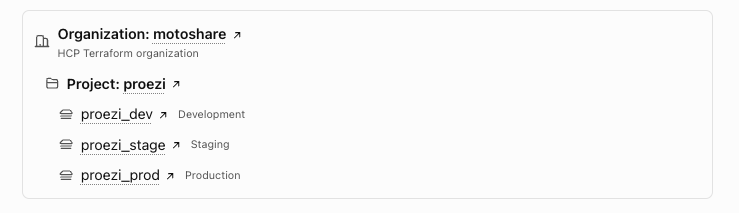
These are the workspace names you supplied. I have not inspected their private settings or state, so the examples will distinguish configuration assumptions from confirmed details.
2. Understand Terraform CLI vs Terraform Cloud API
This is the most important distinction.
| Interface | Purpose | Example |
|---|---|---|
| Terraform CLI | Plan, apply, validate, and manage infrastructure | terraform plan |
| HCP Terraform CLI-driven workflow | Execute Terraform CLI operations using an HCP Terraform workspace | terraform apply with a cloud block |
| HCP Terraform REST API | Manage organizations, projects, workspaces, variables, and runs programmatically | curl .../api/v2/... |
| HCP Terraform UI | Configure workspaces, teams, permissions, variables, and review runs | app.terraform.io |
There is no general built-in terraform cloud command that administers every HCP Terraform resource. You use the normal Terraform CLI for infrastructure, and the API or the hashicorp/tfe provider for broader platform administration.
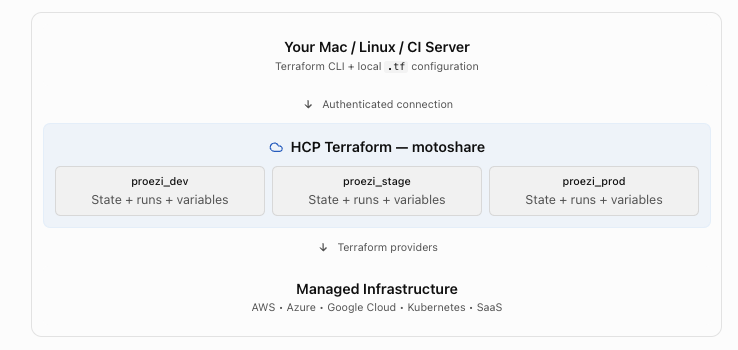
With Remote Execution, plans and applies run on HCP Terraform workers, and the results stream to your terminal. With Local Execution, Terraform runs on your computer while HCP Terraform stores the state.
HashiCorp Developer
+1
3. Prerequisites and installation
You’ll need Terraform CLI, an HCP Terraform account with access to motoshare, and a terminal. For API demonstrations, install curl and jq.
3.1 Install Terraform CLI on macOS
brew tap hashicorp/tap
brew install hashicorp/tap/terraform
Verify the installation:
terraform versionTo explore the commands available in your installed version:
terraform -help
terraform init -help
terraform plan -help
terraform workspace -help
Usage: The -help option is especially useful because command flags and features can change between Terraform versions.
3.2 Log in to Terraform Cloud
terraform loginYou can also specify the hostname:
terraform login app.terraform.ioTerraform opens an authentication flow for creating and saving an HCP Terraform user token.
After logging in, the CLI can access workspaces your identity is authorized to use.
3.3 Where are credentials stored?
On macOS and Linux, the default login credentials are stored at:
~/.terraform.d/credentials.tfrc.jsonThe token is stored as readable text, so protect that file and never commit it to Git.
To remove locally stored login credentials:
terraform logoutThis removes the local credential but does not revoke the token on the server.
HashiCorp Developer
+1
3.4 Authenticate in CI/CD without interactive login
For a CI/CD job, you can provide the token through a protected environment variable:
export TF_TOKEN_app_terraform_io="$TFC_TOKEN"Here, TFC_TOKEN represents a token securely injected into the job by your CI secrets manager.
Avoid hardcoding the token in Terraform files, shell scripts, or GitHub repositories.
4. Connect your Terraform CLI to an existing workspace
We’ll use your proezi_dev workspace for this example.
Step 1: Create a working directory
mkdir -p ~/terraform-training/proezi-dev
cd ~/terraform-training/proezi-dev
Step 2: Create cloud.tf
terraform {
  required_version = ">= 1.6.0"

  cloud {
    organization = "motoshare"

    workspaces {
      name    = "proezi_dev"
      project = "proezi"
    }
  }
}
What each setting does:
| Setting | Purpose |
|---|---|
required_version | Enforces Terraform CLI version compatibility |
cloud | Enables HCP Terraform integration |
organization | Selects the motoshare organization |
workspaces.name | Targets proezi_dev |
workspaces.project | Associates the workspace with project proezi |
You don’t need to configure a separate backend "remote" block when using cloud. Terraform does not allow both together.
HashiCorp Developer
Step 3: Initialize
terraform initThis connects the working directory to your HCP Terraform workspace, initializes providers and modules as needed, and prepares the state backend.
Typical successful output:
Initializing HCP Terraform...

HCP Terraform has been successfully initialized!

Terraform has been successfully initialized!
Step 4: Inspect existing infrastructure state
These are read-only commands:
terraform state list
terraform output
The first command lists resource addresses recorded in the workspace state. The second displays root-module output values, if any.
Important: Do not run terraform plan, terraform apply, or terraform destroy against this empty example directory if proezi_dev already manages real infrastructure. Missing resource definitions could cause Terraform to propose destroying existing resources.
This section is only for establishing connectivity and inspecting state.
5. Hands-on lab — Your first CLI-driven Terraform Cloud run
For actual experimentation, I recommend creating a separate workspace, proezi_cli_lab, inside the proezi project. This keeps your real Dev, Stage, and Prod infrastructure untouched.
The exercise uses Terraform’s built-in terraform_data resource, so it doesn’t require AWS, Azure, or other cloud provider credentials and won’t provision external infrastructure.
5.1 Prepare the lab directory
mkdir -p ~/terraform-training/proezi-cli-lab
cd ~/terraform-training/proezi-cli-lab
Create these files:
proezi-cli-lab/
├── cloud.tf
├── variables.tf
├── main.tf
├── outputs.tf
└── lab.auto.tfvars
5.2 File 1 — cloud.tf
terraform {
  required_version = ">= 1.6.0"

  cloud {
    organization = "motoshare"

    workspaces {
      name    = "proezi_cli_lab"
      project = "proezi"
    }
  }
}
When terraform init encounters a named workspace that doesn’t exist, it can create the workspace automatically, subject to your permissions. Verify the new workspace’s settings before its first run.
HashiCorp Developer
5.3 File 2 — variables.tf
variable "app_name" {
  description = "Application name"
  type        = string
  default     = "proezi"
}

variable "environment" {
  description = "Deployment environment"
  type        = string
  default     = "lab"
}

variable "replicas" {
  description = "Desired replica count"
  type        = number
  default     = 1

  validation {
    condition     = var.replicas >= 1
    error_message = "Replicas must be at least 1."
  }
}
5.4 File 3 — main.tf
resource "terraform_data" "application" {
  input = {
    name        = var.app_name
    environment = var.environment
    replicas    = var.replicas
  }
}
terraform_data is useful for learning Terraform operations without provisioning a real virtual machine, network, or database.
5.5 File 4 — outputs.tf
output "application_details" {
  description = "Application configuration"

  value = terraform_data.application.output
}

output "environment_name" {
  value = var.environment
}
5.6 File 5 — lab.auto.tfvars
app_name    = "proezi"
environment = "lab"
replicas    = 2
Terraform automatically loads files ending in .auto.tfvars.
5.7 Execute the full CLI workflow
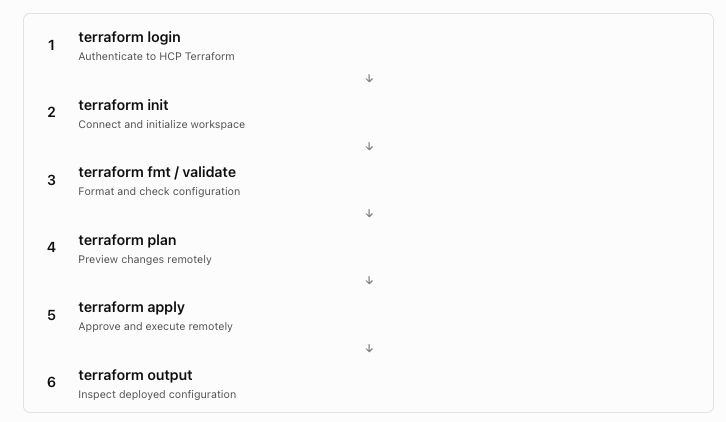
Run the commands:
terraform init

terraform fmt

terraform validate

terraform plan
Since this is a new lab workspace, the plan should propose creating one terraform_data.application resource, assuming no existing lab state or policies prevent the run.
Apply the configuration:
terraform applyReview the plan and type:
yesThe apply runs in HCP Terraform when the workspace uses Remote Execution. You can view its history in:
Open proezi_cli_labThis link targets the proposed lab workspace, which will exist only after you create it.
Now inspect the output:
terraform output
terraform output environment_name
terraform output -json
Expected environment_name:
"lab"5.8 Update a variable and rerun
Edit lab.auto.tfvars:
replicas = 3Run:
terraform plan
terraform apply
Terraform should show an in-place change to the lab’s stored data resource, rather than creating real servers.
Learning outcome: You’ve completed a CLI-driven remote run, created state in HCP Terraform, updated configuration, and inspected outputs.
6. Master Terraform CLI command reference
The commands below work in ordinary Terraform configurations. When you connect a directory to HCP Terraform, their behavior depends on the workspace’s execution mode and workflow settings.
6.1 Setup, authentication, and initialization
| Command | Example | Usage |
|---|---|---|
version | terraform version | Display CLI and provider versions |
-help | terraform plan -help | Show options and syntax |
login | terraform login | Authenticate with HCP Terraform |
logout | terraform logout | Remove local authentication token |
init | terraform init | Initialize providers, modules, and cloud connection |
init -upgrade | terraform init -upgrade | Upgrade selected providers/modules within configured constraints |
init -reconfigure | terraform init -reconfigure | Reconfigure backend or cloud connection without attempting state migration |
init -migrate-state | terraform init -migrate-state | Migrate existing state when intentionally changing its storage configuration |
Use -migrate-state only after reviewing the source and destination state and taking appropriate backups.
6.2 Code validation and planning
| Command | Example | Usage |
|---|---|---|
fmt | terraform fmt | Format HCL files |
fmt -check | terraform fmt -check -recursive | Check formatting without rewriting files |
validate | terraform validate | Verify configuration syntax and structural validity |
plan | terraform plan | Preview infrastructure changes |
plan -var | terraform plan -var='replicas=3' | Supply a run-specific Terraform variable |
plan -var-file | terraform plan -var-file=dev.tfvars | Load variable values from a selected file |
plan -out | terraform plan -out=review.tfplan | Save a plan for later inspection/apply |
plan -detailed-exitcode | terraform plan -detailed-exitcode | Indicate whether changes are needed via exit status |
plan -refresh-only | terraform plan -refresh-only | Inspect state updates based on real infrastructure |
plan -replace | terraform plan -replace=aws_instance.web | Preview replacement of a specific resource |
plan -target | terraform plan -target=aws_instance.web | Target a resource for exceptional recovery or repair |
-target and -replace are not normal deployment practices. Use them only when their behavior is understood and justified.
6.3 Applying and managing infrastructure
| Command | Example | Usage |
|---|---|---|
apply | terraform apply | Plan and apply changes |
apply -auto-approve | terraform apply -auto-approve | Skip interactive approval; suitable only for properly controlled automation |
apply FILE | terraform apply review.tfplan | Apply a previously saved plan |
apply -refresh-only | terraform apply -refresh-only | Update state and outputs without normal infrastructure reconciliation |
destroy | terraform destroy | Destroy all resources managed by the selected configuration/state |
destroy -target | terraform destroy -target=aws_instance.web | Target a subset for destruction; exceptional use only |
show | terraform show | Display state information |
show FILE | terraform show review.tfplan | Display the contents of a saved plan |
output | terraform output | Show root-module output values |
output -json | terraform output -json | Export output values in JSON |
output -raw | terraform output -raw environment_name | Get a string output without quotes |
6.4 Terraform state operations
| Command | Example | Usage |
|---|---|---|
state list | terraform state list | List tracked resources |
state show | terraform state show terraform_data.application | Inspect one tracked resource |
state pull | terraform state pull | Retrieve the current state document |
state mv | terraform state mv OLD NEW | Change a resource address in state |
state rm | terraform state rm ADDRESS | Stop tracking a resource without deleting it |
state replace-provider | terraform state replace-provider OLD NEW | Change provider addresses stored in state |
import | terraform import ADDRESS ID | Bring an existing remote resource under Terraform state management |
force-unlock | terraform force-unlock LOCK_ID | Manually release a state lock where supported by the backend |
State-changing commands require special care because incorrect changes can cause future Terraform plans to replace or destroy infrastructure. Terraform state subcommands support remote state, and state modification commands write local backups.
6.5 Workspaces, modules, testing, and debugging
| Command | Example | Usage |
|---|---|---|
workspace list | terraform workspace list | List workspaces available through the configuration |
workspace select | terraform workspace select proezi_dev | Select a different workspace, when supported |
workspace show | terraform workspace show | Display the selected CLI workspace |
workspace new | terraform workspace new demo | Create a workspace, where supported |
workspace delete | terraform workspace delete demo | Delete an eligible workspace; destructive administrative action |
providers | terraform providers | Display required provider dependencies |
get | terraform get | Download modules; generally prefer terraform init |
console | terraform console | Interactively test HCL expressions |
graph | terraform graph | Generate dependency-graph output |
test | terraform test | Execute Terraform test files |
Important workspace limitation: terraform workspace select is not the way to switch between workspaces when your cloud block specifies a fixed workspaces.name. Section 9 explains supported workspace-selection methods.
7. Planning and applying — Detailed examples
These exercises use the separate proezi_cli_lab workspace created in Section 5.
7.1 Example: Standard remote plan
terraform planWhen to use: Before every infrastructure change.
With a remote-execution workspace, this creates a speculative plan using your local Terraform files and the remote workspace context.
A speculative plan can show potential changes, but cannot subsequently be applied directly.
HashiCorp Developer
7.2 Example: Pass a variable directly
terraform plan -var="replicas=4"When to use: Temporarily override a Terraform input variable for a single run.
The CLI value does not permanently change the stored workspace variable.
7.3 Example: Use an explicit variable file
Create dev.tfvars:
app_name    = "proezi"
environment = "development"
replicas    = 2
Execute:
terraform plan -var-file="dev.tfvars"When to use: You want reusable environment-specific values without hardcoding everything into .tf resources.
7.4 Example: Check if a deployment is needed
terraform plan -detailed-exitcode
echo $?
Exit codes:
| Code | Meaning |
|---|---|
0 | Plan succeeded; no changes |
1 | An error occurred |
2 | Plan succeeded; changes are proposed |
This is helpful in CI/CD pipelines that need to distinguish infrastructure drift or new changes from errors.
7.5 Example: Save, review, and apply a plan
terraform plan -out=review.tfplanInspect:
terraform show review.tfplanApply:
terraform apply review.tfplanFor remote CLI-driven runs, this requires Terraform CLI 1.6 or later.
HCP Terraform’s remote saved-plan file is a reference to a remote run, not an ordinary local binary plan. It can only be applied in the originating remote workspace, and it becomes stale if the underlying state is no longer valid.
7.6 Example: Use automation approval
terraform apply -auto-approveWhen to use: Only in approved automation where plan review, change controls, and workspace permissions are already established.
Do not use this as a shortcut for deploying into proezi_prod.
7.7 Example: Inspect a plan in JSON
For a remote saved plan:
terraform show -json review.tfplanUnlike the human-readable plan, JSON can contain sensitive values in unredacted form. HCP Terraform requires workspace admin permission to inspect a remote saved plan in JSON. Store such output securely.
7.8 Example: Refresh state
terraform plan -refresh-onlyThis previews how state would change to reflect infrastructure modified outside Terraform.
To commit a refresh-only operation:
terraform apply -refresh-onlyThis does not perform ordinary desired-state reconciliation. It updates Terraform’s recorded view of existing infrastructure and outputs.
8. Terraform Cloud variables through CLI
HCP Terraform variables are especially important because they can be defined at multiple scopes.
8.1 Common ways to provide variable values
| Method | Example | Where the value comes from |
|---|---|---|
| Variable default | default = 2 | Terraform configuration |
Automatic .tfvars | lab.auto.tfvars | Configuration files |
Explicit .tfvars | -var-file=dev.tfvars | Command line |
| CLI argument | -var='replicas=4' | Command line |
| Local shell | TF_VAR_replicas=4 | Your terminal |
| Workspace Terraform variable | replicas = 2 | HCP workspace settings |
| Project variable set | Shared application settings | HCP project |
| Organization variable set | Shared settings across projects | HCP organization |
8.2 Example: Local environment variable
export TF_VAR_replicas=5

terraform plan
Remove it after the test:
unset TF_VAR_replicas8.3 Example: Store the value in HCP Terraform
Open:
Create a Terraform variable:
| Key | Value | Category |
|---|---|---|
environment | development | Terraform |
replicas | 2 | Terraform |
app_name | proezi | Terraform |
These are illustrative values, not changes I’ve made. Only add keys actually declared in the Terraform configuration used by that workspace.
For proezi_stage, you might set environment = staging; for proezi_prod, environment = production.
Workspace variables are persistent and apply to the workspace’s runs unless overridden by a higher-precedence source.
8.4 Variable precedence in remote CLI runs
The practical precedence, highest first, is:
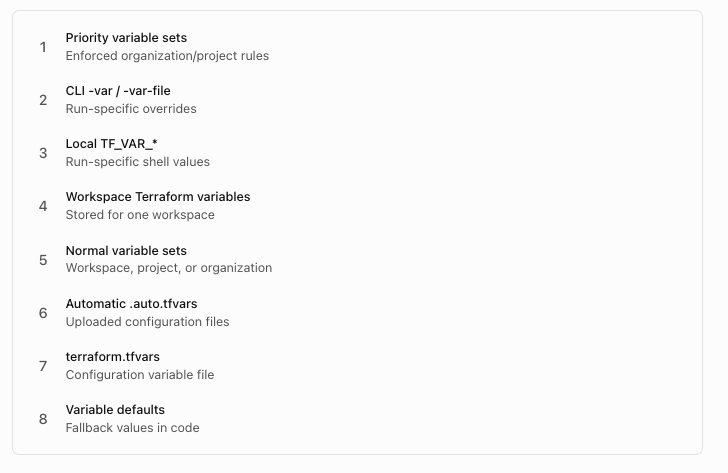
This is a simplified grouping. Within priority and ordinary variable sets, HCP Terraform also applies rules for set ownership, scope, and lexical order of set names.
For example, suppose:
lab.auto.tfvarssetsreplicas = 2- Your HCP workspace sets
replicas = 3 - You execute
terraform plan -var='replicas=6'
The plan uses 6, unless a priority variable set enforces a different value.
Important distinction: TF_VAR_replicas is a Terraform input variable. AWS_ACCESS_KEY_ID, AWS_SECRET_ACCESS_KEY, and similar provider environment variables are a separate category. With remote execution, provider credentials generally need to be available in the HCP remote run environment, not merely on your laptop. Prefer short-lived, dynamic provider credentials where possible.
HashiCorp Developer
9. Managing Dev, Stage, and Prod workspaces
This section directly addresses your three workspaces:
proezi_devproezi_stageproezi_prod
There are three useful ways to target them.
Method A — Separate Terraform directories
Recommended for straightforward environment isolation
terraform/
├── dev/
│   └── cloud.tf
├── stage/
│   └── cloud.tf
└── prod/
    └── cloud.tf
Each directory contains its own configuration for the correct HCP workspace.
For Dev:
terraform {
  cloud {
    organization = "motoshare"

    workspaces {
      name    = "proezi_dev"
      project = "proezi"
    }
  }
}
For Stage, use name = "proezi_stage". For Prod, use name = "proezi_prod".
You can then execute commands from the repository root:
terraform -chdir=dev init
terraform -chdir=dev plan

terraform -chdir=stage init
terraform -chdir=stage plan

terraform -chdir=prod init
terraform -chdir=prod plan
This is a clear mapping, but each directory must contain the intended complete configuration for its environment. Don’t create only a cloud.tf and then run apply against a workspace that already manages resources.
Method B — Workspace selection using tags
If the three workspaces use the same Terraform configuration, you can choose them from one working directory using workspace tags.
First, deliberately apply the same key-value tag to all three workspaces through the HCP Terraform UI:
application = proeziThen, using Terraform CLI 1.10 or later, configure:
terraform {
  cloud {
    organization = "motoshare"

    workspaces {
      tags = {
        application = "proezi"
      }

      project = "proezi"
    }
  }
}
Now:
terraform initList matching workspaces:
terraform workspace listSelect Dev:
terraform workspace select proezi_devConfirm the selection:
terraform workspace showRun:
terraform planSwitch to Stage:
terraform workspace select proezi_stage
terraform plan
Switch to Prod:
terraform workspace select proezi_prod
terraform plan
This requires each workspace to match the configured tags and project.
Crucial: workspaces.name and workspaces.tags are mutually exclusive. You cannot use terraform workspace select to switch among several HCP workspaces when the configuration is bound to a single name.
Method C — Workspace selection through an environment variable
For scripts that must target an existing workspace without hardcoding its name, you can omit the workspaces block:
terraform {
  cloud {
    organization = "motoshare"
  }
}
Then:
export TF_WORKSPACE=proezi_dev

terraform init
terraform plan
The environment variable selects an existing HCP Terraform workspace. It does not automatically create a missing workspace in this configuration.
To change the target in automation, supply a different TF_WORKSPACE value for a separately initialized job or working directory.
Production recommendation: Keep production targeting explicit, use separate pipeline approvals, and validate the selected workspace before any state-changing operation.
HashiCorp Developer
10. Remote state management — Hands-on examples
Terraform state records which infrastructure objects Terraform manages.
In HCP Terraform, state is stored centrally and can be shared by authorized users and automation.
10.1 List resources in remote state
From an initialized workspace directory:
terraform state listFor the lab, an expected resource address is:
terraform_data.applicationFor a real AWS configuration, the output might look like:
aws_vpc.main
aws_subnet.public
aws_security_group.web
aws_instance.web
These AWS addresses are examples, not confirmed resources in your workspaces.
10.2 Inspect one resource
terraform state show terraform_data.applicationUsage: Examine a resource’s recorded attributes without generating a new plan.
10.3 Back up remote state
From the isolated lab directory:
umask 077
terraform state pull > lab-state-backup.tfstate
Usage: Capture a state snapshot before maintenance or recovery exercises.
Never commit state backups to Git or share them casually. State may contain passwords, credentials, identifiers, and other sensitive values.
10.4 Move a resource address in state
Command format:
terraform state mv OLD_ADDRESS NEW_ADDRESSIllustration:
terraform state mv \
  terraform_data.application \
  terraform_data.proezi_application
Usage: Rename a tracked resource address without creating a new infrastructure object.
Do not execute this illustration without also updating the HCL resource declaration to match. A moved block in version-controlled configuration is generally preferable for planned refactoring.
10.5 Remove a resource from state
terraform state rm terraform_data.applicationUsage: Tell Terraform to forget an object.
This does not destroy the underlying object. For a real cloud resource, it can leave infrastructure running and unmanaged, so this command is intentionally a reference example, not a recommended lab step.
10.6 Import existing infrastructure
Suppose an AWS S3 bucket already exists.
A conventional CLI import looks like:
terraform import \
  aws_s3_bucket.existing \
  my-existing-bucket
You must first declare the resource in Terraform configuration and provide a correctly configured AWS provider.
An important HCP-specific detail is that terraform import runs locally, even when plans and applies run remotely. Your local environment may therefore need access to provider credentials and the target infrastructure.

