
Quick Answer
An outstanding SD card recovery software on Windows is the one that allows easy-to-use recovery, restores a good range of file types, does full scans, and gives you an opportunity to preview files that you are going to recover. EaseUS Data Recovery Wizard stands out as the top choice among others, Recuva could be a great one to handle standard recovery, while TestDisk should be the one to pick if you prefer an interface with no unnecessary stuff.
Introduction
Deleted your photos by mistake? Or is your camera suddenly asking you to format the SD card?
Sometimes things go badly unexpectedly, and a RAW or unreadable card is just the beginning.
The first thing that you can do is simply not use the SD card immediately after noticing data loss. If you keep filling the card with new files, you could be losing the data you’re trying to recover.
In this article, we present to you the top 5 SD card recovery programs for Windows. Our selection is based on results of actual testing and experience with the software. Let’s get started!
Part 2. How We Chose the Best SD Card Recovery Software
Not all recovery tools are made the same. So, what did we look at?
- Recovery success rate: We tested the software for its ability to bring back deleted, lost, or missing files; only then is it considered reliable
- File system support: SD card formatting tools such as FAT32 and exFAT must be covered since these will be the ones commonly encountered
- RAW photo and video support: Even after the normal file recovery does not find the files, this will determine if you can still find and get out RAW videos and pictures
- Free recovery limit: This refers to the extent to which you can recover the data for free and also whether the limit set is clearly visible
- Ease of use: This will measure whether the scanning process, finding files, previews and starting recovery of the files is a very simple process
- Price: The cost of the paid upgrade and what type of recovery it allows.
Using these standards helped us to select the five best tools that we recommended to Windows users.
Part 3. The Top 5 SD Card Recovery Software for Windows 11/10
We tested, compared, and evaluated 5 widely used SD card recovery software packages for Windows 11 and 10. Each tool was thoroughly examined according to its performance in recovering files, the types of files it could read and restore, user interface friendliness, the limitations of the free recovery feature, and overall price.
EaseUS Data Recovery Wizard – Best Overall
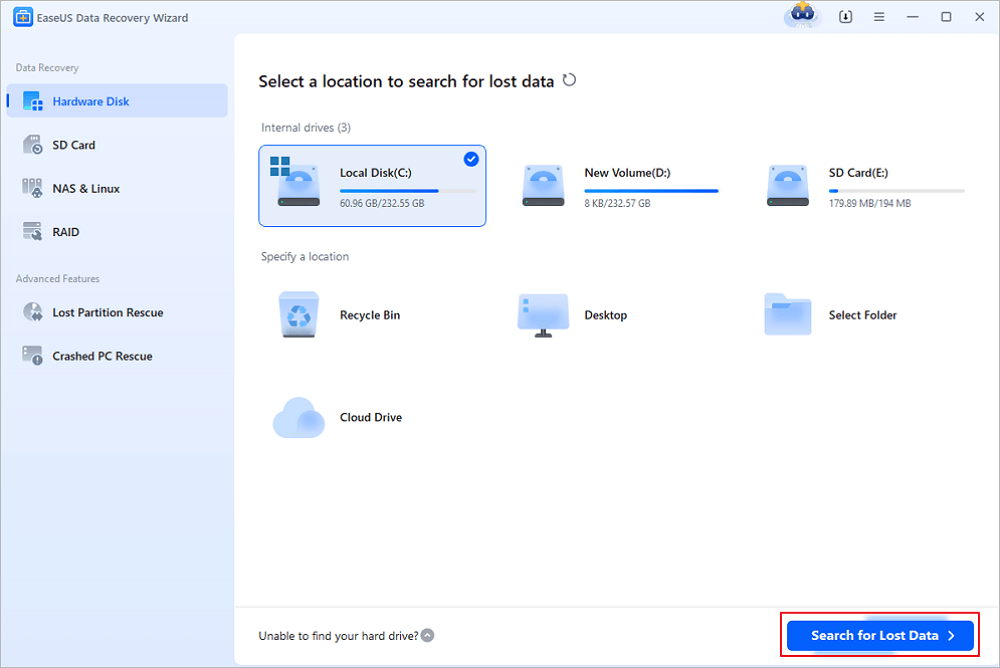
EaseUS Data Recovery Wizard is a data recovery software for Windows that helps you retrieve deleted, reformatted, lost, or not recognized, files from SD cards, HDDs, SSDs, USB sticks, and other storage devices.
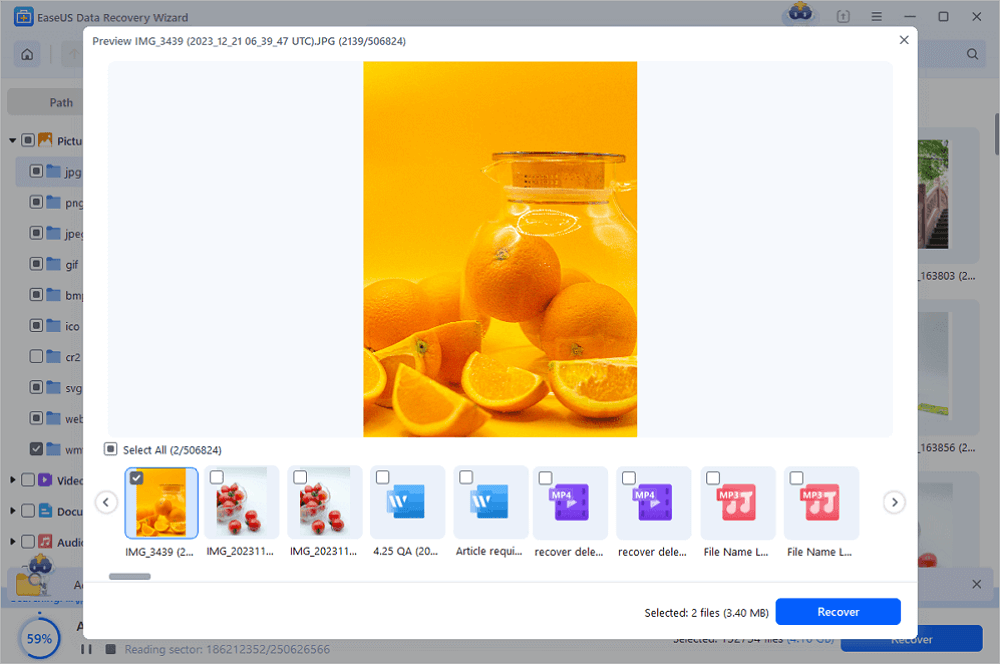
In addition to Quick Scan and Deep Scan functions, there are other features that allow users to recover photos and videos, filter and preview search results by filetype, support thousands of file types and several file systems, it might be possible also to recover data from a corrupted RAW drive.
It is also possible to fix corrupted photos/video/document, recover data from encrypted BitLocker drives, and NAS recovery
| Pros | Cons |
| Up to 2GB free recovery with the Free version | Free recovery is limited to 2GB |
| Supports FAT12, FAT16, FAT32, exFAT, NTFS, and more | Advanced features require the Pro version |
| Offers Quick Scan and Deep Scan | Pro version is listed at $69.95 |
| Supports 1,000+ file types and 2,000+ storage devices | |
| Lets you preview files before recovery | |
| Includes photo, video, and document repair |
Best for: Beginners and regular Windows users who need an all-around tool for recovering photos, videos, documents, and other files from SD cards.
How to recover SD card data using EaseUS Data Recovery Wizard
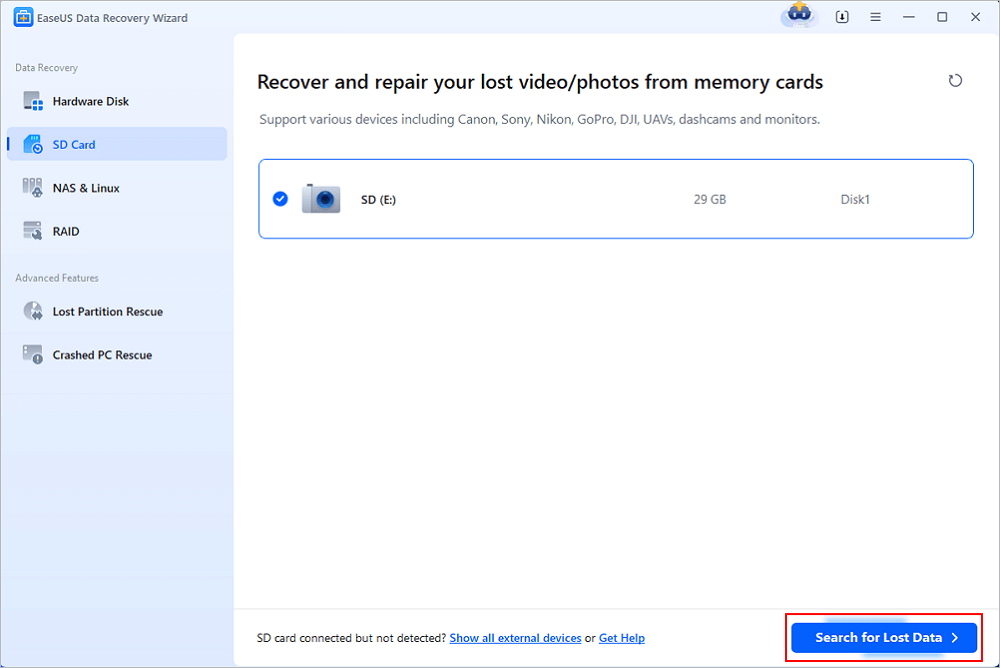
Step 1: Scan the SD card
Connect the SD card to your computer, open EaseUS, and choose SD Card Recovery. Select your card and then click on “Search for lost data.”
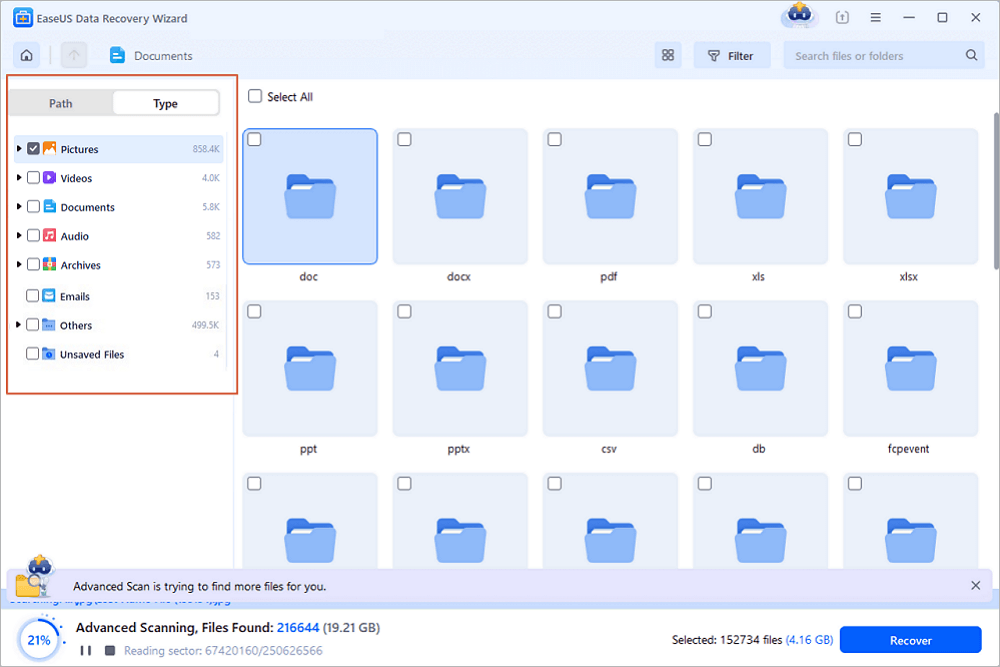
Step 2: Locate the missing items
Use Filter to only locate the types of files that you’re searching for such as pictures, videos, and so on. Quick Scan is for detecting files deleted recently whereas Deep Scan can be done to find RAW files or files that no longer have file names or paths.
Step 3: Preview and recover
If you decide to recover multiple files from an SD card, the arrow buttons in the preview window can be utilized to view a single file at a time. After selecting the files, click “Recover” to save them all.
Recuva — Best lightweight free option for simple deletions
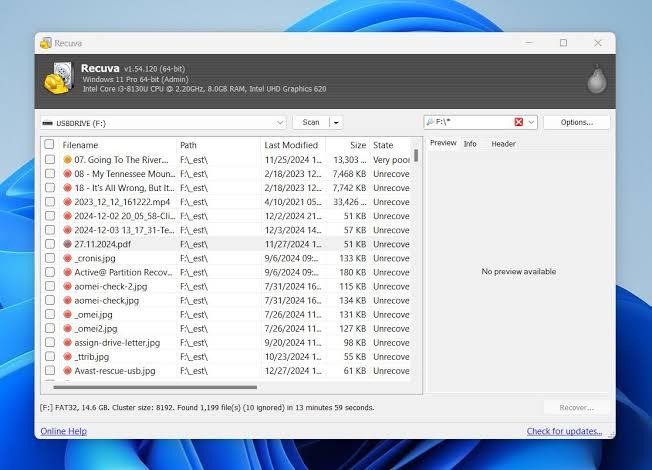
Recuva is a Windows-based recovery tool that allows you to find and restore deleted photos, videos, music, documents, emails, and other files from SD cards, camera cards, removable disks, memory sticks, or any other rewritable media. This program includes such features as advanced file recovery, Deep Scan capability, and recovery from damaged or formatted storage media all features of the paid version are also included in the free edition, which is limited to the main file recovery functions.
| Pros | Cons |
| Free version available | Advanced features are limited compared with some paid tools |
| Supports many file types | Best suited to simpler recovery needs |
| Deep Scan for hard-to-find files | Pro version costs $24.95 |
| Can recover from damaged or formatted drives | |
| Simple and lightweight |
Best for: Users who want a lightweight free tool for recovering recently deleted files from an SD card.
PhotoRec — Best completely free & open-source option
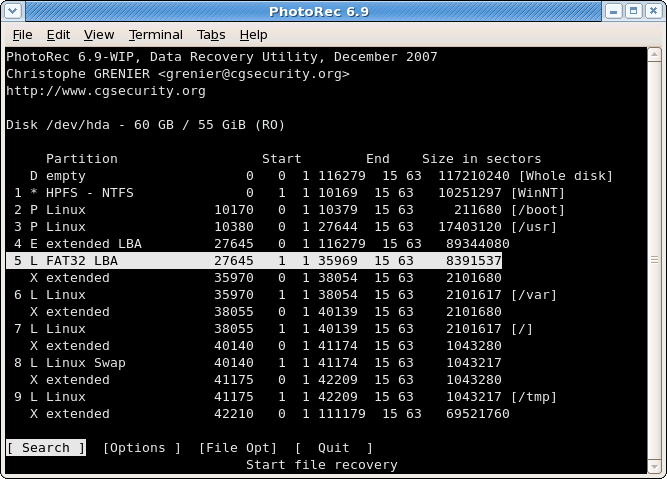
PhotoRec is a completely free open-source program that can recover various types of lost data such as photos, videos, and documents. In such cases where the file system is so damaged or has been overwritten to the extent that none of other methods can help, PhotoRec can still be able to pull out your files. However, EaseUS and Recuva, which have a simple and easy-to-use graphical interface, PhotoRec, on the other hand, can only be used through the command line meaning that users should at least possess some basic computer skills.
| Pros | Cons |
| Completely free and open source | Command-line-style interface can be difficult for beginners |
| Works with FAT, NTFS, exFAT, ext2/ext3/ext4, and HFS+ | Does not offer the same beginner-friendly experience as graphical tools |
| Supports 480+ file extensions | Recovered files may lose their original names and folder structure |
| Can recover data from damaged or reformatted media | |
| Uses read-only access during recovery |
Best for: Technical users who want a completely free, open-source recovery tool and are comfortable using a command-line interface.
TestDisk — Best for Partition and File System Repair
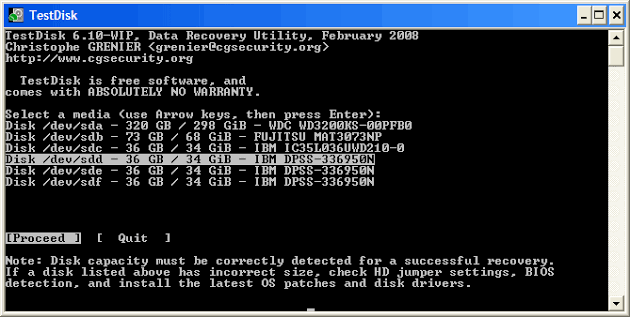
TestDisk is an entirely free, open-source tool, developed for the purpose of recovering lost partitions and also fixing corrupted file systems. In addition to repairing the partition tables, it can re-initialize FAT and NTFS boot sectors, locate and recover lost partitions, undelete files in FAT, exFAT, NTFS and ext2 file systems.
Nevertheless, a program that communicates via command line probably is most effectively used by people with technical background.
| Pros | Cons |
| Completely free and open source | Command-line-style interface can be confusing |
| Can recover lost partitions | Mainly focused on partition and file system repair |
| Repairs FAT and NTFS boot sectors | Not the best choice for simple file recovery |
| Supports FAT, exFAT, NTFS, and many other file systems | |
| Can undelete files from supported file systems |
Best for: Users dealing with lost partitions, damaged file systems, or boot-sector problems with an SD card.
R-Studio — Best for Advanced/Professional Users
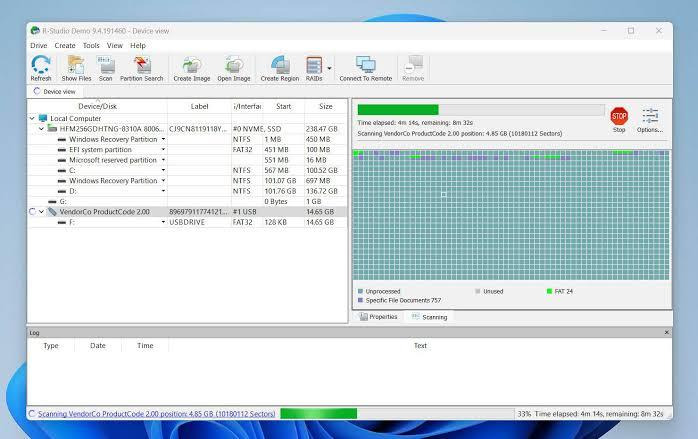
R-Studio is an advanced tool for data recovery targeted at professionals and technically savvy people. Besides supporting most file systems such as, for example, NTFS, FAT, exFAT, ReFS, HFS+, APFS, Ext2/3/4, and XFS, it is possible to retrieve data not only from broken or formatted partitions but also deleted ones. Besides that, there are other features like raw file recovery, RAID support, recovery of BitLocker-encrypted drives, disk cloning, network recovery, and detailed scanning controls, giving complex data recovery tasks hands-on control in the hands of users.
| Pros | Cons |
| Supports many file systems and storage types | Can be overwhelming for beginners |
| Advanced raw file recovery | More expensive than free recovery tools |
| Supports RAID, BitLocker, and disk images | Requires some technical knowledge |
| Can recover data from damaged or formatted partitions | |
| Detailed recovery and scan controls |
Best for: IT professionals, technicians, and experienced users handling complex SD card or storage recovery cases.
Part 4. How to Choose the Right One for Your Situation
Not sure which recovery tool to pick? It mostly depends on what you need.
- Seeking a totally free tool? Go with PhotoRec. This open-source software can retrieve files from extensively damaged or reformatted storage.
- Wishing for a straightforward and effortless solution? Try EaseUS Data Recovery Wizard. Its neat interface, thumbnail previews, and Quick Scan and Deep Scan features will greatly relieve first-timers in the process of data recovery.
- Lost partition recovery or repair files system issues? Choose TestDisk. It is mainly built for partition and file system repair.
- Need a lightweight free option for simple deletions? Get Recuva software that is an ideal solution for deleted files recovery, basic data restoration.
- Handling a complex recovery case? Opt for R-Studio. Its sophisticated settings, support for RAID, BitLocker, disk images and numerous file systems make it a more suitable tool for experts only.
Part 5. How to Prevent Data Loss on an SD Card
It is much better to prevent SD card data loss rather than to recover files later. Some small changes to routines and habits can be of great help in the preservation of your pictures, videos, and other critical information. Please refer to these hints when handling an SD card:
- Backup of important files: Routinely save photos and videos to your computer or cloud storage.
- Unmount the SD card safely: Always make sure that a proper ejection is performed before removing an SD card from your computer, camera, or a similar device.
- Don’t remove the card until it’s inactive: Do not remove the card while it is storing, moving, or transferring files.
- Leave some empty space: Filling the SD card up to the maximum capacity is not advisable since it might affect performance and cause storage issues.
- Formatting on the device: If there is a necessity to format an SD card, make use of the camera or device that you will be using with the card.
- Change broken or faulty cards: As soon as an SD card starts to have problems such as errors, loss of files, and the like, transfer the contents onto a fresh SD card.
Final Words
Deciding which SD card recovery software to get is all tied to the extent the files are damaged and the amount of help you require. A Windows data recovery program like EaseUS Data Recovery Wizard is probably the best choice for regular Windows users in most cases, as it is simple, has Quick Scan as well as Deep Scan, allows files to be previewed, and supports several file types.
Want a free tool? PhotoRec may serve as a good solution, whereas Recuva will suit those who need to recover recently deleted files. TestDisk is, however, more suitable when you have file system and partition issues. R-Studio will fit better for complicated recovery situations.
Whichever software you pick, do not start using the SD card if you have lost some data. This is to prevent overwriting your files with new content.
Part 7. SD Card Recovery Software FAQs
Is free SD card recovery software good enough? What are the limits?
Yes, for simple recovery jobs. Free tools may limit recovery size or features. For example, EaseUS Data Recovery Wizard Free allows up to 2GB of recovery.
Will these tools work for microSD cards too?
Yes. Most recovery tools support microSD cards when connected through a card reader, adapter, or compatible device.
Can I recover data from a formatted SD card?
Yes, recovery may be possible after formatting. Stop using the card to avoid overwriting the lost data.
Can these tools recover RAW photo files from cameras?
Yes. Some tools support RAW file recovery and can find photo data even when the file system is damaged.
Is it safe to use SD card recovery software?
Yes, if you use trusted software. Avoid saving recovered files back to the same SD card.

Find Trusted Cardiac Hospitals
Compare heart hospitals by city and services — all in one place.
Explore Hospitals