
Meta Description
Discover the top 10 hard drive recovery tools in 2026. Compare their features, pros, cons, pricing, and recovery options to find the best software for your needs.
Part 1. Introduction and Quick Verdict
Need the best hard drive recovery software for Windows in 2026?
It really depends upon the reasons you lost data, the free data it can recover, easy to use. EaseUS Data Recovery Wizard offers the guided scan, preview and recovery process.
Free programs may be good enough for straightforward recovery, while paid programs provide a more user-friendly process and additional capabilities. This article compares 10 hard drive recovery programs for Windows, both internal and external drives, detailing their features, advantages, disadvantages, and pricing.
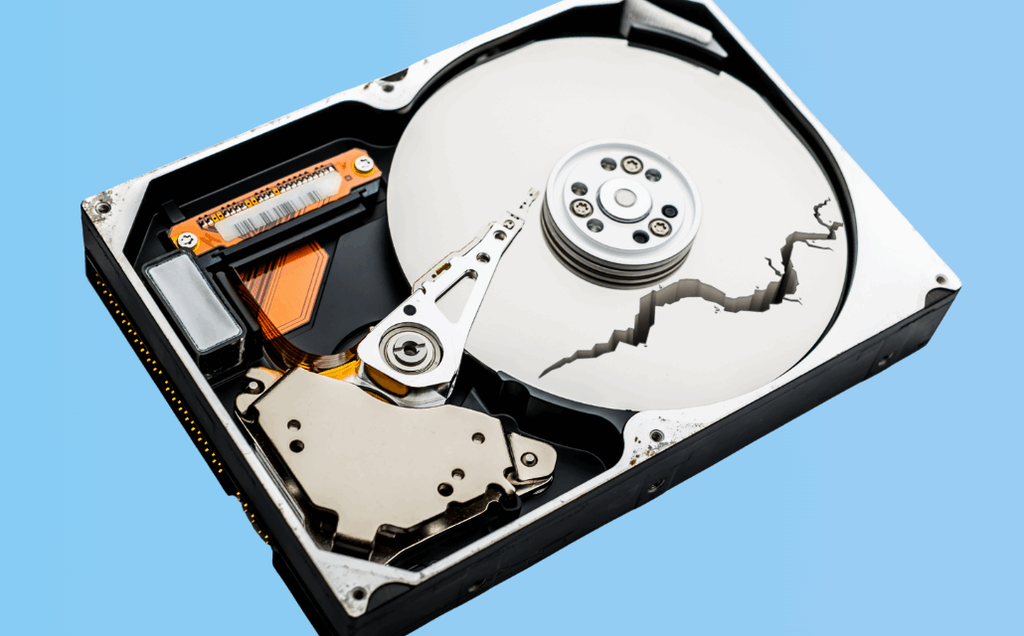
Alt: top 10 hard drive recovery tools
Quick Picks: Best Hard Drive Recovery Tools in 2026
| Category | Tool | Why we picked it |
| Featured recommendation | EaseUS Data Recovery Wizard | Best for guided recovery of deleted files from internal and external hard drives. |
| Best free option | Recuva | Offers free file recovery without a stated data-size cap. |
| Best for advanced users | R-Studio | Supports RAID recovery, multiple file systems, disk imaging, and recovery over a network. |
| Best for beginners | EaseUS Data Recovery Wizard | Its simple interface, guided scanning, and file previews make it a practical starting point for first-time users. |
Quick verdict: EaseUS is our featured choice for users who want a straightforward recovery process.
Part 2. Top 10 Hard Drive Recovery Tools (for 2026)
- EaseUS Data Recovery Wizard — Best for Easy Hard Drive Recovery
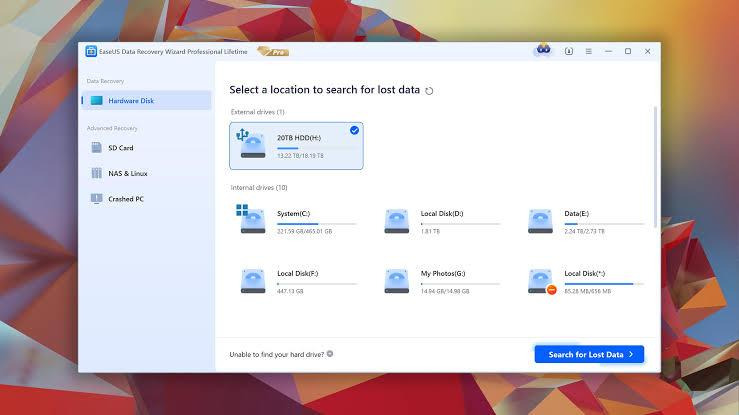
EaseUS Data Recovery Wizard 21.0.0 for Windows is a good fit if you want a guided way to recover deleted files from an internal or external hard drive. It can also scan formatted drives, RAW drives, and lost partitions. The new Recovery Assistant is especially useful when a scan returns a long list of files. It helps you narrow down what to review and guides you toward the next step if a partition is missing or a recovered file needs repair. If an entire partition has disappeared from your drive, see the comparison of partition recovery tools for Windows to find out which tools can restore the partition itself and which can recover files from it.
Key features:
- Quick and deep scans help find deleted or lost files, including files from formatted drives. Version 21.0.0 also improves scan and recovery performance across NTFS, FAT, exFAT, ReFS, and ext file systems.
- AI Recommended filters out duplicate and less relevant results on your PC without uploading file contents. You can switch back to the full results and preview photos, videos, or documents before recovery.
- Lost-partition guidance helps you decide whether to try restoring access to an eligible partition or recover files from it. Pro includes repair tools for supported photos, videos, and Office documents.
Pros:
- Simple three-step workflow: select a drive, scan, and recover.
- Supports NTFS, FAT, exFAT, ReFS, and other file systems.
- Recover files from HDDs, SSDs, USB drives, and lost partitions.
Cons:
- Free recovery is limited to 2GB.
- Advanced repair and bootable recovery features require Pro.
- Recuva — Best for Free Deleted File Recovery
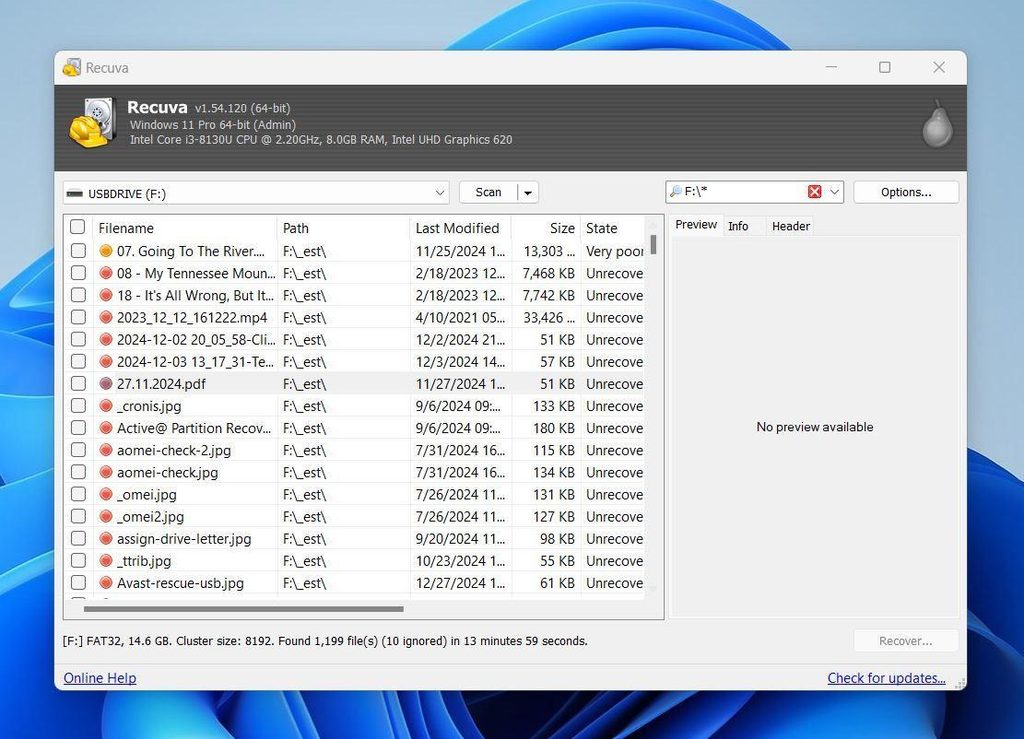
Recuva is suitable for Windows users who wish to recover files that are accidentally deleted but do not want to pay for a subscription. Free file recovery is available without an advertised data-size limit. It is less feature-rich than file recovery software such as EaseUS and Disk Drill.
Key features:
- Storage Media support: Supports recovering files from internal and external hard drives, flash USB drives, memory cards, digital photographic cards, MP3 players etc.
- Deep scan: Locates deleted files when a ordinary scan fails in the case of damaged, or newly formatted drives.
- Secure deletion of files: Overwrites files with random binary patterns so that you can remove unnecessary files and completely prevent the possibility of their recovery.
Pros:
- Free file recovery with no advertised recovery-size limit.
- Supports photos, videos, documents, music, and emails.
- Offers a deep scan for harder-to-find deleted files.
Cons:
- Virtual hard drive support is limited to the Professional version.
- Lacks some advanced disk imaging and RAID recovery capabilities.
- Recovery from heavily corrupted drives may be limited.
- R-Studio — Best for RAID Recovery
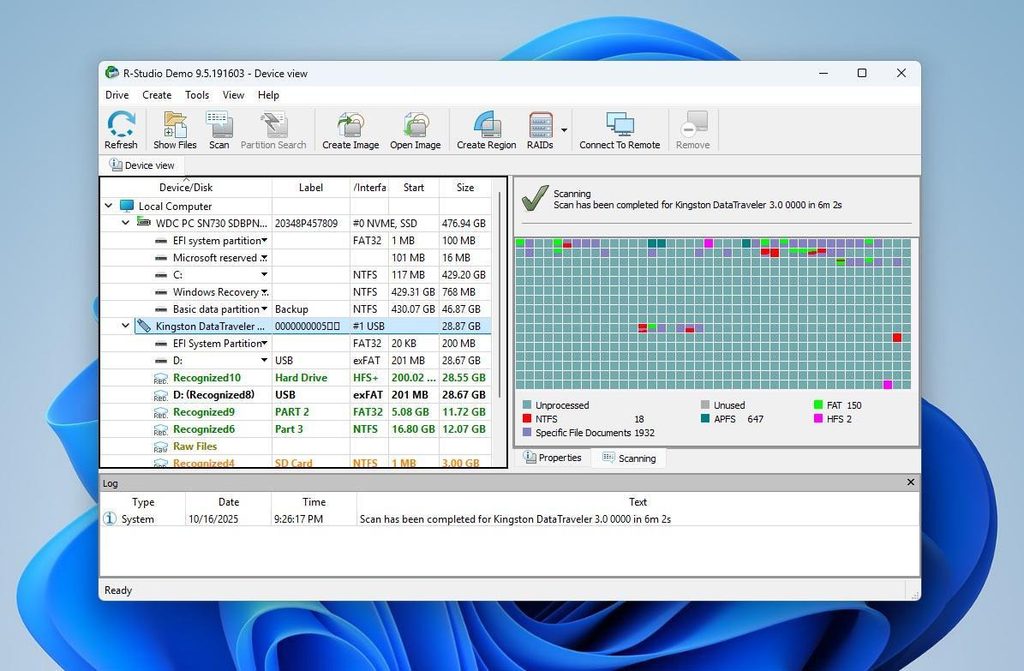
R-Studio has been around for a long time and is a more powerful recovery tool for IT professionals and power users. It can handle compromised hard drives, missing partitions, RAID data and unbootable systems. Disk imaging, network recovery and cross-platform file system support make R-Studio suitable for more advanced recovery work. However, it is not always easy to use.
Key features:
- Storage media support: Retrieves data from internal and external HDD and SSD, as well as USB drives, RAID, NAS and VHD virtual disk.
- File system recovery: NTFS, ReFS, FAT, exFAT, APFS, HFS+, ext4, XFS and other file systems from Windows, Mac, and Linux.
- Better recovery tools: Provides imaging and rebuilding of disks, network recovery, and emergency recovery for non-booting computers.
Pros:
- Handles complex RAID configurations and heavily corrupt partitions.
- Creates disk images to reduce repeated scanning of unstable drives.
- Supports recovery across Windows, macOS, and Linux file systems.
Cons:
- Advanced interfaces may be challenging for beginners.
- Demo mode limits recovery to files smaller than 1MB each.
- PhotoRec — Best for Free Open-Source File Recovery
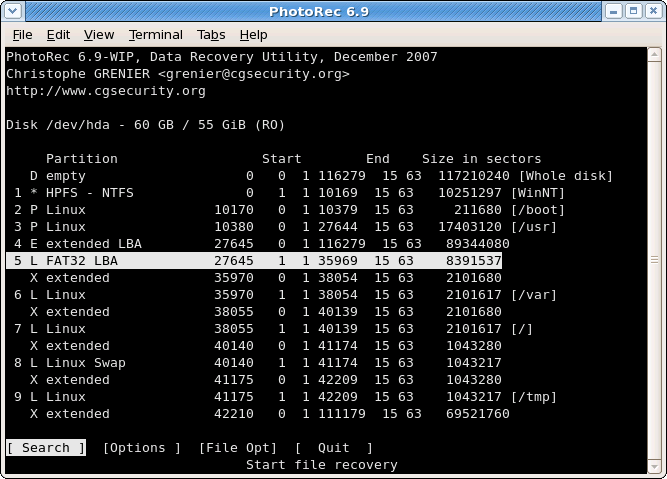
PhotoRec is a completely free open-source software for anyone who wants to retrieve lost files without purchasing a license. In contrast with most recovery tools, it scans for file signatures instead of file system information, and thus can be used on drives that are either very bad or have been reformatted. It supports more than 480 file extensions.
Key features:
- Support for various media types: Almost anything that storage media includes such as HDD & SSD, portable USB drives, SD cards, CompactFlash, CD-ROMs, also the disk images dd or EnCase E01 will be recoverable with these software features.
- File system-independent data recovery: This tool can scan, detect, and recover even the files that are lost or corrupted due to the file system itself like FAT, NTFS, exFAT, ext2/3/4, and HFS+ that may not be the right type.
- Scanning of file signatures: Recognition of more than 480 different file extensions for nearly 300 different file formats such as JPEG, PDF, ZIP, Office documents, and video files.
Pros:
- Completely free and open-source with no recovery-size limit.
- Uses read-only access to avoid modifying the source drive.
- Works on Windows, macOS, Linux, and several Unix-based systems.
Cons:
- Text-based interface has a steeper learning curve.
- DMDE — Best for Advanced Partition and File Recovery
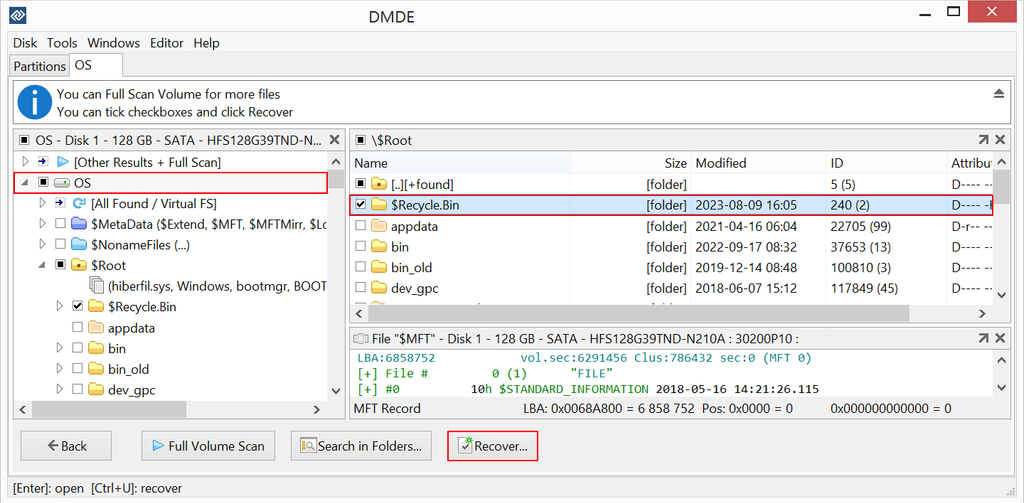
DMDE is great for those who have lost files, formatted disks, lost partitions or damaged file systems. It is a data recovery tool that includes sophisticated scanning capabilities, RAID reconstructions, partition management, and disk copying. While the free version limits you to recovering 4,000 files from a single directory per use, there are no such restrictions in other respects; repeat as often as required.
Key features:
- Media type support: Can salvage data from internal and external HDDs, SSDs, USB drives, SD cards, RAID arrays, and disk images.
- Advanced recovery: Finds deleted files, formatted volumes, lost partitions, and corrupted file systems.
- Disk tools: Partition manager, RAID builder, disk clone, disk editor, cluster map and more.
Pros:
- Free recovery of up to 4,000 files from a selected directory per operation, with unlimited repetitions.
- Can reconstruct original filenames and folder structures when sufficient metadata remains.
- Includes advanced partition recovery and RAID tools.
Cons:
- Technical interface may be confusing for first-time users.
- Disk Drill — Best for Hard Drive Recovery and Disk Health Monitoring
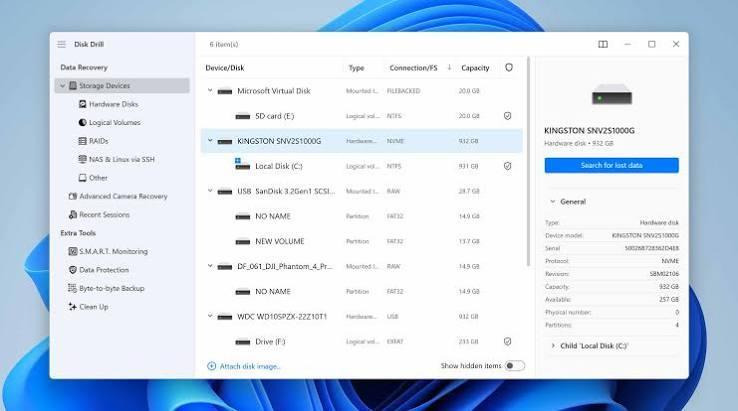
Disk Drill is one of the top Windows tools available today. For recovering lost files while monitoring the health of your drive, Disk Drill is the perfect solution for scanning deleted files, formatted disk and RAW drive.
The simple interface allows for easily navigating through the menu to locate your options for data recovery. It also provides disk imaging and S.M.A.R.T. monitoring tools. Free version has recovery limitations.
Key features:
- High performance file recovery capability: Can scan internal and external drives even if these are reformatted, RAW, or unreadable partitions.
- Byte-to-byte disk image creation backup: It is possible to recover the data from the image without having to repeatedly scan the original drive.
- S.M.A.R.T. monitoring: Checks supported drives for warning signs of hardware problems.
Pros:
- Easy three-step recovery process with file previews and filters.
- Supports NTFS, exFAT, ReFS, ext4, APFS, and several other file systems.
- Includes disk imaging and drive health monitoring tools.
Cons:
- Free recovery is limited to 100MB on Windows, although file previews are free.
- Larger recovery jobs require a paid license.
- Stellar Data Recovery — Best for Recovering Files from Corrupted Drives
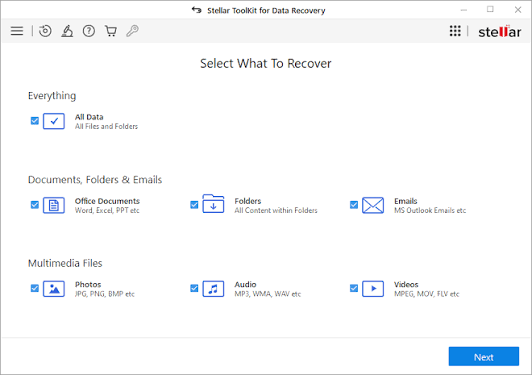
If your hard drive has become corrupted and you’ve had trouble accessing or opening your files, Stellar Data Recovery is another software solution to try. This product is easy to use with only three recovery steps and can recover over 1,000 different types of files. Stellar allows you to recover up to 1GB of data for free – handy for smaller recoveries.
Key features:
- Deep scan: Look for lost or deleted files on formatted, damaged, and RAW drives.
- File recovery: More than 1,000 file types are supported, such as JPEG, PNG, RAW, MP4, MOV, PDF, DOCX, ZIP and Outlook mailboxes.
- Read-only scanning: Performs scans on storage media without actively tampering with the data already stored on them.
Pros:
- Recovers up to 1GB of data for free without registration.
- Supports internal and external HDDs, SSDs, USB drives, and memory cards.
- Simple recovery workflow with support for over 1,000 file types.
Cons:
- Free recovery is limited to 1GB.
- Larger recovery jobs require a paid license.
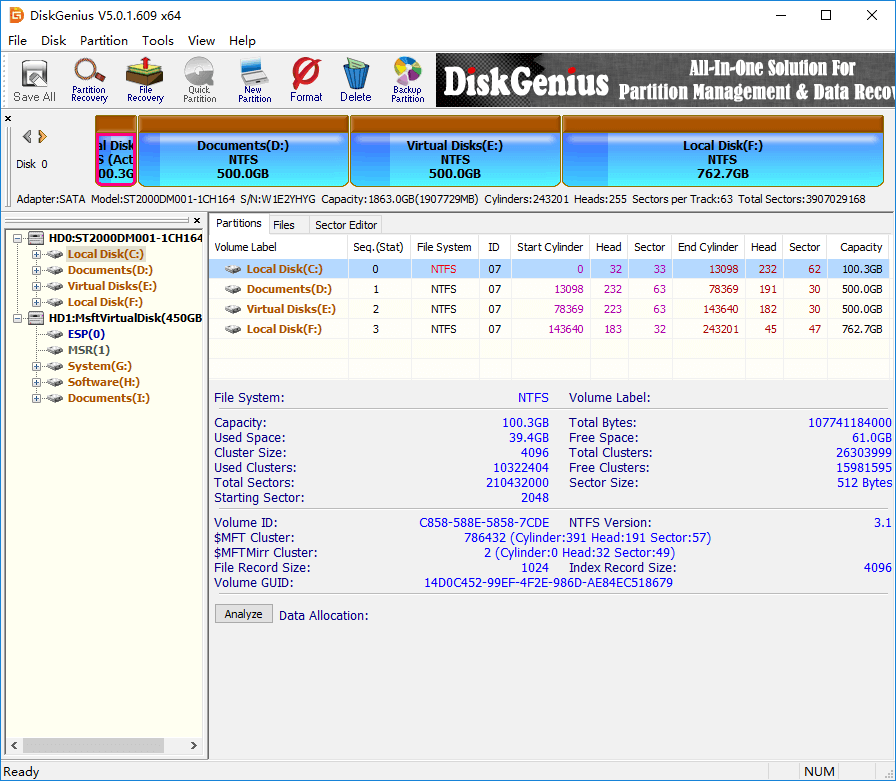
- DiskGenius — Best for Data Recovery and Partition Management
Disk Genius is a good all-in-one Windows recovery tool for partitioning, cloning, file recovery, and Windows migration. It can recover deleted files and restore a RAW partition, lost or damaged partition, or a hard drive that is not recognized. However, some options, such as recovering files larger than 4GB and advanced data recovery, require the Professional version.
Key features
- Can access and retrieve files saved on both the built-in and portable computer’s storage drives, including SSD, HDD, USB flash drive, SD memory card, and multi-disk RAID.
- It looks for disappeared partitions, changes volumes’ sizes, and supports EXT4/3/2 file systems.
- Offers disk cloning, Windows migration, S.M.A.R.T. health monitoring, bad-sector scanning, and boot repair.
Pros:
- Combines data recovery, partition management, and disk maintenance in one program.
- The free version supports disk cloning, basic partition management, and small-file recovery.
- Allows users to scan and preview recoverable files before upgrading.
Cons:
- Free recovery is restricted to small files.
- Full RAID tools, BitLocker features, and advanced partition recovery require Pro.
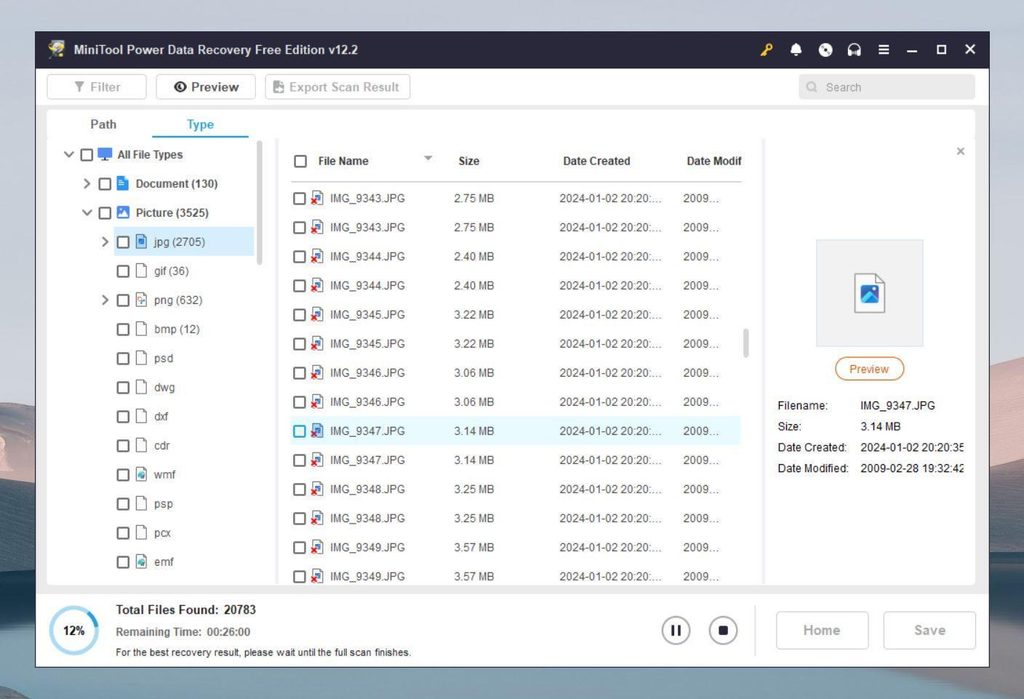
- MiniTool Power Data Recovery — Best for Recovering Files from Specific Locations
MiniTool Power Data Recovery is a Windows utility program with an easy to use interface for recovery of deleted files, formatted drives, and lost partitions. It supports over 2000 different types of files and also has the feature of limited area scanning where you can scan just a single folder, your whole Desktop area, or your entire Recycle bin without scanning the whole disk. Its simple three-step process makes it extremely easy to use but the free version is limited to recovery of just 1GB of data.
Key features:
- Support for media storage: Retrieval of files stored on internal or external HDD, SSD, flash drives, USB keys, memory cards including SD as well as.
- Targetted scanning: Locates files stored in folders, on the desktop, recycle bin, along with formatted/RAW drives and inaccessible partitions.
- File Preview: Provides preview option for documents, photographs, movies, compressed files and e-mail. The following files can be previewed: Docx, Pdf, Jpg, Mp4, Zip, and Pst.
Pros:
- Offers up to 1GB of free data recovery.
- Supports over 2,000 file types and a simple three-step recovery process.
- Scan specific locations to avoid unnecessary full-drive scans.
Cons:
- Free recovery is limited to 1GB.
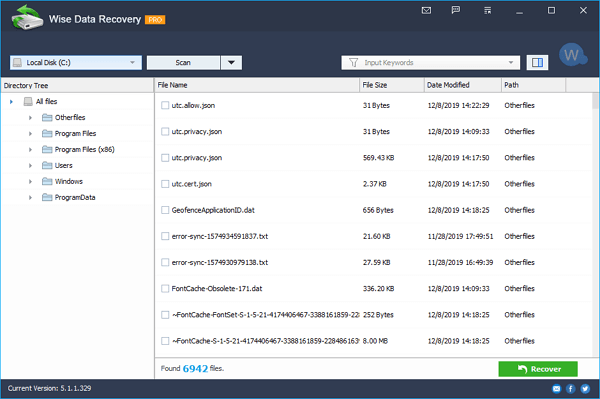
- Wise Data Recovery — Best for Lightweight and Portable File Recovery
Wise Data Recovery is a free and simple Windows program for recovering files you’ve deleted, entire drives, and data that you’ve lost after a virus attack. It’s quick to scan, lets you filter by file types, and runs as a portable application that doesn’t need to be installed. It supports more than 1,000 file types and gives 2GB of free recovery. Larger recovery jobs will need the Pro version.
Key features:
- Supported storage media: Recovers deleted files from internal, external HDDs, SSDs, USB drives, SD cards, floppy disks, digital camera storage media, etc.
- The files recovery software that recovers files also includes an ability to recognize the types of files and formats, and is compatible with FAT, NTFS, and HFS file systems.
- Portable recovery and scanning: There is a compact version of the tool, along with quick scans, keyword search, and file-type filters to find deleted files.
Pros:
- Offers up to 2GB of free data recovery.
- Portable version can run from a USB drive without installation.
- Lightweight 11.4MB download with support for Windows XP through Windows 11.
Cons:
- Free recovery is limited to 2GB.
Part 3. Comparison of the 10 Hard Drive Recovery Tools
The table below compares all 10 tools based on their best use cases, supported storage devices, standout features, free recovery limits, and pricing.
| Software | Best for | Key features | Free recovery |
| EaseUS Data Recovery Wizard | Beginners | HDD/SSD/USB recovery, deep scan, preview, file repair | Up to 2GB |
| Recuva | Free deleted-file recovery | HDD/USB/card recovery, deep scan, secure overwrite | No advertised size cap |
| R-Studio | Advanced and RAID recovery | RAID reconstruction, disk imaging, network recovery | Demo: files under 1MB each |
| PhotoRec | Free open-source recovery | File-signature scanning, 480+ extensions, read-only access | Unlimited |
| DMDE | Advanced partition recovery | RAID, disk cloning, full scans, folder reconstruction | 4,000 files per selected directory per operation |
| Disk Drill 6 | Recovery and disk health | RAW recovery, disk imaging, S.M.A.R.T. monitoring | 100MB |
| Stellar Data Recovery | Corrupted drives | HDD/SSD/SD recovery, 1,000+ file types, preview | 1GB |
| DiskGenius | Recovery and partition management | Partition repair, cloning, S.M.A.R.T., bad-sector checks | Limited small-file recovery |
| MiniTool Power Data Recovery | Targeted file recovery | Specific-folder scans, 2,000+ file types, preview | 1GB |
| Wise Data Recovery | Portable recovery | HDD/SSD/USB recovery, quick scan, portable version | 2GB |
Part 4. Which Hard Data Recovery Tool is Right for You?
Not all recovery tools are suitable for every problem. Some are more suited for novices; others give you more control over corrupt partitions or systems with multiple disks. How do you choose?
Looking for an Easy-to-Use Recovery Tool?
EaseUS Data Recovery Wizard: Our pick for those new to data recovery, EaseUS Data Recovery Wizard allows you to choose a drive, scan for data, and then select what you want to recover. Supports formatted drives, RAW drives, and external HDDs.
Need to Recover Files for Free?
Begin with Recuva for free recovery of accidentally deleted files up to a specific data size.
Photo Rec, which, despite its steep learning curve, can retrieve files from extremely damaged or reformatted disks.
EaseUS and Wise Data Recovery provide 2GB of free recovery for smaller jobs. However, Stellar and Mini Tool only offer 1GB for free.
Need Advanced Recovery Features?
R-Studio is suitable for RAID recovery, corrupted partitions, disk image, and recovery from unbootable machines.
Disk Genius is suitable if you also want partitioning tools, disk cloning, and drive health checks. DMDE provides in-depth file system details, recovery of complex disks (RAID, etc.) and partition recovery, with a decent free file count.
When Should You Consider Professional Help?
Recovery software is most effective when the drive is in good physical condition, but the data is deleted, formatted, or corrupt due to software errors.
If your hard drive clicks or grinds, disconnects repeatedly, isn’t detected, or appears physically damaged, don’t attempt any additional scanning. It could cause even more damage. Have a professional recovery service evaluate it; they can tell if the drive needs specialized equipment or cleanroom work. Keep in mind that even professional recovery is not always successful.
Before You Attempt Recovery
- Stop using the affected drive to avoid overwriting deleted data.
- Never install recovery software or save recovered files on the same drive.
- Avoid formatting, running CHKDSK, or modifying partitions before recovering important files.

I’m Rajesh Kumar, a DevOps, SRE, DevSecOps, Cloud, and Platform Engineering expert passionate about sharing practical knowledge, real-world experiences, and industry best practices. I have worked at Cotocus and regularly write about technology, travel, investing, health, product reviews, and digital marketing through my various platforms.
I publish technical articles at DevOps School, travel stories at Holiday Landmark, stock market insights at Stocks Mantra, health and fitness guidance at My Medic Plus, product reviews at TrueReviewNow, and SEO and digital marketing strategies at Wizbrand.
Find Trusted Cardiac Hospitals
Compare heart hospitals by city and services — all in one place.
Explore Hospitals