I am running my app on 10.3.23.23:3000 but the i would like to access at 80 port instead 3000 but the same time i dont want to change app config. what are ohter ways we have
If you want your application to be accessible on port 80 without changing its configuration (which currently runs on port 3000), you can use a reverse proxy or port forwarding. These methods allow you to keep your application running on its original port while externally it appears to be running on port 80. Here are a few approaches:
1. Using a Reverse Proxy
A reverse proxy server sits in front of your application and forwards client requests to the application backend. This is a common way to expose applications running on non-standard ports to standard ports like 80 (HTTP) or 443 (HTTPS).
Nginx
Here’s an example configuration for Nginx. If you don’t have Nginx installed, you’ll need to install it first.
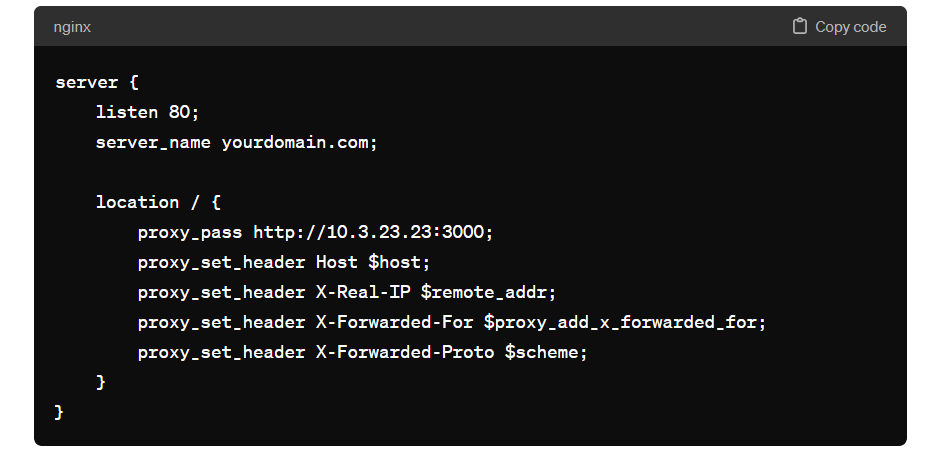
After configuring, restart or reload Nginx for the changes to take effect.
Apache
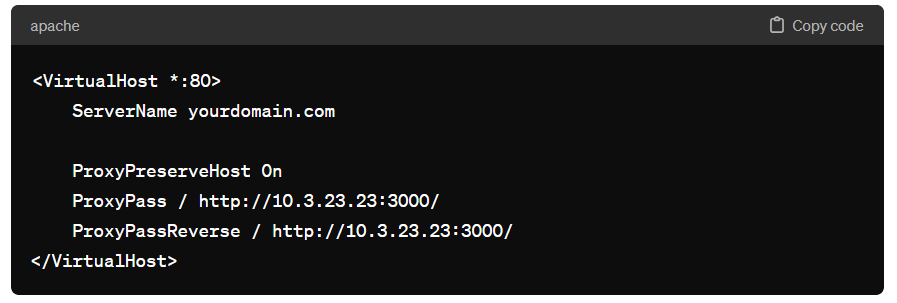
If you’re using Apache as a web server, you can configure it to act as a proxy using mod_proxy and mod_proxy_http. Here’s an example configuration:
Ensure that mod_proxy and mod_proxy_http are enabled, then restart Apache.
2. Using iptables for Port Forwarding
If you’re running a Linux server and prefer not to use a reverse proxy, you can use iptables for port forwarding. This method routes traffic coming into port 80 to port 3000.
Here’s how to forward port 80 to port 3000 using iptables:
To make the rule persistent across reboots, you’ll need to install iptables-persistent or manually add the rule to your startup scripts, depending on your Linux distribution.
$ sudo apt-get update
$ sudo apt-get install iptables-persistent

$ sudo iptables -t nat -A PREROUTING -p tcp --dport 80 -j REDIRECT --to-port 3000

Save Your Rules Manually: If you've already installed iptables-persistent or if you need to save new rules after installation, you can save your current iptables rules by executing:


$ sudo netfilter-persistent saveCode language: JavaScript (javascript)
3. Using a Load Balancer
If you’re deploying your application in a cloud environment (like AWS, GCP, Azure), you can use their load balancer services to forward traffic from port 80 to port 3000. You’ll need to set up a load balancer, point it to your application, and configure the listeners to forward traffic from port 80 to port 3000. This approach also gives you the benefit of scaling, SSL termination, and more, depending on the cloud provider’s offerings.
Each of these methods allows you to expose your application on port 80 without changing the application’s configuration. Choose the one that best fits your environment and needs.

I’m Rajesh Kumar, a DevOps, SRE, DevSecOps, Cloud, and Platform Engineering expert passionate about sharing practical knowledge, real-world experiences, and industry best practices. I have worked at Cotocus and regularly write about technology, travel, investing, health, product reviews, and digital marketing through my various platforms.
I publish technical articles at DevOps School, travel stories at Holiday Landmark, stock market insights at Stocks Mantra, health and fitness guidance at My Medic Plus, product reviews at TrueReviewNow, and SEO and digital marketing strategies at Wizbrand.
Find Trusted Cardiac Hospitals
Compare heart hospitals by city and services — all in one place.
Explore Hospitals