We are going to discuss Installing Jenkins today. We will be focusing on installing it on Tomcat server as a servlet, and tomcat will act as a container for Jenkins.
Step 1 : Check java 1.8 is installed in the system.

Step 2: Installing Tomcat server.
Tomcat server of your choice can be downloaded from below link :
https://tomcat.apache.org/download-90.cgi – I downloaded core zipped version for my mac. which was 11mb in size.
Create a new folder and place the downloaded zip file there and Unzip it:
For unzipping u can type :
>/ unzip <file.name>

Now, goto /Users/penguin/tomcat/apache-tomcat-9.0.31/bin , for you path could be different depending upon the time and version which you are using for tomcat but It could be pretty much similar in any case :
when you will run ls command there you will see something similar
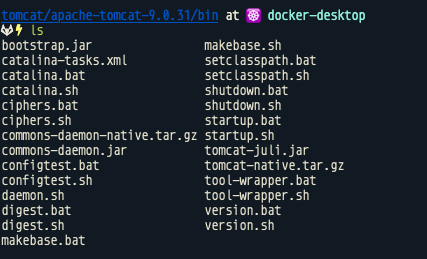
Run, sh startup.sh command which should start tomcat for you.

If you are getting a permission error like below :

Run, chmod +x catalina.sh

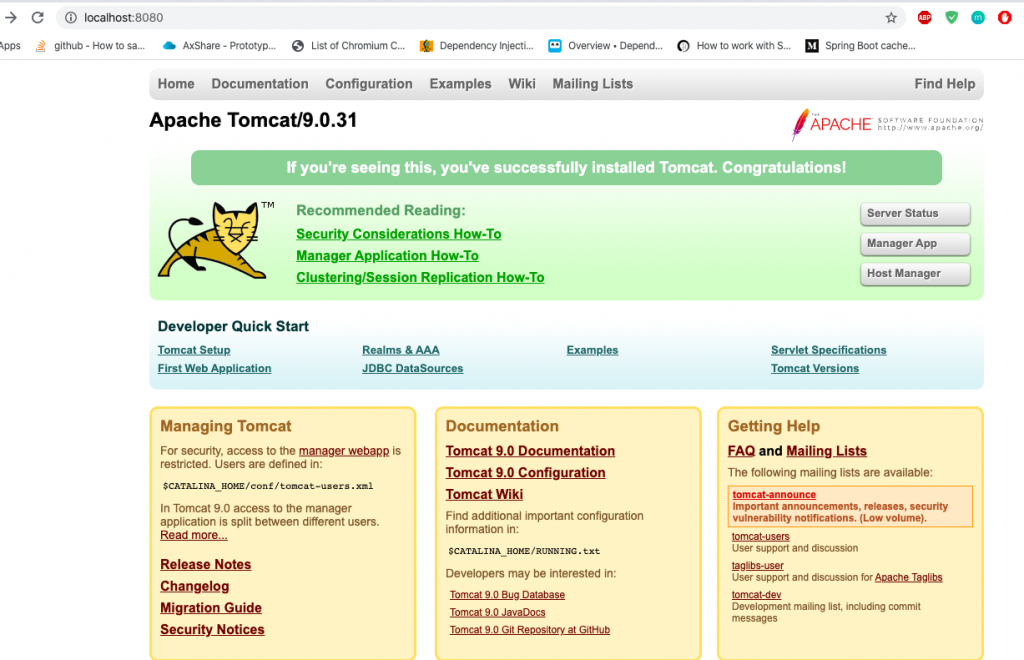
You should be good post this goto : localhost:8080 you will see something line this , Step 2 completed, phew !!!!
Step 3: Installing Jenkins as servlet on Tomcat as container.
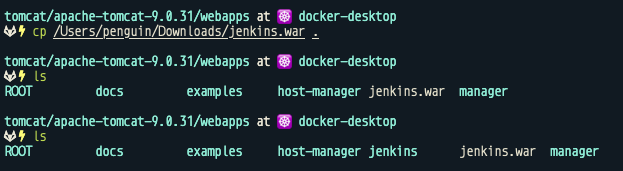
First let’s download latest Jar of Jenkins, from here. Once done place the jar in /Users/penguin/tomcat/apache-tomcat-9.0.31/webapps
Make sure, your tomcat server is up and running, as we will copy the jar file Tomcat will start the jar automatically and a jenkins folder will get created in the webapps directory – which will be something like below –
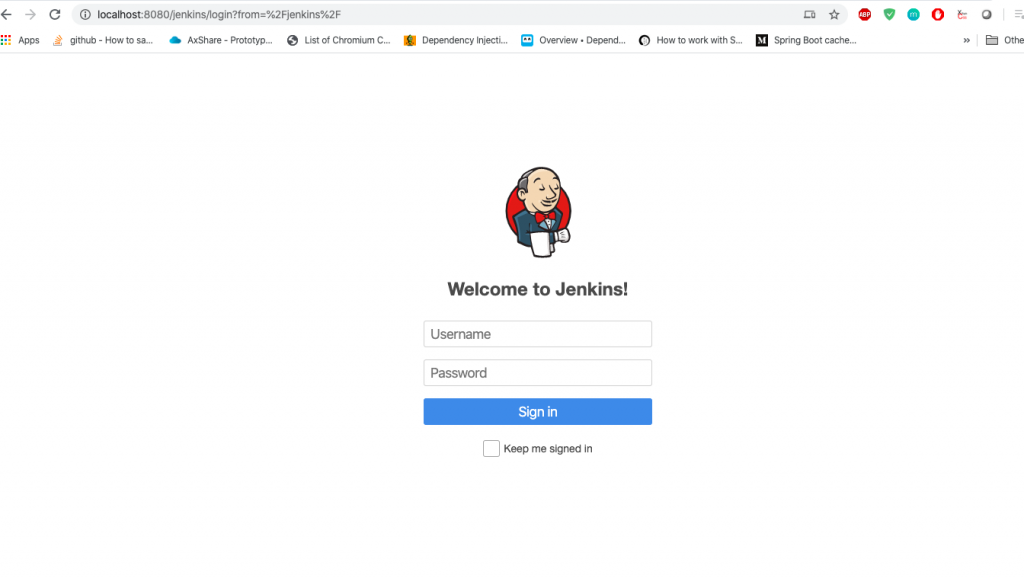
Now, let try accessing jenkins – try going to localhost:8080/jenkins
If you see something like this – you are done !!! thanks for holding your nerves and following all steps – if you see any error feel free to reach out to me.
Reference :
https://wiki.jenkins.io/display/JENKINS/Tomcat
https://docs.oracle.com/javaee/5/tutorial/doc/bnafe.html – for servlet

MotoShare.in offers unparalleled convenience and affordability in bike rentals, allowing users to enjoy hassle-free rides for commuting, exploring, or leisure trips. With a wide range of bikes and scooters, it’s your trusted partner for all two-wheeler needs.
Find Trusted Cardiac Hospitals
Compare heart hospitals by city and services — all in one place.
Explore Hospitals