Photoshop Intermediate Training
Correct composition, color casts and sharpness, build precise combined selections and export each image in the right format. Learn Photoshop through a clear Foundation to Advanced path, with hands-on labs, live cohort options, certification support and full LMS access.
Last updated
Self-paced video subscription
Billed yearly at ₹9,996. This includes all four levels, complete LMS access for one year, plus 20+ additional courses and 50+ tools access.
- All four Photoshop levels in one price.
- 20+ additional courses and 50+ tools included, even when subscribing to one course.
- Best fit for learners who want full-library access and flexible progress.
Live & Interactive session
Instructor-led cohort, max 8 to 10 hours, with demos, labs, Q&A, assignments and practical review.
- Live small-batch cohort from soon.
- Interactive discussion and lab troubleshooting.
- Recommended for teams that need guided implementation.
1:1 Live training
The same agenda, taught one-to-one by the trainer. Start immediately, without waiting for the next batch. Max 8 to 10 hours, one-to-one.
About Photoshop Intermediate Training.
Understand where Photoshop fits in modern software delivery, what this level covers, and how the program builds practical confidence step by step.
Program overview
Photoshop is taught as a practical technical skill for modern engineering, operations and platform teams. The course explains where the tool fits, how it is used in real delivery environments, and how learners can apply it through guided practice.
This DevOpsSchool Photoshop program is built for working professionals who want usable skills instead of only conceptual exposure. The training emphasizes live examples, workflow clarity, operational controls and progressive skill depth from Foundation to Intermediate.
Private Photoshop training for delivery teams, platform groups and engineering organizations.
DevOpsSchool provides corporate Photoshop training for teams that need faster adoption, workflow standardization, administrative control, integration guidance and governance-ready rollout. Private batches can be aligned to development practice, release workflow, access model, maturity level and internal tooling.
- Private online or classroom delivery for engineering teams
- Aligned to Photoshop usage maturity, admin depth and collaboration patterns
- Useful for rollout, migration, governance and workflow consistency goals
- Can be tailored for developers, administrators, DevOps teams and leadership stakeholders
Why teams use DevOpsSchool
DevOpsSchool combines live demonstration, practical workflow discussion, implementation-oriented examples, and strong post-session learning support. That makes the training more usable for real teams than generic slide-led courses.
Choose any level. The page still shows the full progression.
Foundation, Essential, Intermediate and Advanced are presented as one linked training flow. Self-paced buyers get all levels by default, even if they start from only one course page.
Instructor-led, self-paced and corporate delivery options.
Compare delivery format, duration, level access and batch style. Fees are shown only in the top decision panel and once again after the agenda.
| Duration | Mode | Level access | Batch |
|---|---|---|---|
| 8 to 10 Hrs. max | Live & Interactive | Intermediate | Public batch |
| 8 to 10 Hrs. max | 1:1 Live training | Intermediate | Starts immediately |
| 1 year LMS access | Self-paced video | All 4 levels | Anytime access |
| 3 Days | Corporate | Photoshop Intermediate Training | Private team batch |
What learners should be able to do after Photoshop training.
The outcomes are written for practical delivery teams: developers, DevOps engineers, release engineers, administrators and technical leads.
Edit photos non-destructively
Use layers, adjustment layers, masks and Smart Objects so every edit stays reversible.
Select and retouch precisely
Combine selection tools and healing features to isolate, fix or remove any part of an image.
Deliver print and social output
Size, composite and export images and posters in the right format for print, web and social media.
Why this skill, what you will achieve, and who should attend.
Use this section to decide whether the course matches your role, current experience and expected Photoshop responsibilities before reviewing the detailed agenda.
Why Photoshop matters
- Photoshop helps teams standardize a critical part of their software delivery, infrastructure, automation or operations workflow.
- It gives learners a repeatable way to move from basic usage to confident execution in team and enterprise environments.
- For DevOps and platform teams, Photoshop becomes more valuable when connected with automation, governance, monitoring and delivery practices.
- Teams using Photoshop effectively reduce ad-hoc execution and move toward consistent engineering standards.
Objectives
- Understand Photoshop concepts, architecture, terminology and operational usage patterns.
- Learn practical configuration, workflow design, access controls, team usage and quality practices.
- Apply Photoshop in real delivery workflows using automation, integrations, traceability and governance patterns.
- Build practical confidence to use Photoshop for individual, team and organizational use cases.
Pre-requisites
- Basic computer literacy and familiarity with software development workflows.
- Helpful but not mandatory: introductory DevOps, cloud, automation or software delivery awareness.
- No deep programming background is required for the Foundation and Essential levels.
Who this course is for
- Developers, administrators and engineers who need practical Photoshop usage skills.
- DevOps engineers, release engineers, SREs and platform teams managing delivery standards.
- Engineering leads and technical managers responsible for workflow quality, access controls and governance.
- Corporate teams migrating to or standardizing on Photoshop.
Small-batch live training starts every month.
Weekday batches start on the 1st and weekend batches on the first Saturday of every month. One-to-one (1:1) training can start immediately; corporate sessions are scheduled on demand.
Weekend live batch
Starts on the first Saturday of every month. Weekend sessions with demos, labs and Q&A; max 10 learners.
Weekday live batch
Starts on the 1st of every month. Weekday sessions for working professionals and distributed teams; max 10 learners.
Ask advisorAgenda depth up to the selected level.
This page shows the learning flow from Foundation through Intermediate. Each level adds to the previous one, and the agenda stops at the current page level. Day counts are for corporate (day-wise) delivery; live online batches cover the same agenda in max 8 to 10 hours.
Foundation Level: imaging concepts, setup and first editDay 1
- Digital imaging basics: pixels, raster versus vector graphics, image dimensions and resolution in ppi
- Color modes and bit depth: RGB for screen, CMYK for print, Grayscale, 8-bit versus 16-bit images
- Installing Photoshop: Creative Cloud desktop app, Adobe account sign-in, system requirements and updates
- Home screen and new documents: presets for web, print and mobile, artboards and canvas settings
- Opening files: Open, Open Recent, Place Embedded versus Place Linked and Photoshop cloud documents
- Navigating an image: Zoom and Hand tools, Navigator panel, Rotate View and screen modes
- Undo and recovery: History panel, snapshots, multiple undo levels, auto-save and file recovery
- Preferences and performance: memory usage, scratch disks, GPU acceleration, units and rulers
- Rulers, guides and grids: smart guides, snapping, New Guide Layout and pixel grid
- Brush basics: Brush tool size, hardness, opacity, flow and the Brush Settings panel
- Keyboard shortcuts: tool shortcuts, temporary tool switching and custom shortcut sets
- First edit: open a photo, apply Auto Tone and Auto Color, compare before and after, save a copy
Essential Level = Foundation + layers, selections, retouching, text and filtersDay 2 · 2 days cumulative
- Get to know Photoshop: workspace, Tools panel, Options bar, panels, Contextual Task Bar and saved workspaces
- Change the image size: Image Size dialog, resampling methods, Canvas Size and resolution for print or screen
- Work with layers: Layers panel, creating, renaming, reordering, grouping, locking and layer opacity
- Adjust the image quality: Brightness/Contrast, Levels, Curves and non-destructive adjustment layers
- Make selections: Marquee, Lasso, Object Selection, Select Subject and the Select and Mask workspace
- Retouch images: Spot Healing Brush, Healing Brush, Patch tool, Clone Stamp and the Remove tool
- Use color: Color Picker, Swatches and Color panels, Eyedropper, foreground and background colors, gradients
- Add text and shapes: Type tool, Character and Paragraph panels, shape tools and live shape properties
- Combine images: placing photos as layers, Smart Objects, Move and Align tools and basic layer masks
- Apply filters: Filter Gallery, Gaussian Blur, Camera Raw Filter, Neural Filters and editable Smart Filters
Intermediate Level = Essential + photo correction, sharpening and precise selectionsDay 3 · 3 days cumulative
- Crop and straighten a photo to improve composition: Crop tool overlays, Straighten and Content-Aware crop fill
- Correct an unwanted color cast: Curves gray-point eyedropper, Color Balance and Auto Color options
- Adjust the intensity of colors in a photo: Vibrance, Saturation and Hue/Saturation by color range
- Sharpen a photo to bring out details: Unsharp Mask, Smart Sharpen and High Pass on a Smart Object
- Save a photo in the best format for your needs: PSD, JPEG, PNG, TIFF, WebP, Export As and Quick Export
- What selections are and why you need them: isolating edits, saving and loading selections as channels
- Try out simple selection tools: Rectangular and Elliptical Marquee, Lasso, Polygonal Lasso and Quick Selection
- Combine selections to get exactly the selection you want: add, subtract and intersect, Feather and Modify
- Quickly select and change part of an image: Object Selection tool and an adjustment layer through the selection
- Select separate areas with the Magic Wand tool: Tolerance, Contiguous, Select Similar and Grow
Choose live training or a full year of self-paced access.
If someone buys Foundation, Essential, Intermediate or Advanced as self-paced video, the price stays the same and access is granted to all four levels by default.
Self-paced video subscription
Billed yearly at ₹9,996. This includes all four levels, complete LMS access for one year, plus 20+ additional courses and 50+ tools access.
- All four Photoshop levels in one price.
- 20+ additional courses and 50+ tools included, even when subscribing to one course.
- Best fit for learners who want full-library access and flexible progress.
Live & Interactive session
Instructor-led cohort, max 8 to 10 hours, with demos, labs, Q&A, assignments and practical review.
- Live small-batch cohort from soon.
- Interactive discussion and lab troubleshooting.
- Recommended for teams that need guided implementation.
1:1 Live training
The same agenda, taught one-to-one by the trainer. Start immediately, without waiting for the next batch. Max 8 to 10 hours, one-to-one.
- Start immediately: no waiting for the monthly batch.
- One learner, one trainer: full attention on your questions.
- Sessions planned around your working hours.
- Your pace, with examples from your own projects and tools.
Method of training and assessment.
The course emphasizes practical demonstration, hands-on labs and assignment-based validation instead of passive lecture-only learning.
| SL | Method of training and assessment | Weightage |
|---|---|---|
| 1 | Understanding the problem space | 5% |
| 2 | Concept discussion | 10% |
| 3 | Live demo and walkthrough | 25% |
| 4 | Lab and hands-on exercises | 50% |
| 5 | Assignments and evaluation | 10% |
Labs, exercises and real workflow practice.
Every level moves from explanation to hands-on practice, review and troubleshooting.
First photo edit from open to save
Open a photo, set up a custom workspace, apply automatic tone and color corrections and save both a layered PSD and a JPEG copy.
Retouch and caption a product photo
Resize a product photo, remove blemishes with healing tools, add a headline and shape, and finish with a Smart Filter.
Correct and export a travel photo
Crop and straighten a tilted photo, neutralise its color cast, sharpen it on a Smart Object and export web and print versions.
Photoshop is taught as part of a working delivery ecosystem.
You learn where the tool sits in the wider engineering workflow, not in isolation.
Core foundations
Terminology, concepts, architecture and the operating model behind the tool.
Workflow traceability
Map practical work to tasks, approvals, documentation and delivery visibility.
Automation and integration
Use Photoshop with validation checks, automation hooks and delivery workflows.
Governance controls
Operate with permissions, approvals, policy checks and production-safe workflows.
How your practical work is assessed.
Your certificate is backed by labs, assignments, capstone thinking and completion evidence.
Assignments
Level-specific assignments verify setup, configuration, workflow quality and operating discipline.
Hands-on validation
Learners are expected to complete practical usage, automation and troubleshooting exercises.
Completion record
Certificate issuance is tied to demonstrated participation, practical completion and course-level coverage.
Led by Rajesh Kumar and the DevOpsSchool practitioner network.
Training is grounded in practical DevOps, SRE, security, release and platform engineering experience with real enterprise delivery context.
Earn a DevOpsSchool Photoshop certificate.
Completion includes a digital certificate with credential details, practical assignments and a learning record aligned to the selected Photoshop level.
Certificate verificationCertificate of Completion
Photoshop Intermediate Training
Unique credential ID, verifiable online
What learners say about training with Rajesh Kumar.
“Rajesh is very good trainer. Rajesh was able to resolve our queries and question effectively. We really liked the hands-on examples covered during this training program.”
“Very well organized training, helped a lot to understand the AWS concept and detailed related to various tools. Very helpful”
“The training was very useful and interactive. Rajesh helped develop the confidence of all.”
Rated 4.6 on Google · All testimonials · Video reviews on YouTube
Quoted as published, from learners in Rajesh Kumar's live trainings across DevOpsSchool courses.
Used by developers, DevOps engineers, release leads and engineering managers.
Private batches are available for teams that want the same agenda aligned to their own tools and workflows.
Why this Photoshop path is different.
The value is not only one course. The subscription unlocks the full learning ecosystem for one year.
| Feature | DevOpsSchool Photoshop Training | Typical short course |
|---|---|---|
| Levels | Foundation, Essential, Intermediate, Advanced | Single generic syllabus |
| Self-paced access | All four levels plus 20+ courses and 50+ tools | Usually one course only |
| Live training | Demos, labs, Q&A and assignment review | Often lecture-heavy |
| Certificate | DevOpsSchool completion certificate | Varies by provider |
Questions learners ask before joining.
Does Foundation cost less than Advanced?
No. Self-paced pricing is intentionally the same because access includes all four levels by default.
What is included in the yearly subscription?
One year of complete LMS access, all four levels for the selected course, plus 20+ additional courses and 50+ tools access.
Can corporate teams request customization?
Yes. The live format can be aligned to team tools, governance requirements, workflows and internal delivery standards.
What is the recommended sequence?
Foundation → Essential → Intermediate → Advanced. The agenda is designed so each level builds on the previous one.
Talk to DevOpsSchool before choosing the batch.
Use this support section for batch questions, corporate planning, LMS access clarifications, or guidance on which Photoshop level fits your team.
India / Worldwide: +91 99057 40781
USA: +1 (469) 756-6329
Email: contact@DevOpsSchool.com
Chat on WhatsAppExtend the course with articles, explainers and workflow guidance.
Continue learning with supporting articles that connect Photoshop practices to DevOps, automation, governance and delivery workflows.
Training snapshots and certificate preview.
A look at the completion certificate and the course.
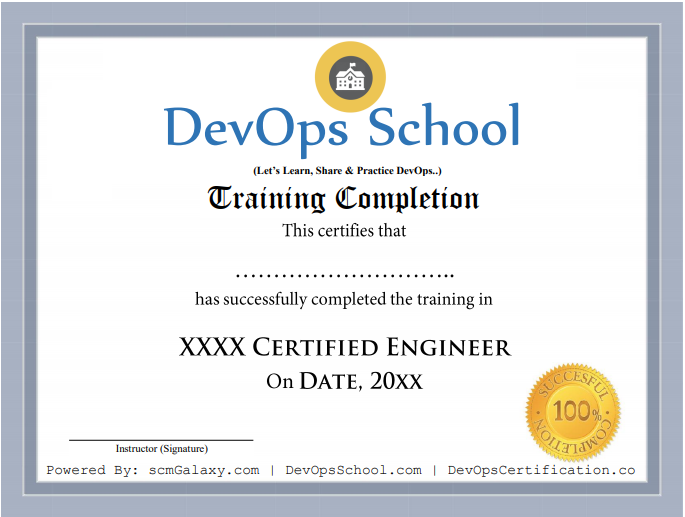
Certificate preview
See what course completion evidence looks like.
Tool-focused training
Course visuals reinforce the Photoshop workflow and subject area.
Live batch experience
Training supports live online, private team and workshop-style delivery.
Start Photoshop Intermediate training.
Next weekday batch starts on the 1st; weekend batch on the first Saturday. Batches are capped at 10 learners. Send your details and DevOpsSchool will share the syllabus and batch options.