
A practical, single-file publishing workflow for bloggers, technical writers and DevOps training teams.
Figure 1. Original featured illustration (1200 × 630 pixels).
Writing an excellent tutorial is only half the job. Moving it into WordPress without losing screenshots, diagrams, tables or executable commands is often the frustrating part. A self-contained Word document and the Mammoth converter provide a practical alternative to manually uploading each image or copying rendered HTML.
This guide explains how to prepare a document, import it, preserve technical code and verify the result. The workflow was demonstrated on a public DevOpsSchool test post on November 25, 2026. The larger tutorial you are reading is also designed as an import acceptance test.
What you need
A WordPress site where you can install or request plugins.
A user account permitted to edit posts and upload media.
A trusted .docx file with embedded PNG or JPEG images and semantic paragraph styles.
A staging site or unpublished draft for the first import.
1. Understand the DOCX + Mammoth workflow
Mammoth converts the structure of a Word document into clean HTML. It interprets headings, lists, tables, images and links rather than reproducing every Word font, margin or color. WordPress and your theme determine the final web presentation.
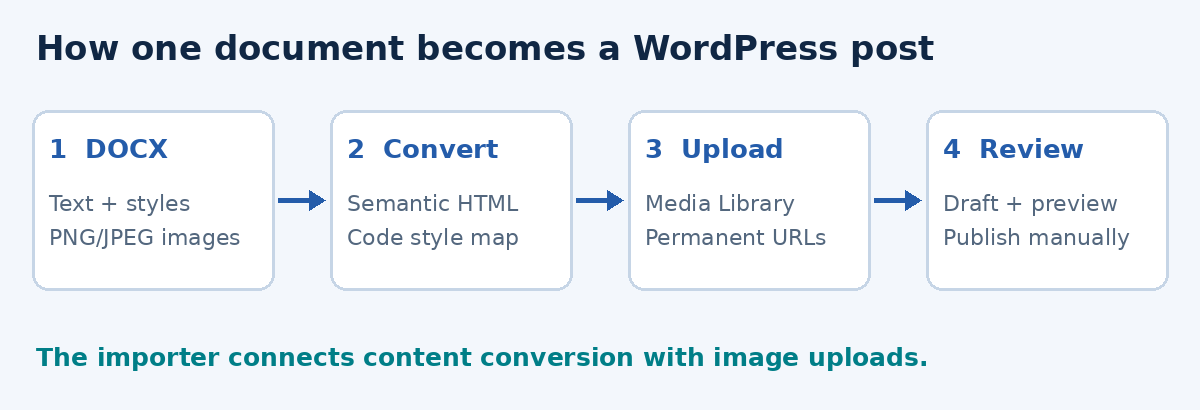
Figure 2. Single-document publishing architecture.
Why use DOCX rather than copy and paste?
| Method | Images | Code and layout |
|---|---|---|
| HTML / Markdown paste | Local references can be lost | Code may survive; image paths often need work. |
| Google Docs paste | Depends on clipboard and editor | Whitespace and punctuation need checking. |
| DOCX + Mammoth | Importer can upload embedded images | Semantic structure; custom code map recommended. |
2. Install and activate Mammoth
In WordPress Admin, open Plugins → Add New Plugin. Search for Mammoth .docx converter by Michael Williamson, then install and activate it. Alternatively, run the following from your WordPress installation directory with WP-CLI and appropriate permissions:
wp plugin install mammoth-docx-converter --activate
wp plugin list --name=mammoth-docx-converterCode language: PHP (php)
For existing production sites, review plugin compatibility and your normal change approval process before installing. If the plugin is already active, skip installation.
3. Prepare a self-contained Word document
Ask your author or AI assistant to generate a real DOCX, not a renamed Markdown or HTML file. Use inline images stored inside the document. Add meaningful alternative text and normal caption paragraphs. Use Heading 1 for the article title, Heading 2 for sections and Heading 3 or 4 for subsections.
Create a code-friendly paragraph style
Use a custom paragraph style named Code Block for commands and configuration. Keep each source-code line in its own paragraph with literal leading spaces; avoid smart quotes, smart dashes and automatic lists. The style alone is not enough: embed a Mammoth style map in the DOCX.
p[style-name='Code Block'] => pre > code:separator('\n')
p[style-name='Caption'] => p.caption:freshCode language: PHP (php)
This mapping groups consecutive code paragraphs into a preformatted code element and separates them with newline characters. It is already embedded in this document. Authors preparing their own documents can use the official Mammoth style-map embedding tool or the library API.
Mammoth embedded style-map tool
Example: a multiline shell command
The following command is a formatting test as well as a real Helm example. It is intended for an authorized development cluster with Helm installed; you do not need to execute it to test publishing.
helm repo add headlamp https://kubernetes-sigs.github.io/headlamp/
helm repo update
helm upgrade --install headlamp headlamp/headlamp \
  --namespace headlamp \
  --create-namespaceCode language: PHP (php)
Example: indentation-sensitive YAML
Save the example as values.yaml if you want to test a YAML parser. It is illustrative Helm configuration, not an instruction to change your cluster.
replicaCount: 1
service:
  type: ClusterIP
  port: 80
resources:
  requests:
    cpu: 100m
    memory: 128Mi
The two and four leading spaces must remain unchanged after import. Do not replace code with a screenshot: readers must be able to select and copy it.
4. Import the document into WordPress
Open Posts → Add New. In the block editor, scroll below the main content area. In Classic Editor, look beneath the writing area. The converter is a post-editor panel, not necessarily a separate item in the admin sidebar.
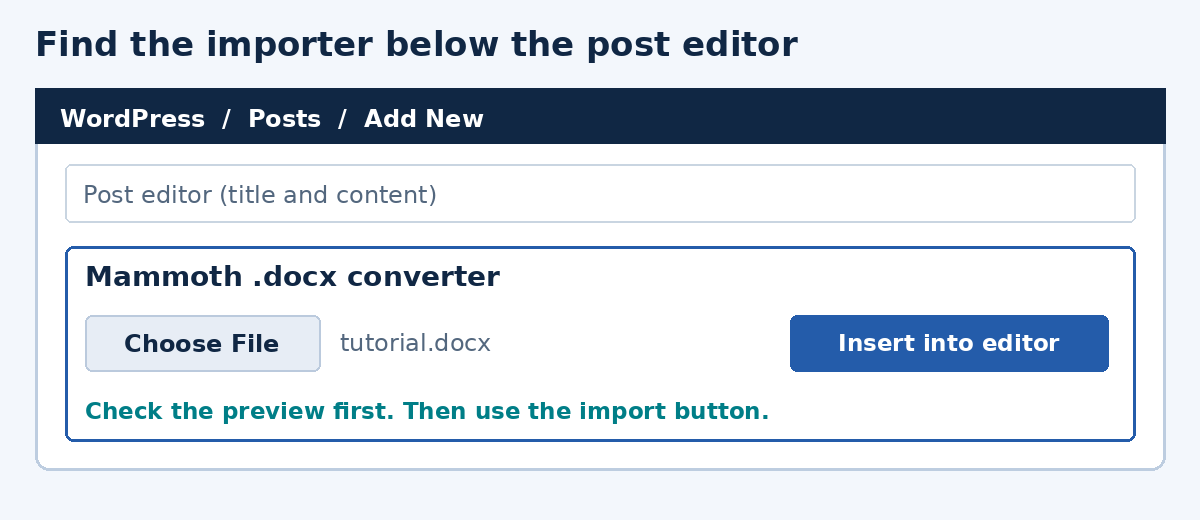
Figure 3. Schematic of the importer panel; not an actual WordPress screenshot.
If the Mammoth panel is hidden
Confirm that the plugin is active. In Classic Editor, open Screen Options and enable the Mammoth panel if listed. In Gutenberg, inspect Preferences and available panels, then scroll below the editor. Panel names and locations vary by version. If necessary, test with the official Classic Editor plugin on a staging site.
Select the DOCX and insert it
Click Choose File in the Mammoth panel and select the .docx document.
Review the converted preview. Check that all images and code examples appear.
Click Insert into editor. Do not copy the preview using the clipboard.
Allow the import to complete. Save the post as a draft.
Open Media → Library and confirm that the embedded images were uploaded.
If the post title is blank, enter it manually. If the document heading duplicates the theme-generated post title, remove the duplicate heading from the body. Select the first image as the featured image if desired; Mammoth does not automatically configure SEO or featured images.
5. Final hands-on verification: test this tutorial
Import this very document into a new draft. It includes four actual PNG illustrations, multiple code examples, semantic headings, lists, a table and hyperlinks. This makes it a useful end-to-end test of your publishing process.
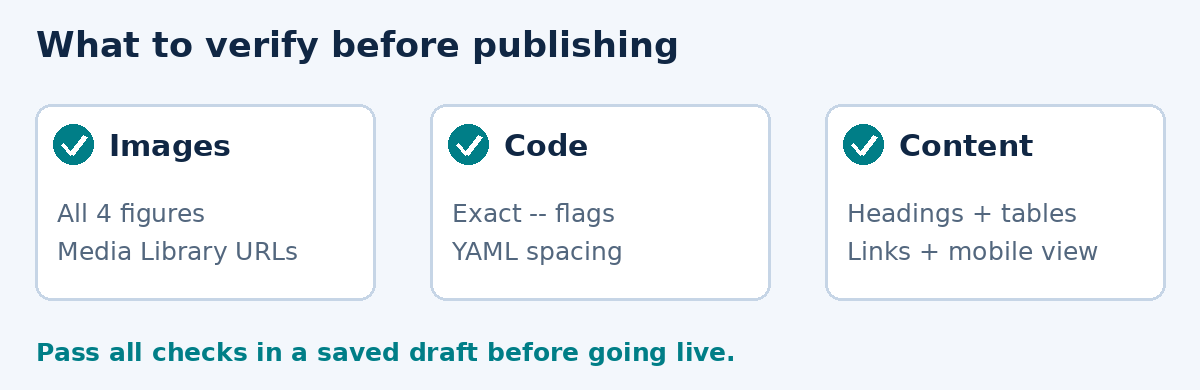
Figure 4. Pre-publication quality checks.
| Check | Pass condition |
|---|---|
| Images and ALT text | All four figures are visible; image URLs point to approved permanent media storage. |
| Code blocks | Multiline commands use real code formatting; — flags and backslashes remain intact. |
| YAML | Two- and four-space indentation is preserved. |
| Tables and lists | Rows and columns are readable; lists retain structure. |
| Links and headings | Links open correctly; the article has one main title and logical sections. |
| Responsive preview | Images, tables and code remain usable on desktop and mobile. |
Special-character test (safe to execute locally)
Copy the following Bash snippet from the published post. It only prints text. Compare its output with the expected line below; it verifies quotation marks, dollar signs and shell metacharacters.
printf '%s\n' '--flag "quoted" $HOME <tag> A&B'Code language: JavaScript (javascript)Expected output:
--flag "quoted" $HOME <tag> A&BCode language: PHP (php)If a command changes after copying, inspect the underlying HTML. Do not publish until the source text is correct.
6. Troubleshoot import and formatting issues
| Symptom | What to do |
|---|---|
| No converter panel | Check plugin activation and editor panel visibility; test Classic Editor if needed. |
| Images visible in preview but absent in post | Use Insert into editor; confirm upload permissions, media errors, file size limits and Media Library entries. |
| Double hyphens or quotes change | Verify the embedded style map and that code is inside pre/code elements. |
| YAML loses indentation | Check literal spaces and preformatted markup; avoid normal paragraphs for source code. |
| Table borders or fonts differ | Theme styling controls appearance; use simple tables and semantic headings. |
Optional verification using WP-CLI
Run these read-only checks from the WordPress directory. Replace 123 with the draft post ID. The attachment listing is site-wide, so match images to the imported article.
wp post get 123 --field=post_content
wp post list --post_type=attachment --posts_per_page=10 \
  --fields=ID,post_title,post_mime_typeCode language: JavaScript (javascript)
Look for image elements with permanent URLs and pre/code elements enclosing commands. WordPress wptexturize normally skips these elements, which helps prevent typographic punctuation changes.
Evidence from a live test
On November 25, 2026, a small Headlamp DOCX imported via Mammoth was publicly accessible with its embedded image, caption, table and multiline Helm commands intact. That verifies the earlier sample, not yet this larger document. The current document must be imported and reviewed on your own site before calling the new test complete.
DevOpsSchool: successful Headlamp WordPress import test
7. A reusable prompt for future AI-generated blogs
Generate a complete, publication-ready technical article as one DOCX file for Mammoth. Embed every original diagram and image with ALT text and captions. Use semantic headings, real tables, lists and hyperlinks. Use Code Block paragraphs and an embedded Mammoth style map to preserve exact source code, whitespace and punctuation. Validate the file before delivery. Do not provide separate image files or ZIP archives.
8. Frequently asked questions
Does Mammoth preserve everything exactly as Word displays it?
No. It aims to preserve semantic content rather than reproduce the original page layout. Your WordPress theme may change fonts, spacing and borders. Always preview the web version.
Do I need to upload images separately?
Normally not when the images are embedded and the import succeeds. The converter uploads images as part of insertion. Verify the resulting files in the Media Library.
Can Mammoth preserve Bash, Python, JSON and YAML?
Yes, with properly prepared code paragraphs and a compatible style map. Syntax highlighting is optional and depends on WordPress styling or a dedicated plugin. Always compare copied code to the source.
Can I use Gutenberg and Classic Editor?
Mammoth has basic block-editor support as well as Classic Editor support. Exact compatibility depends on your WordPress version, theme and plugins. Test the editor your content team actually uses.
Will it automatically set categories, SEO and the featured image?
Do not assume so. Enter the title, slug, categories and SEO fields in your chosen SEO plugin, and select the featured image in WordPress. These are separate from importing the article body.
Conclusion
The most convenient workflow for rich technical tutorials is a single trusted DOCX, imported into WordPress through Mammoth and checked as a draft. Embedded images eliminate separate media handling in successful imports, while semantic styles and a code mapping help protect executable examples. One document, one import, one quality review.
Official references
WordPress wptexturize documentation

I’m Rajesh Kumar, a DevOps, SRE, DevSecOps, Cloud, and Platform Engineering expert passionate about sharing practical knowledge, real-world experiences, and industry best practices. I have worked at Cotocus and regularly write about technology, travel, investing, health, product reviews, and digital marketing through my various platforms.
I publish technical articles at DevOps School, travel stories at Holiday Landmark, stock market insights at Stocks Mantra, health and fitness guidance at My Medic Plus, product reviews at TrueReviewNow, and SEO and digital marketing strategies at Wizbrand.
Find Trusted Cardiac Hospitals
Compare heart hospitals by city and services — all in one place.
Explore Hospitals