
Updated: October 15, 2026 | Based on current HashiCorp documentation
Terraform Cloud is now called HCP Terraform. Its architecture separates infrastructure organization from user access management (RBAC).
The most important point is that these five components do not form one linear hierarchy.
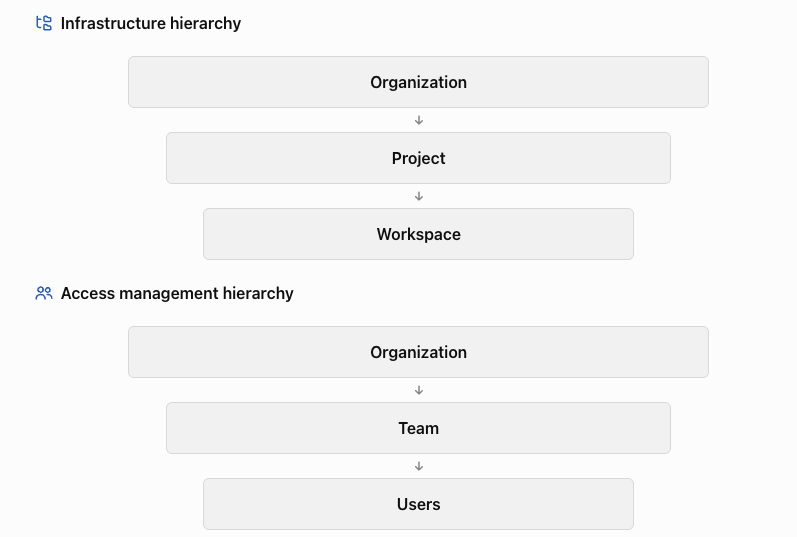
Teams receive permissions on the organization, projects, and workspaces. Users receive those permissions through team membership. A user may belong to multiple teams, and a team may access multiple projects and workspaces.
1. Understanding all five components
| Component | Purpose | Relationship |
|---|---|---|
| Organization | Top-level administrative boundary for Terraform infrastructure, teams, policies and settings | Contains projects and teams |
| Project | Groups related workspaces and controls access to them | Belongs to one organization |
| Workspace | Manages Terraform configuration, runs, variables and its own state | Belongs to exactly one project |
| Team | Groups users and defines their permissions | Created within an organization; assigned roles at different scopes |
| User | Individual identity accessing HCP Terraform | Can belong to multiple teams and organizations |
Important cardinality mapping
| Relationship | Mapping |
|---|---|
| Organization → Project | One to many |
| Project → Workspace | One to many |
| Organization → Team | One to many |
| Team ↔ User | Many to many within organization membership |
| Team ↔ Project | Many to many via permissions |
| Team ↔ Workspace | Many to many via permissions |
| Workspace → Project | Exactly one project |
All workspaces start in a Default Project unless another project is selected. The default project can be renamed but not deleted.
2. Complete component relationship diagram
flowchart TB
    O["ORGANIZATION"]
    P["PROJECTS"]
    W["WORKSPACES"]
    T["TEAMS"]
    U["USERS"]

    O -->|"Contains"| P
    P -->|"Contains"| W

    O -->|"Contains"| T
    T -->|"Membership"| U

    T -.->|"Organization permissions"| O
    T -.->|"Project roles"| P
    T -.->|"Workspace roles"| W

    classDef org fill:#dbeafe,stroke:#2563eb,color:#1e40af
    classDef infra fill:#dcfce7,stroke:#16a34a,color:#166534
    classDef access fill:#fef3c7,stroke:#d97706,color:#92400e
    class O org
    class P,W infra
    class T,U access
The solid arrows show membership or resource structure. The dashed arrows represent access grants.
3. Practical mapping example — Infrastructure platform
Consider one organization managing development, staging and production infrastructure.
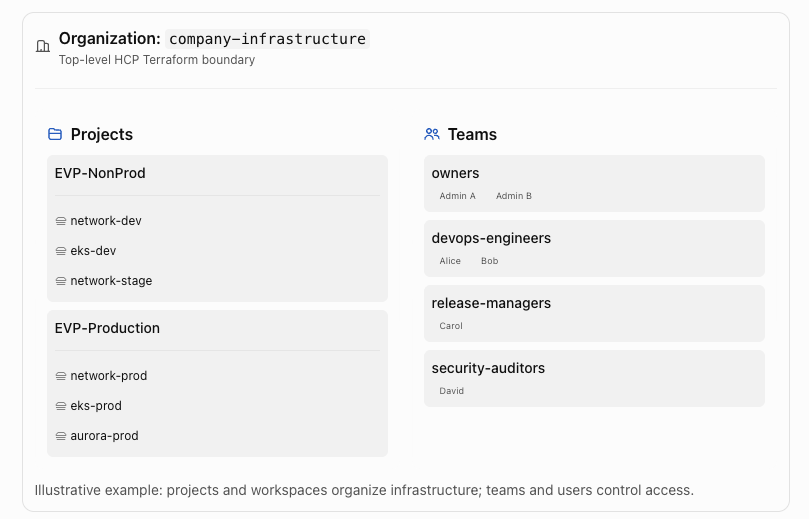
Illustrative example: projects and workspaces organize infrastructure; teams and users control access.
Example team-to-resource permission mapping
| Team | Target | Role | Result |
|---|---|---|---|
| owners | Organization | Owner | Full organization administration |
| devops-engineers | EVP-NonProd project | Write | Plan/apply all its workspaces |
| devops-engineers | eks-prod workspace | Plan | Plan but cannot apply there through this grant |
| release-managers | EVP-Production project | Write | Plan/apply production workspaces |
| security-auditors | Production workspaces | Custom read-only | View permitted run details without unnecessarily granting full state access |
The production Plan assignment for DevOps is granted directly on the workspace. The team does not need project-wide Write access.
4. Permission levels — the critical distinction
Project permissions
Project roles apply across the project’s workspaces and Stacks.
| Role | Capabilities |
|---|---|
| Admin | Full project management, including access assignments, workspaces and runs |
| Maintain | Manage workspace lifecycle and operations, including create/delete and plan/apply, without full project administration |
| Write | Run Terraform plans and applies, update variables and state |
| Read | View project and workspace information, runs and state |
| Custom | Select individual permissions |
Workspace permissions
| Role | Read | Plan | Apply | Manage workspace settings |
|---|---|---|---|---|
| Read | Yes | No | No | No |
| Plan | Yes | Yes | No | No |
| Write | Yes | Yes | Yes | No |
| Admin | Yes | Yes | Yes | Yes |
Custom workspace permissions are also available.
Notice that Project Write gives write permissions to all workspaces within that project, whereas Workspace Write affects only the selected workspace, unless the team has broader permissions elsewhere.
How inherited permissions work
HCP Terraform permissions are additive, not restrictive overrides.
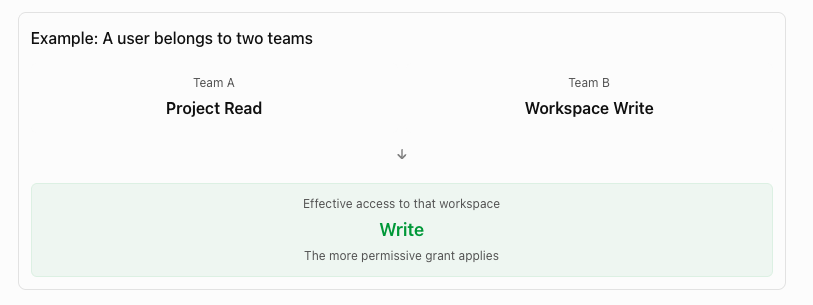
If the team has Project Admin, assigning Workspace Read does not reduce its effective access. The same principle applies across organization, project, workspace, and multiple team permissions.
5. User access and Terraform execution flow
This diagram illustrates a user-initiated run. VCS-triggered and automated runs may have different initiation and approval behavior. Authorization does not replace Terraform policy checks, run controls, or cloud-provider IAM permissions.
flowchart TD
    U["User signs into HCP Terraform"]
    T["Team memberships determine permissions"]
    G{"Authorized for workspace?"}
    A["Access denied"]
    W["Workspace"]
    R["Start or inspect Terraform run"]
    PL["Terraform Plan"]
    AP{"Apply authorized?"}
    STOP["Review / await approval"]
    EX["Terraform Apply"]
    S["Update workspace state"]

    U --> T --> G
    G -->|No| A
    G -->|Yes| W
    W --> R --> PL --> AP
    AP -->|No| STOP
    AP -->|Yes| EX --> S
6. How to configure this in the HCP Terraform UI
- Create the organization. Sign in at app.terraform.io and create your organization. Configure its organization-wide settings.
- Create projects. Open Projects and create logical groupings such as NonProd, Production and Shared Infrastructure.
- Create workspaces. Assign each workspace to its project. Configure VCS or CLI integration, variables, execution mode and cloud credentials.
- Create teams. Navigate to Organization Settings → Teams. Create teams based on operational responsibilities.
- Invite users. Navigate to Organization Settings → Users, invite users by email, and associate them with appropriate teams.
- Grant project access. Navigate to Project → Settings → Team access. Assign Read, Write, Maintain, Admin or custom permissions.
- Grant workspace exceptions. Navigate to Workspace → Settings → Team access when a particular team needs additional permissions on a specific workspace.
- Validate effective permissions. Test with representative users before allowing access to sensitive or production infrastructure.
These navigation paths follow HashiCorp’s current standard HCP Terraform permission-setting documentation.
HashiCorp Developer
7. Recommended best practices
| Recommendation | Reason |
|---|---|
| Use projects as access boundaries | Keep teams responsible only for relevant infrastructure |
| Separate production and nonproduction permissions | Avoid broad write access to sensitive workspaces |
| Use workspaces for separate infrastructure states | Reduce blast radius and improve lifecycle management |
| Assign permissions to teams rather than individuals | Makes onboarding/offboarding and auditing easier |
| Restrict the Owners team | Its members have maximum organization permissions |
| Prefer custom read permissions for auditors | Default Read roles can allow full Terraform state access |
| Keep cloud IAM separate from HCP Terraform RBAC | Terraform access does not automatically grant AWS/Azure permissions |
| Apply consistent workspace naming | Simplifies searching, automation and maintenance |
Security warning: Workspace Read and Project Read include the ability to read full state files. Terraform state can contain sensitive information, so use custom permissions where only run history or selected outputs should be visible.
HashiCorp Developer
8. Important 2026 considerations
HCP Terraform Europe: The newer HCP Europe organizational model uses HCP groups and roles instead of conventional HCP Terraform teams. Standard HCP Terraform organizations continue to use teams.
HashiCorp Developer
Stacks: A project can contain Terraform Stacks as well as workspaces, and project-level permissions can extend to both.
HashiCorp Developer
Plans and licensing: Projects are broadly available, but team management and project permission-management capabilities depend on the HCP Terraform edition.
HashiCorp Developer
+1
Final mapping to remember
| Question | Answer |
|---|---|
| Who owns the project? | Organization |
| Who owns the workspace? | Project |
| Who owns the team? | Organization |
| Who belongs to the team? | Users |
| Who receives permission assignments? | Teams |
| Where are permissions applied? | Organization, Project, Workspace |
| Who executes Terraform runs? | Workspaces, using their configured execution mode |
| Where is Terraform state stored? | Separately for each HCP Terraform workspace |
The simplest correct mental model:
Organization → Project → Workspace defines what infrastructure is managed and where.
Organization → Team → Users, with team roles on projects and workspaces, defines who can access and change that infrastructure.
Official references: Projects, Permissions overview, and Managing permissions.

I’m Rajesh Kumar, a DevOps, SRE, DevSecOps, Cloud, and Platform Engineering expert passionate about sharing practical knowledge, real-world experiences, and industry best practices. I have worked at Cotocus and regularly write about technology, travel, investing, health, product reviews, and digital marketing through my various platforms.
I publish technical articles at DevOps School, travel stories at Holiday Landmark, stock market insights at Stocks Mantra, health and fitness guidance at My Medic Plus, product reviews at TrueReviewNow, and SEO and digital marketing strategies at Wizbrand.
Find Trusted Cardiac Hospitals
Compare heart hospitals by city and services — all in one place.
Explore Hospitals