
Introduction
Windows Management Tools are software solutions designed to help IT teams centrally manage, secure, monitor, configure, and maintain Windows-based systems across an organization. These tools simplify tasks such as device provisioning, patch management, software deployment, policy enforcement, remote troubleshooting, and compliance reporting—activities that would otherwise be time-consuming and error-prone if done manually.
In today’s hybrid and remote-first work environments, Windows devices are spread across offices, homes, and multiple geographies. Managing them consistently is critical for security, productivity, and operational stability. Poor Windows management often leads to outdated systems, security vulnerabilities, inconsistent configurations, and high IT support costs.
Common real-world use cases include:
- Centralized patching and update management
- Enforcing security and compliance policies
- Deploying and updating applications at scale
- Monitoring device health and performance
- Supporting remote and hybrid employees
When choosing a Windows Management Tool, buyers should evaluate device coverage, automation depth, security controls, ease of use, scalability, integrations, and cost-effectiveness.
Best for:
IT administrators, system engineers, endpoint security teams, managed service providers (MSPs), and organizations ranging from SMBs to large enterprises across industries like IT services, healthcare, finance, education, and manufacturing.
Not ideal for:
Individual home users, very small teams with only a few unmanaged PCs, or environments that are entirely non-Windows (Linux/macOS-only), where lighter or OS-specific alternatives may be more suitable.
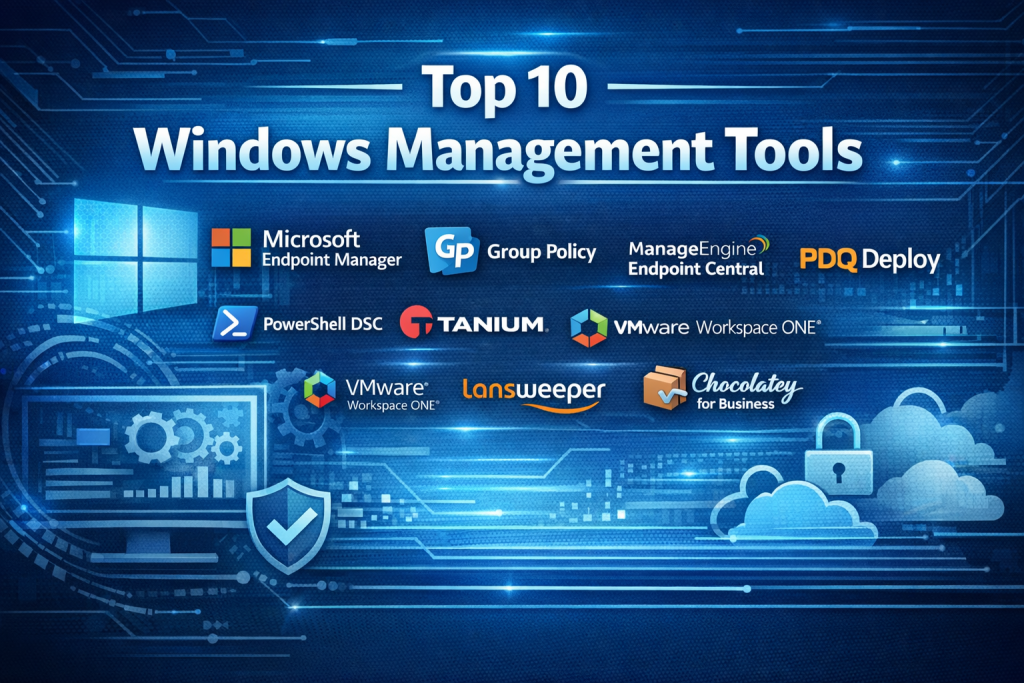
Top 10 Windows Management Tools
1 — Microsoft Endpoint Manager
Short description:
A unified endpoint management (UEM) platform that combines device management, security, and application control for Windows and other operating systems, deeply integrated with the Microsoft ecosystem.
Key features:
- Centralized Windows device management
- Patch and update management
- Configuration profiles and policies
- Conditional access and identity integration
- Application deployment and lifecycle control
- Endpoint security baselines
Pros:
- Native integration with Microsoft tools
- Scales well for large enterprises
- Strong security and compliance capabilities
Cons:
- Complex setup for smaller teams
- Requires Microsoft licensing knowledge
Security & compliance:
SSO, encryption, audit logs, SOC 2, ISO standards, GDPR support.
Support & community:
Extensive documentation, enterprise support plans, large global user community.
2 — Group Policy
Short description:
A built-in Windows feature that allows administrators to control system settings and policies across domain-joined computers.
Key features:
- Centralized policy enforcement
- User and computer configuration control
- Security policy management
- Script and startup task execution
- Software restrictions
Pros:
- Included with Windows Server
- Highly granular control
- No additional licensing cost
Cons:
- Limited reporting and visibility
- Steep learning curve
Security & compliance:
Strong Windows-native security controls; compliance varies by configuration.
Support & community:
Extensive Microsoft documentation and community forums.
3 — PowerShell Desired State Configuration
Short description:
An automation framework that ensures Windows systems maintain a desired configuration state through scripting and infrastructure-as-code principles.
Key features:
- Configuration drift prevention
- Declarative system management
- Automation via PowerShell scripts
- Integration with CI/CD pipelines
- Scalable configuration enforcement
Pros:
- Highly flexible and powerful
- Ideal for automation-driven teams
Cons:
- Requires scripting expertise
- Limited GUI
Security & compliance:
Depends on implementation; supports encryption and secure execution.
Support & community:
Strong developer community and Microsoft-backed documentation.
4 — PDQ Deploy
Short description:
A lightweight tool focused on rapid software deployment and patching for Windows environments.
Key features:
- Automated software deployment
- Patch management
- Pre-built application packages
- On-premises management
- Inventory integration
Pros:
- Easy to set up and use
- Fast deployments
Cons:
- Limited mobile device support
- Primarily Windows-focused
Security & compliance:
Role-based access, encrypted communication.
Support & community:
Good documentation and responsive customer support.
5 — ManageEngine Endpoint Central
Short description:
A comprehensive endpoint management solution covering Windows, macOS, Linux, and mobile devices.
Key features:
- Patch and vulnerability management
- Remote troubleshooting
- Software deployment
- Asset and license management
- Compliance reporting
Pros:
- Feature-rich at competitive pricing
- Supports diverse environments
Cons:
- UI can feel cluttered
- Performance tuning required at scale
Security & compliance:
SSO, audit logs, GDPR, ISO standards.
Support & community:
Strong documentation and global support presence.
6 — Ivanti Endpoint Manager
Short description:
An enterprise-grade endpoint management platform focused on security, automation, and lifecycle management.
Key features:
- Unified endpoint visibility
- Patch and vulnerability remediation
- Automated workflows
- Endpoint security integration
- Role-based administration
Pros:
- Strong automation capabilities
- Robust security focus
Cons:
- Higher cost
- Complex initial deployment
Security & compliance:
Enterprise security controls, compliance reporting.
Support & community:
Enterprise support, professional services available.
7 — Tanium
Short description:
A real-time endpoint management and security platform designed for large, distributed enterprises.
Key features:
- Real-time endpoint visibility
- Rapid patch deployment
- Threat detection and response
- Asset discovery
- Scalable architecture
Pros:
- Extremely fast data processing
- Excellent for large environments
Cons:
- Premium pricing
- Overkill for small teams
Security & compliance:
SOC 2, ISO, encryption, audit logs.
Support & community:
Enterprise-grade support and onboarding.
8 — VMware Workspace ONE
Short description:
A UEM solution that manages Windows devices alongside mobile and virtual endpoints.
Key features:
- Unified device management
- Application and identity management
- Zero-trust security model
- Remote configuration
- Analytics and reporting
Pros:
- Strong cross-platform support
- Modern user experience
Cons:
- Complex licensing
- Higher learning curve
Security & compliance:
SSO, zero trust, GDPR, ISO compliance.
Support & community:
Enterprise support, extensive training resources.
9 — Lansweeper
Short description:
An IT asset discovery and inventory tool with strong Windows network visibility.
Key features:
- Automated asset discovery
- Hardware and software inventory
- Network scanning
- Reporting and alerts
- Integration-ready API
Pros:
- Excellent visibility
- Easy deployment
Cons:
- Limited patch management
- Reporting customization limits
Security & compliance:
Access controls; compliance varies by use case.
Support & community:
Active user community and solid documentation.
10 — Chocolatey for Business
Short description:
A Windows-native package management solution focused on automation and DevOps workflows.
Key features:
- Centralized package management
- Automated software updates
- Offline package support
- Integration with CI/CD tools
- Role-based access
Pros:
- Ideal for DevOps teams
- Strong automation focus
Cons:
- Limited non-software management
- Requires process maturity
Security & compliance:
Package integrity checks, role-based access.
Support & community:
Good documentation and professional support options.
Comparison Table
| Tool Name | Best For | Platform(s) Supported | Standout Feature | Rating |
|---|---|---|---|---|
| Microsoft Endpoint Manager | Large enterprises | Windows, macOS, iOS, Android | Native Microsoft integration | N/A |
| Group Policy | Domain-based environments | Windows | Granular policy control | N/A |
| PowerShell DSC | Automation-focused teams | Windows | Infrastructure as code | N/A |
| PDQ Deploy | SMB IT teams | Windows | Rapid software deployment | N/A |
| ManageEngine Endpoint Central | Mid-market | Windows, macOS, Linux | All-in-one endpoint control | N/A |
| Ivanti Endpoint Manager | Enterprises | Windows | Automation and security | N/A |
| Tanium | Large distributed enterprises | Windows, cross-platform | Real-time visibility | N/A |
| VMware Workspace ONE | Hybrid environments | Multi-platform | Unified endpoint management | N/A |
| Lansweeper | Asset-focused teams | Windows networks | Deep asset discovery | N/A |
| Chocolatey for Business | DevOps teams | Windows | Package automation | N/A |
Evaluation & Scoring of Windows Management Tools
| Tool | Core Features (25%) | Ease of Use (15%) | Integrations (15%) | Security (10%) | Performance (10%) | Support (10%) | Price/Value (15%) | Total Score |
|---|---|---|---|---|---|---|---|---|
| Microsoft Endpoint Manager | 23 | 11 | 14 | 9 | 9 | 9 | 11 | 86 |
| Group Policy | 20 | 10 | 8 | 8 | 8 | 8 | 14 | 76 |
| PowerShell DSC | 22 | 8 | 13 | 8 | 8 | 8 | 12 | 79 |
| PDQ Deploy | 18 | 14 | 10 | 7 | 8 | 8 | 13 | 78 |
| ManageEngine Endpoint Central | 21 | 13 | 12 | 8 | 8 | 9 | 14 | 85 |
Which Windows Management Tool Is Right for You?
- Solo users / very small teams: Native tools like Group Policy or PowerShell
- SMBs: PDQ Deploy, ManageEngine Endpoint Central
- Mid-market: ManageEngine, VMware Workspace ONE
- Enterprise: Microsoft Endpoint Manager, Tanium, Ivanti
Budget-conscious: Group Policy, PowerShell, PDQ
Premium solutions: Tanium, VMware Workspace ONE
Ease of use: PDQ Deploy, ManageEngine
Deep automation: PowerShell DSC, Chocolatey
Security-heavy industries: Microsoft Endpoint Manager, Ivanti
Frequently Asked Questions (FAQs)
- Are Windows Management Tools necessary for small teams?
Only if consistency, security, and automation are priorities. - Can these tools manage remote devices?
Yes, most modern tools support remote and hybrid workforces. - Do all tools support patch management?
No, some focus more on configuration or asset management. - Are cloud-based tools better than on-prem?
Cloud tools offer flexibility; on-prem gives tighter control. - Is scripting knowledge required?
Only for advanced tools like PowerShell DSC. - Do these tools replace antivirus software?
No, they complement endpoint security tools. - How long does implementation take?
From a few hours to several weeks, depending on scale. - Are they compliant with regulations?
Most enterprise tools support major compliance standards. - Can multiple tools be used together?
Yes, many organizations combine tools for best results. - What is the biggest mistake buyers make?
Choosing overly complex tools for simple environments.
Conclusion
Windows Management Tools are essential for maintaining secure, stable, and efficient IT environments. From native options like Group Policy to enterprise platforms like Microsoft Endpoint Manager and Tanium, each tool serves a different purpose and audience.
The most important factors are fit, scalability, security, and operational maturity. There is no single “best” tool for everyone—the right choice depends on your organization’s size, technical expertise, compliance needs, and long-term IT strategy.

Find Trusted Cardiac Hospitals
Compare heart hospitals by city and services — all in one place.
Explore Hospitals
Managing Windows devices across different hardware generations can create unexpected compatibility problems during large-scale updates. A policy that works perfectly on newer laptops may break older machines running legacy business applications or specialized drivers. I would pay close attention to phased deployment, rollback testing, and application compatibility validation before enforcing organization-wide updates. This is particularly important in enterprises where even a small number of unavailable workstations can interrupt critical business operations.
Windows management tools help IT teams handle updates, system settings, user access, and device health from one place. The right tool should make routine tasks easier without adding extra work for administrators. Features like remote monitoring, patch management, and clear reporting can help teams spot issues early. It is also worth checking how well a tool works across different Windows versions and existing IT systems.
Windows management tools become especially valuable when organizations need consistent control across a mix of laptops, servers, and remote endpoints. Beyond centralized configuration, I would assess how effectively a tool handles patch deployment, policy conflicts, software inventory, and rollback when an update causes unexpected issues. Role-based access and detailed audit logs are also important, since broad administrative permissions can increase the impact of a compromised account. For larger environments, reporting should help teams identify devices that are outdated, noncompliant, or missing critical security controls without creating excessive alert noise. The strongest solution is one that reduces repetitive administration while preserving visibility and control over the endpoint fleet.
Windows management tools help IT teams manage devices, deploy updates, enforce security policies, and troubleshoot system issues efficiently. This article provides a useful comparison of solutions based on automation, remote administration, patch management, and reporting capabilities. When choosing a tool, organizations should consider scalability, security features, integration with existing IT systems, and ease of deployment. The right Windows management solution can reduce manual workloads, improve endpoint security, and simplify administration across an organization’s device fleet.
Transitioning endpoint administration from legacy on-premises Group Policy to unified modern cloud MDM via Intune requires careful planning around co-management configurations. Automated third-party application patch management is vital for closing common client software vulnerabilities before threat actors exploit them. Cloud-delivered configuration baselines ensure remote laptops maintain standard security postures regardless of whether users connect to corporate VPNs.
Windows management tools help IT teams configure devices, manage updates, enforce security policies, and maintain system performance across an organization. When comparing platforms, consider centralized administration, patch management, software deployment, remote access, policy enforcement, device inventory, reporting, and integration with existing IT infrastructure.
Windows management tools keep the most common desktop environment running smoothly, and this article rounds up the best options. I like the balance of patching, inventory, and remote support features, which are the daily needs of IT teams. One practical note is that automation reduces toil but requires careful change control to avoid surprises. Well managed Windows fleets feel invisible to users. Practical and reliable
Windows management tools help IT teams monitor, configure, secure, and maintain Windows systems across an organization. When comparing these tools, I would focus on remote administration, patch management, software deployment, system monitoring, and security controls. These features can reduce manual work, improve system reliability, and make it easier to manage multiple devices. The right tool should offer centralized control, useful reporting, and support for an organization’s Windows environment.
Windows management tools help IT teams centrally monitor, configure, secure, and maintain Windows devices across an organization. Features such as software deployment, patch management, remote administration, device inventory, policy enforcement, security monitoring, and automated reporting simplify endpoint management. When comparing solutions, organizations should consider compatibility with different Windows versions, scalability, ease of deployment, automation capabilities, security features, and licensing costs. The right platform can reduce administrative workload, improve device security, streamline troubleshooting, and ensure consistent management across the entire Windows environment.
Windows updates can sometimes create application issues even when the installation process reports success. Before wider deployment, teams should check patches against essential software, device drivers, and existing security settings. Releasing updates to a small group first helps uncover unexpected problems before they affect everyone. Clear recovery steps are equally important when a patch causes disruptions. Tracking incidents by device type and operating system version can help teams find patterns and maintain a more stable environment.
Windows management tools help IT teams simplify device configuration, software deployment, patching, and system monitoring across an organization. Centralized administration and automated compliance checks can reduce repetitive tasks while keeping endpoints consistent and secure. Integrating these solutions with identity management and security monitoring systems also improves visibility, speeds up troubleshooting, and helps administrators maintain reliable Windows environments as device fleets grow.
Windows management tools help IT teams configure devices, deploy updates, enforce policies, and troubleshoot user issues. The main challenge is keeping devices secure without disrupting work. I would compare software deployment, patch reporting, remote support, policy control, and integration with identity services. Teams should test how the tool handles remote devices that miss updates or remain offline for long periods. Clear reports can help identify systems that fall behind policy. It is also useful to check whether common tasks can be automated safely. A good platform should reduce manual administration and make the state of every managed device easier to understand.
Windows management needs a reliable rollback strategy, especially when updates affect thousands of devices across different business teams. A patch may install successfully but still break a legacy application, printer driver, VPN client, or internal business tool. IT teams should use phased deployments, starting with a small pilot group before expanding to the wider fleet. They should also define clear failure thresholds and maintain recovery procedures for devices that become unstable or lose network access. Tracking application errors, update failures, and user impact after each rollout can help administrators catch problems early. These safeguards make automated patching safer and reduce the risk of turning a routine maintenance task into a company-wide outage.
Windows management tools should help IT teams maintain consistent settings across devices without interrupting employees’ daily work. When comparing platforms, check how they handle application deployment, driver updates, and policy enforcement across different Windows versions. The ability to identify devices that miss critical updates and verify remediation afterward can help administrators reduce security gaps while keeping endpoint management manageable.
Managing fleet-wide Windows nodes requires tackling configuration drift across active WinRM endpoints. Without declarative Infrastructure as Code manifests, automated certificate renewals, and robust agentless orchestration, relying strictly on traditional Active Directory Group Policies leaves hybrid environments vulnerable to unpatched registry divergence and broken local security baselines.
Windows management tools help IT teams deploy updates, configure devices, manage user access, and monitor system health across an organization. When comparing options, look at patch automation, software deployment, remote troubleshooting, policy controls, reporting, and integration with existing directory services. Testing updates on a small group of devices before a wider rollout can reduce compatibility issues and keep business systems running smoothly.
Windows management tools help IT teams monitor devices, deploy software updates, enforce security policies, and troubleshoot system issues across an organization. Solutions like Microsoft Intune provide centralized device management, application deployment, and compliance controls, helping administrators simplify maintenance, strengthen endpoint security, and manage Windows devices more efficiently.
Transitioning from traditional Group Policy to cloud-native UEM solutions like Microsoft Endpoint Manager can be quite a paradigm shift, especially when maintaining strict compliance across hybrid fleets. The breakdown of configuration drift vs. rapid deployment highlights why many teams eventually lean toward a hybrid toolchain rather than relying on a single platform. Great comparison for helping teams align their operational maturity with the right tooling choice.
A strong Windows management strategy goes beyond automating patches and software deployments; it also requires continuous monitoring and consistent security policies across remote devices. Testing updates on a small group of systems before wider deployment can reduce downtime and prevent compatibility issues.
This article delivers a very practical and comprehensive comparison of Windows management tools — a category that’s essential for IT teams managing devices in hybrid and remote‑first environments where consistent security, patching, policy enforcement, and monitoring are all critical. I appreciate how the guide breaks down not just enterprise‑grade platforms like Microsoft Endpoint Manager and Tanium with strong automation and compliance capabilities, but also lighter solutions like PDQ Deploy or native options like Group Policy and PowerShell DSC that suit smaller teams or DevOps‑focused workflows. Highlighting real‑world pros and cons, platform support, and where each tool fits operationally helps readers match the right solution to their specific needs — whether that’s deep automation, simplicity, cross‑platform support, or rapid deployment.”