
What is DNSSEC?
DNSSEC stands for Domain Name System Security Extensions. It adds a security layer to DNS by digitally signing DNS records so resolvers can verify that DNS responses are authentic and have not been modified in transit. In simple words, DNSSEC helps protect your domain from attacks like DNS spoofing and cache poisoning, where users could be redirected to a fake or malicious website. GoDaddy describes DNSSEC as a way to verify the origin of DNS across the internet using digital signatures. (GoDaddy)
DNSSEC does not replace SSL/TLS. SSL secures the browser-to-website connection, while DNSSEC secures the DNS lookup path.
Before You Enable DNSSEC in GoDaddy
First, understand your domain setup. DNSSEC steps depend on where your domain is registered and where your DNS is hosted.
There are three common cases:
| Scenario | What to do |
|---|---|
| Domain registered at GoDaddy and using GoDaddy nameservers | Enable DNSSEC directly in GoDaddy |
| Domain registered at GoDaddy but DNS hosted elsewhere, like Cloudflare, Route 53, etc. | Enable DNSSEC at DNS provider, then add DS record in GoDaddy |
| DNS hosted at GoDaddy but domain registered elsewhere | Enable DNSSEC in GoDaddy, then copy DS record to your registrar |
GoDaddy says it manages all DNSSEC settings automatically for domains using GoDaddy nameservers. If the domain is not using GoDaddy nameservers, you must manually add DS records. (GoDaddy)
Important Notes Before Starting
GoDaddy currently provides 5 free DNSSEC credits in each account for domains using GoDaddy nameservers. One DNSSEC-enabled domain uses one credit. For more domains, GoDaddy says you may need Premium DNS or additional credits. (GoDaddy)
Also, some domains or country-code TLDs may not support DNSSEC. GoDaddy also warns that incorrect DS records can cause DNS resolution problems. (GoDaddy)
Before enabling DNSSEC, do these checks:
- Confirm your domain is active and not expired.
- Confirm your current nameservers.
- Avoid changing nameservers during DNSSEC setup.
- Keep a backup/screenshot of your DNS records.
- Make sure you have access to your DNS provider and registrar account.
- Enable 2-step verification on your GoDaddy account for better domain security.
Case 1: Enable DNSSEC When Domain Uses GoDaddy Nameservers
Use this method when your domain is both managed in GoDaddy and using GoDaddy nameservers.
Typical GoDaddy nameservers look like:
nsXX.domaincontrol.com
nsYY.domaincontrol.com
Code language: CSS (css)
Step 1: Sign in to GoDaddy
Go to your GoDaddy account and sign in.
Then open your Domain Portfolio.
Step 2: Select Your Domain
From the domain list, click the domain where you want to enable DNSSEC.
Example:
example.com
Code language: CSS (css)
This opens the Domain Settings page.
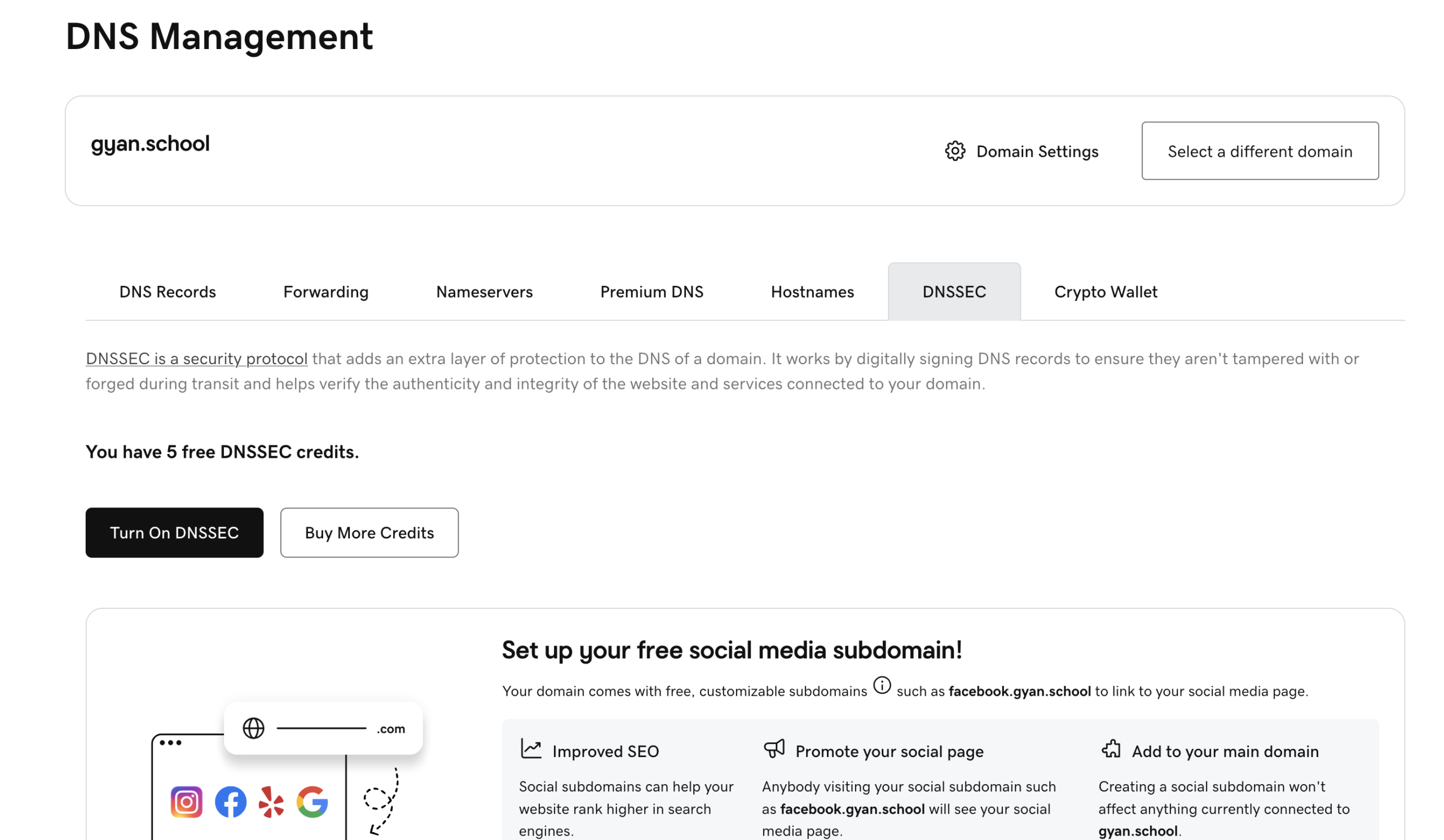
Step 3: Open DNS Settings
Inside the domain settings page:
DNS → DNSSEC
GoDaddy’s official flow is: select the domain, choose DNS, then select DNSSEC. (GoDaddy)
Step 4: Click “Turn On DNSSEC”
On the DNSSEC screen, choose:
Turn On DNSSEC
Step 5: Enter Notification Email
GoDaddy will ask for an email address.
This email is used for DNSSEC key-change notifications.
Use an email that you or your technical team actively monitors.
Example:
admin@example.com
Code language: CSS (css)
Step 6: Save the Change
Click:
Save
GoDaddy says DNSSEC is turned on immediately, but it may take up to 90 minutes to appear in your account. DNS changes usually take effect within an hour but may take up to 48 hours globally. (GoDaddy)
Step 7: Wait for Propagation
Do not immediately change nameservers or delete DNS records. Give DNSSEC time to propagate.
Case 2: Domain Registered at GoDaddy but DNS Hosted Elsewhere
This is very common.
Example:
| Registrar | DNS Provider |
|---|---|
| GoDaddy | Cloudflare |
| GoDaddy | AWS Route 53 |
| GoDaddy | DigitalOcean |
| GoDaddy | Namecheap DNS |
| GoDaddy | Custom DNS server |
In this case, you do not generate DNSSEC keys inside GoDaddy. You enable DNSSEC in your DNS provider first, then add the DS record in GoDaddy.
GoDaddy says if your domain is registered with GoDaddy but is not using GoDaddy nameservers, you must enable DNSSEC with your DNS provider and then manually add DS records in GoDaddy. (GoDaddy)
Step 1: Enable DNSSEC at Your DNS Provider
Log in to your DNS hosting provider.
For example:
Cloudflare
AWS Route 53
DigitalOcean
Google Cloud DNS
Azure DNS
Find the DNSSEC option and enable it.
Your DNS provider will generate DS record details.
A DS record usually contains:
Key Tag
Algorithm
Digest Type
Digest
Step 2: Copy the DS Record Details
Example DS record format:
example.com. 3600 IN DS 2371 13 2 7A1B2C3D4E5F...
Code language: CSS (css)
Breakdown:
| Field | Meaning |
|---|---|
| 2371 | Key Tag |
| 13 | Algorithm |
| 2 | Digest Type |
| 7A1B2C… | Digest |
Step 3: Go to GoDaddy Domain Portfolio
Sign in to GoDaddy and open:
Domain Portfolio
Select your domain.
Step 4: Open DS Records
Go to:
DNS → DS Records
GoDaddy’s official DS record flow is: select domain, choose DNS, then select DS Records. (GoDaddy)
Step 5: Click Add
Click:
Add
Step 6: Enter DS Record Details
Enter the values from your DNS provider:
Key Tag: 2371
Algorithm: 13
Digest Type: 2
Digest: 7A1B2C3D4E5F...
GoDaddy defines the fields as Key Tag, Algorithm, Digest Type, and Digest. The Key Tag must be between 1 and 65536, Algorithm must be selected from available options, Digest Type is usually 1 or 2, and Digest is an alphanumeric string. (GoDaddy)
Step 7: Save
Click:
Save
If GoDaddy shows an error, verify the DS record with your DNS provider. GoDaddy says incorrect DS records cannot be saved. (GoDaddy)
Step 8: Wait and Validate
Wait for DNS propagation. Then validate DNSSEC using commands or online tools.
Case 3: DNS Hosted at GoDaddy but Domain Registered Elsewhere
This case happens when:
| Registrar | DNS Provider |
|---|---|
| Namecheap | GoDaddy DNS |
| Google Domains/Squarespace | GoDaddy DNS |
| Porkbun | GoDaddy DNS |
| Any registrar | GoDaddy nameservers |
In this case, GoDaddy signs the zone, but your registrar must publish the DS record at the parent registry.
Step 1: Enable DNSSEC in GoDaddy
Go to:
GoDaddy → Domain Portfolio → Select Domain → DNS → DNSSEC
Click:
Turn On DNSSEC
Enter your email and save.
Step 2: Copy DS Record from GoDaddy
GoDaddy says if your domain uses GoDaddy nameservers but is not registered with GoDaddy, you need to copy the DS record and enter it at your domain registrar. (GoDaddy)
Copy the DS record details.
Step 3: Add DS Record at Your Registrar
Log in to your registrar account.
Find:
DNSSEC
DS Records
Delegation Signer
Security
Add the DS values provided by GoDaddy.
Step 4: Save and Wait
After saving, allow propagation.
How to Verify DNSSEC
After enabling DNSSEC, verify that your domain is properly signed.
Method 1: Use dig
Run:
dig DS example.com +short
Code language: CSS (css)
Expected output should show a DS record:
2371 13 2 7A1B2C3D4E5F...
Check DNSKEY:
dig DNSKEY example.com +dnssec +multi
Code language: CSS (css)
Check A record with DNSSEC:
dig A example.com +dnssec
Code language: CSS (css)
Look for:
ad
The ad flag means authenticated data, but it depends on the resolver used.
Method 2: Use delv
delv example.com
Code language: CSS (css)
If DNSSEC is valid, you should see successful validation.
Method 3: Use Online Tools
You can check with tools like:
DNSViz
Verisign DNSSEC Debugger
ZoneCheck
GoDaddy also mentions these types of online DNSSEC checking tools, though it does not provide support for their results. (GoDaddy)
How to Disable DNSSEC in GoDaddy
Disabling DNSSEC may be needed when:
- You are moving DNS providers.
- You are changing nameservers.
- You accidentally added the wrong DS record.
- Your domain is failing DNSSEC validation.
- You want to use Secondary DNS, because GoDaddy notes DNSSEC may need to be turned off if using Secondary DNS. (GoDaddy)
Steps to Disable DNSSEC
Go to:
GoDaddy → Domain Portfolio → Select Domain → DNS → DNSSEC
Click:
Turn Off DNSSEC
Then select:
Remove
GoDaddy says DNSSEC is turned off immediately, but it may take up to 90 minutes to reflect in the account. (GoDaddy)
Common DNSSEC Problems and Fixes
Problem 1: Website Not Opening After Enabling DNSSEC
Most likely cause:
DS record mismatch
This means the DS record at the registrar does not match the DNSKEY at the DNS provider.
Fix:
- Check DS record at registrar.
- Check DNSKEY at DNS provider.
- Remove wrong DS record.
- Add correct DS record.
- Wait for propagation.
GoDaddy says DNSSEC issues are often related to digital signatures on nameservers, and if DS records do not match those signatures, the domain may not resolve properly. (GoDaddy)
Problem 2: DNSSEC Option Not Visible
Possible reasons:
- Domain does not support DNSSEC.
- Domain is using unsupported TLD.
- Domain is not using GoDaddy nameservers.
- DNSSEC credits are not available.
- You are looking in DNS Records instead of DNSSEC/DS Records.
Problem 3: GoDaddy Rejects DS Record
Possible reasons:
- Wrong Key Tag.
- Wrong Algorithm.
- Wrong Digest Type.
- Extra spaces in Digest.
- Copied incomplete Digest.
- DS record belongs to an old DNSSEC key.
Fix:
Copy the DS record again from your DNS provider and re-enter it carefully.
Problem 4: You Changed Nameservers Without Removing Old DS Record
This is a very common DNSSEC mistake.
If you move DNS from Cloudflare to GoDaddy, or GoDaddy to Route 53, remove the old DS record before or during migration. Otherwise, the parent zone may still point to an old DNSSEC key, causing validation failure.
Recommended migration flow:
1. Lower DNS TTL
2. Disable DNSSEC or remove old DS record
3. Wait for propagation
4. Change nameservers
5. Enable DNSSEC at new DNS provider
6. Add new DS record
7. Validate
Code language: JavaScript (javascript)
DNSSEC Best Practices
1. Do Not Enable DNSSEC Blindly
DNSSEC is powerful, but mistakes can break DNS resolution. Always understand where your DNS is hosted.
2. Keep Registrar and DNS Provider Access Ready
If DNSSEC breaks, you may need urgent access to both accounts.
3. Avoid Nameserver Changes During DNSSEC Setup
Nameserver changes and DNSSEC changes together can create troubleshooting hell. Tiny DNS chaos goblin, basically.
4. Use One DNS Provider Clearly
Avoid confusion like:
Registrar: GoDaddy
Nameservers: Cloudflare
Old DS Record: Route 53
This is how domains disappear from the internet for some users.
5. Monitor After Enabling
Check:
dig DS yourdomain.com +short
dig DNSKEY yourdomain.com +dnssec +multi
delv yourdomain.com
Code language: CSS (css)
6. Document Your DS Record
Keep a record of:
Provider
Key Tag
Algorithm
Digest Type
Digest
Date enabled
Admin email
Code language: JavaScript (javascript)
Final Recommended GoDaddy DNSSEC Checklist
Use this checklist before you enable DNSSEC:
[ ] Domain is active
[ ] Nameservers confirmed
[ ] DNS provider confirmed
[ ] DNS records backed up
[ ] GoDaddy account secured with 2FA
[ ] DNSSEC credits available if using GoDaddy nameservers
[ ] DS record copied correctly if using external DNS
[ ] No old DS records remain
[ ] Validation completed after setup
Code language: CSS (css)
Conclusion
Enabling DNSSEC in GoDaddy is simple if your domain uses GoDaddy nameservers: go to Domain Portfolio → Domain → DNS → DNSSEC → Turn On DNSSEC, enter your notification email, and save.
If your DNS is hosted outside GoDaddy, the process is different: enable DNSSEC at your DNS provider first, copy the DS record, then add that DS record inside GoDaddy under DNS → DS Records.
The most important rule is this: the DS record at the registrar must match the DNSSEC key at the DNS provider. If they do not match, your domain can stop resolving for DNSSEC-validating users.

I’m Rajesh Kumar, a DevOps, SRE, DevSecOps, Cloud, and Platform Engineering expert passionate about sharing practical knowledge, real-world experiences, and industry best practices. I have worked at Cotocus and regularly write about technology, travel, investing, health, product reviews, and digital marketing through my various platforms.
I publish technical articles at DevOps School, travel stories at Holiday Landmark, stock market insights at Stocks Mantra, health and fitness guidance at My Medic Plus, product reviews at TrueReviewNow, and SEO and digital marketing strategies at Wizbrand.
Find Trusted Cardiac Hospitals
Compare heart hospitals by city and services — all in one place.
Explore Hospitals
Enabling DNSSEC in GoDaddy is straightforward, but production reliability depends on correct DS record propagation, key rollover handling, and ensuring no upstream DNS misconfigurations break domain resolution.