
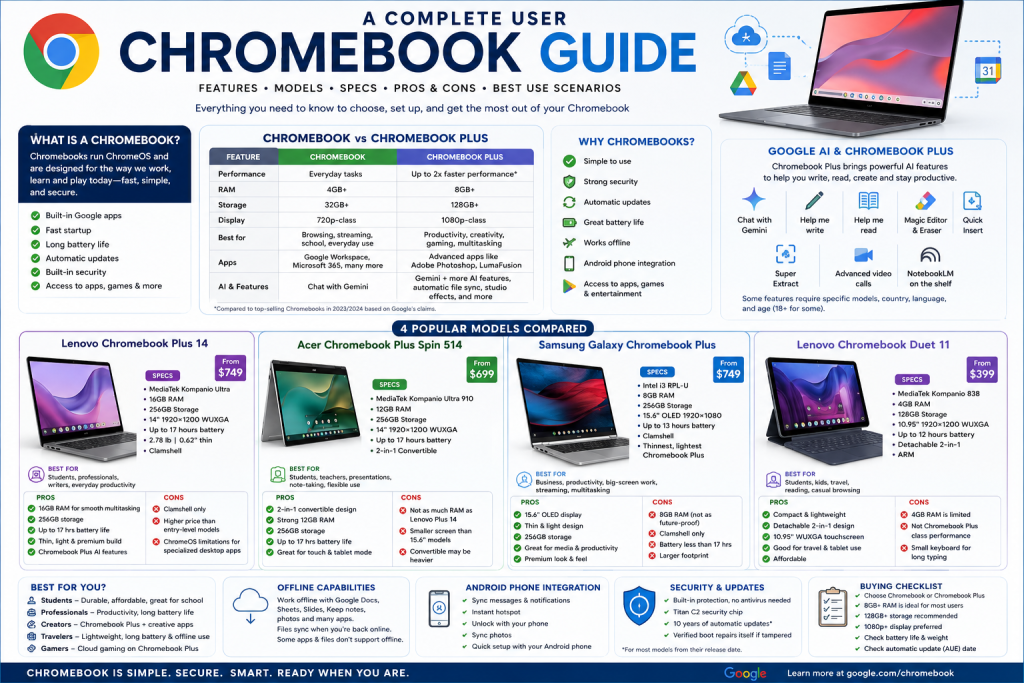
Updated using Google’s current public Chromebook pages and Chromebook Help information available on May 14, 2026.
Chromebooks are laptops powered by ChromeOS, designed around Google apps, web apps, Android apps, cloud storage, fast startup, automatic updates, built-in security, and simple day-to-day use. Google positions Chromebook as a laptop for everyday work, school, entertainment, communication, and cloud-first productivity, while Chromebook Plus is the higher-performance tier with stronger hardware, more AI features, better app support, and more powerful productivity options. (Google)
Google’s own wording is simple: Chromebooks are everyday laptops with built-in Google apps, reliable performance, and strong security; Chromebook Plus adds more power, more storage, more memory, better displays, and extra AI features. (Google)
What Is a Chromebook?
A Chromebook is a laptop that runs ChromeOS instead of Windows or macOS. It is built mainly for:
- Web browsing
- Google Workspace: Docs, Sheets, Slides, Drive, Gmail, Meet, Calendar
- Android apps from Google Play on supported devices
- Cloud storage and Google Drive
- Video calls
- School work
- Streaming
- Basic photo editing
- Notes, PDFs, documents, and everyday productivity
Google says Chromebooks include helpful built-in Google apps and features, and are designed to handle everyday tasks. (Google)
The main idea is this: a Chromebook is best when your work happens mostly in a browser or cloud apps. If your daily tasks are Gmail, Google Docs, YouTube, Zoom, Microsoft 365, Drive, school portals, learning platforms, Canva, Figma, Netflix, Spotify, and web tools, a Chromebook can be a very practical laptop.
Chromebook vs Chromebook Plus
Google currently separates Chromebook into two major tiers: Chromebook and Chromebook Plus.
| Category | Chromebook | Chromebook Plus |
|---|---|---|
| Main purpose | Everyday laptop | More powerful productivity, creativity, gaming, and AI |
| Performance level | Daily needs | About 2x processing power compared with top-selling Chromebooks in 2023/2024, depending on Google page context |
| RAM | 4GB+ | 8GB+ |
| Storage | 32GB+ | 128GB+ |
| Display | 720p-class minimum shown in Google comparison | 1080p-class display |
| Apps | Google Workspace, Microsoft 365, HBO Max, and many more | Advanced apps like Adobe Photoshop and LumaFusion |
| AI | Chat with Gemini | Gemini plus more Chromebook Plus AI features |
| Offline files | Manual Google Drive offline selection | Automatic file sync for Google Docs, Sheets, and Slides |
| Best for | Basic users, students, browsing, streaming, simple schoolwork | Heavy multitasking, AI tools, writing, creativity, meetings, better displays |
Google’s own comparison says Chromebook Plus has 8GB+ RAM, 128GB+ storage, stronger productivity app support, 1080p display, automatic file sync, and extra AI features compared with the standard Chromebook tier. (Google)
Why People Buy Chromebooks
Chromebooks are popular because they are simple. You sign in with a Google Account, your bookmarks and settings come back, your Google Drive files are available, and the system takes care of many things automatically.
Google highlights these major Chromebook benefits:
- Built-in Google apps and features
- Reliable everyday performance
- Fast startup
- Long battery life
- Built-in security
- Access to popular productivity, creativity, entertainment, and gaming apps
- Android phone integration
- Gemini and AI tools, especially on Chromebook Plus (Google)
Tiny hot take: a Chromebook is basically the “stop making my laptop complicated” laptop. For many users, that is exactly the point.
Core Chromebook Features
1. Google Apps Built In
Chromebooks are designed around Google’s ecosystem. That means Gmail, Google Drive, Google Docs, Sheets, Slides, Calendar, Meet, Photos, Google Play, and Chrome are part of the everyday experience. Google describes Chromebook as packed with Google apps and features, with quick access to files, apps, answers, and web search from the Launcher. (Google)
Best use scenario:
- Students writing assignments
- Teachers preparing class material
- Office users working in Google Workspace
- Home users managing email, photos, files, and video calls
- Anyone already using a Gmail or Google account
2. Gemini and AI Features
Chromebooks include access to Gemini, and Chromebook Plus models get more AI-focused features. Google says Gemini can help with planning, writing, learning, and idea generation from the home screen. (Google)
On Chromebook Plus, Google lists AI features such as:
- Chat with Gemini
- Help me read
- Help me write
- Magic Editor and Magic Eraser
- Quick Insert for creating content and adding writing support
- Super Extract, which can convert images and documents into editable text
- Gemini in Chrome, where available
- NotebookLM built into the shelf on Chromebook Plus (Google)
Important detail: some AI features have device, country, language, age, and availability limits. Google says Gemini in Chrome is gradually rolling out and, for that support page, requires a Chromebook Plus, latest Chrome, sign-in, age 18+, US availability, and Chrome language set to English United States. (Google Help)
3. Apps and Games
Google says popular apps for productivity, creativity, and gaming are available on Chromebook. The Chromebook apps page highlights Microsoft 365, Adobe apps, Google apps, Goodnotes, Squid, Google Keep, Dropbox, Adobe Acrobat, DocuSign, Zoom, Microsoft Teams, Google Meet, Adobe Lightroom, Photos, Picsart, Figma, Adobe Express, Canva, Cubasis, CapCut, LumaFusion, Netflix, Disney, HBO Max, Spotify, SoundCloud, and Amazon Music. (Google)
Google’s FAQ also says users can access apps like Netflix, Adobe Photoshop, Zoom, Microsoft 365, Play Store games such as Minecraft and Roblox, and cloud gaming services such as NVIDIA GeForce NOW and Xbox Cloud Gaming. (Google)
Important limitation: Google’s Chromebook Help says Android apps are available only on some Chromebooks, some work/school devices may block Play Store access, and some Android apps do not work with some Chromebooks. (Google Help)
4. Offline Use
A Chromebook is cloud-first, but not internet-only. Google says you can use Chromebook offline for several tasks, including taking notes in Google Keep, viewing and editing certain Drive files, editing photos with the built-in photo editor, saving web pages, and using apps that support offline mode. (Google Help)
Google Drive offline support includes Docs, Sheets, Slides, and some other file types. Changes sync back to Google Drive the next time the Chromebook connects to the internet. Google also notes that some apps may not work offline, and unsupported offline files include Google Maps and Google Forms. (Google Help)
5. Android Phone Integration
Chromebooks work especially well with Android phones. Google lists features such as syncing chat notifications, syncing photos, sending and receiving text messages, connecting to a phone network, and unlocking the Chromebook with the phone. (Google Help)
Google’s Chromebook pages also describe Quick Start setup with an Android phone, Fast Pair for headphones and speakers, Wi-Fi Sync, Smart Lock, Phone Hub, automatic hotspot switching, and Pixel app streaming on supported devices. (Google)
6. Security and Updates
Google’s Chromebook FAQ says no extra antivirus software is needed, and states that Chromebooks have built-in protection and the Titan C2 security chip; Google also states that, as of May 2025, there was no evidence of any documented successful virus attack on ChromeOS. (Google)
Chromebooks automatically manage updates so the device has the latest software and security features. Google’s support page says users can check update schedule by going to Settings → About ChromeOS → Additional details → Update schedule. (Google Help)
Google also says Chromebooks receive 10 years of automatic updates, and even after automatic updates end, verified boot remains; if the system is tampered with, it repairs itself. (Google Help)
Chromebook Plus: The More Powerful Chromebook
Chromebook Plus is the tier to buy if you want a Chromebook that feels more like a full daily laptop. Google describes Chromebook Plus as the latest Chromebooks with Gemini, more possibilities, more power, better productivity, gaming and creativity features, and extra AI capabilities. (Google)
Chromebook Plus Minimum Direction
Google’s Chromebook Plus pages emphasize:
- 8GB+ RAM
- 128GB+ storage
- More powerful productivity apps
- Gemini and AI features
- Better video calls with advanced noise cancellation and built-in studio/portrait effects
- More capable creative apps
- Cloud gaming support
- 12 months of Google AI Pro, 2TB storage, and more on eligible Chromebook Plus purchases, with terms and redemption deadline conditions (Google)
Best Users for Chromebook Plus
Choose Chromebook Plus if you:
- Keep many tabs open
- Use Google Docs, Sheets, Slides, Gmail, Calendar, and Meet heavily
- Want AI writing and reading tools
- Join many video calls
- Edit photos or videos lightly
- Use apps like Photoshop, Canva, Figma, LumaFusion, CapCut, or Microsoft 365
- Want stronger performance and longer useful life
- Want a better screen and more storage
Current Google Chromebook Shop Lineup
The Google Chromebook shop page I accessed lists several current Chromebook models with type, processor, memory, storage, starting price, battery estimate, screen size, resolution, graphics, and perks. Prices and availability can change by region and retailer, so treat these as Google-page values at the time checked. (Google)
| Model | Type | Configuration shown by Google | Starting price shown | Battery | Display | Graphics / Platform | Perks shown |
|---|---|---|---|---|---|---|---|
| Acer Chromebook 315 | Clamshell | Intel Celeron JSL, 4GB RAM, 64GB storage | From $179 | Up to 10 hours | 15.6-inch, 1920×1080 Full HD | Intel UHD Graphics | LumaFusion 25% off, AI premium plan 3 months |
| Acer Chromebook Plus 515 | Clamshell | Intel Core i3-1305, 8GB RAM, 128GB storage | From $429.99 | Up to 10 hours | 15.6-inch, 1920×1080 Full HD | Intel UHD Graphics | LumaFusion 25% off, Google AI Pro 12 months |
| Acer Chromebook Plus Spin 514 | 2-in-1 | MediaTek Kompanio Ultra 910, 12GB RAM, 256GB storage | From $699 | Up to 17 hours | 14-inch, 1920×1200 WUXGA | MediaTek Integrated Graphics | LumaFusion 25% off, Google AI Pro 12 months |
| Acer Chromebook Plus Spin 714 | 2-in-1 | Intel i3 MTL-U, 8GB RAM, 256GB storage | From $799 | Up to 10 hours | 14-inch, 1920×1200 WUXGA | Intel Graphics | LumaFusion 25% off, Google AI Pro 12 months |
| ASUS Chromebook Plus CX34 | Clamshell | Intel i3 ADL-U, 8GB RAM, 128GB storage | From $369 | Up to 10 hours | 14-inch, 1920×1080 Full HD | Intel UHD Graphics | LumaFusion 25% off, Google AI Pro 12 months |
| HP Chromebook Plus 15.6-inch | Clamshell | Intel i3 ADL-N, 8GB RAM, 128GB storage; also Intel N200, 8GB RAM, 64GB storage | From $599 / $449 | Up to 13:15 hours | 15.6-inch, 1920×1080 Full HD | Intel UHD Graphics | LumaFusion 25% off, Google AI Pro 12 months |
| HP Chromebook Plus x360 14-inch | 2-in-1 | Intel Alder Lake N Core i3 15W, 8GB RAM, 256GB storage | From $629.99 | Up to 12 hours | 14-inch, 1920×1080 Full HD | Intel UHD Graphics | LumaFusion 25% off, Google AI Pro 12 months |
| Lenovo IdeaPad Flex 5i Chromebook Plus | 2-in-1 | Intel i5 RPL-U, 8GB RAM, 256GB storage; also Intel i3 RPL-U, 8GB RAM, 128GB storage | From $599 | Up to 10 hours | 14-inch, 1920×1200 WUXGA | Integrated Intel Graphics | LumaFusion 25% off, Google AI Pro 12 months |
| Lenovo Chromebook Duet 11 | 2-in-1 detachable | MediaTek Kompanio 838, 4GB RAM, 128GB storage | From $399 | Up to 12 hours | 10.95-inch, 1920×1200 WUXGA | ARM | LumaFusion 25% off, AI premium plan 3 months |
| Lenovo Chromebook Plus 14 | Clamshell | MediaTek Kompanio Ultra, 16GB RAM, 256GB storage | From $749 | Up to 17 hours | 14-inch, 1920×1200 WUXGA | MediaTek Integrated Graphics | LumaFusion 25% off, Google AI Pro 12 months |
| Samsung Galaxy Chromebook Plus | Clamshell | Intel i3 RPL-U, 8GB RAM, 256GB storage | From $749 | Up to 13 hours | 15.6-inch OLED, 1920×1080 Full HD | Intel Graphics | LumaFusion 25% off, Google AI Pro 12 months |
Google’s device entries for these models appear across its Chromebook shop listing; the rows above summarize the fields shown in the Google device cards, including configuration, type, battery, screen, resolution, graphics, price, and perks. (Google)
Detailed Buying Guide: Which Chromebook Should You Buy?
Buy a Standard Chromebook If…
A standard Chromebook is enough if you mostly do:
- Browsing
- Google Docs
- Video streaming
- Simple school tasks
- Light online classes
- Basic video calls
- Casual Android apps
- Cloud storage
Recommended specs:
- 4GB RAM minimum
- 64GB storage minimum
- 1080p display if possible
- 10+ hours battery if mobility matters
- Check the automatic update date before buying
Best standard Chromebook buyer: a student, child, casual home user, or someone who wants the cheapest simple laptop.
Buy a Chromebook Plus If…
Chromebook Plus is the better choice if this will be your main laptop. It is especially worth it if you write a lot, multitask, use AI tools, edit documents all day, join meetings, or want better performance.
Recommended specs:
- 8GB RAM minimum
- 128GB storage minimum
- 1080p or WUXGA display
- Chromebook Plus badge
- 14-inch or 15.6-inch screen depending on portability needs
- 2-in-1 design if you want touch/tablet mode
Best Chromebook Plus buyer: student, teacher, office worker, writer, business user, creator, or heavy browser user.
Buy a 2-in-1 Chromebook If…
A 2-in-1 Chromebook is best if you want flexibility. These devices fold into tent, stand, or tablet-like positions.
Best for:
- Presentations
- Video watching
- Touch apps
- Reading PDFs
- Note-taking
- Teaching
- Drawing or sketching
- Students who move between laptop and tablet tasks
Examples from Google’s shop page include Acer Chromebook Plus Spin 514, Acer Chromebook Plus Spin 714, HP Chromebook Plus x360 14, Lenovo IdeaPad Flex 5i Chromebook Plus, and Lenovo Chromebook Duet 11. (Google)
Buy a Detachable Chromebook If…
A detachable Chromebook is basically a tablet with a keyboard cover. It is good for travel, reading, handwritten notes, kids, lightweight school use, and casual browsing.
The Lenovo Chromebook Duet 11 is the main detachable model in the Google shop list I accessed, with a 10.95-inch WUXGA display, MediaTek Kompanio 838, 4GB RAM, 128GB storage, and up to 12 hours battery. (Google)
Buy a Large-Screen Chromebook If…
A 15.6-inch Chromebook is better if you work with spreadsheets, split-screen documents, streaming, or long reading sessions.
Examples from Google’s shop page:
- Acer Chromebook 315
- Acer Chromebook Plus 515
- HP Chromebook Plus 15.6-inch
- Samsung Galaxy Chromebook Plus
The Samsung Galaxy Chromebook Plus is the most premium big-screen option in this set because Google lists it as the “thinnest, lightest Chromebook Plus” with a 15.6-inch OLED display. (Google)
Focus Comparison: Four Key Models for Your Blog
1. Lenovo Chromebook Plus 14
The Lenovo Chromebook Plus 14 is Google’s highlighted new Chromebook Plus model. Google calls it “the most advanced Chromebook Plus yet.” The shop page lists it with MediaTek Kompanio Ultra, 16GB RAM, 256GB storage, clamshell design, up to 17 hours battery, 14-inch 1920×1200 WUXGA display, MediaTek Integrated Graphics, 2.78 lb weight, and 0.62-inch thickness. (Google)
Best Use Scenario
This is the best model for a main everyday Chromebook. It is suitable for:
- Students
- Teachers
- Writers
- Office workers
- Google Workspace users
- AI productivity users
- Research and browsing
- Long battery workdays
- Video meetings
- Multitasking
Pros
- 16GB RAM is excellent for Chromebook multitasking
- 256GB storage is strong for a Chromebook
- Up to 17 hours battery shown by Google
- Thin and light enough for daily carry
- Chromebook Plus AI and Google AI Pro perk support
- Best balance among the models listed
Cons
- Clamshell only, not a convertible
- No tablet/tent mode
- More expensive than entry-level Chromebooks
- ChromeOS may not replace Windows/macOS for specialized desktop software
Best For
Buy this if you want the best overall Chromebook Plus from this comparison.
2. Acer Chromebook Plus Spin 514
The Acer Chromebook Plus Spin 514 is a 2-in-1 Chromebook Plus. Google lists it with MediaTek Kompanio Ultra 910, 12GB RAM, 256GB storage, up to 17 hours battery, 14-inch 1920×1200 WUXGA display, and MediaTek Integrated Graphics. (Google)
Best Use Scenario
This is best for people who want laptop mode plus tablet/tent flexibility.
Use it for:
- School
- Teaching
- Video calls
- Presentations
- Touchscreen tasks
- Reading PDFs
- Note-taking
- Watching videos in tent mode
- Students who want one device for work and entertainment
Pros
- 2-in-1 convertible design
- Strong 12GB RAM and 256GB storage
- Up to 17 hours battery listed by Google
- Chromebook Plus features
- Good fit for touch-first and flexible workflows
Cons
- Likely heavier than a simple tablet-style detachable
- Not as much RAM as Lenovo Chromebook Plus 14
- 14-inch display may be smaller than Samsung’s 15.6-inch screen
- Convertible design may cost more than a basic clamshell
Best For
Buy this if you want the best 2-in-1 Chromebook Plus.
3. Samsung Galaxy Chromebook Plus
The Samsung Galaxy Chromebook Plus is Google’s premium large-screen Chromebook Plus option. Google lists it as the “thinnest, lightest Chromebook Plus,” with Intel i3 RPL-U, 8GB RAM, 256GB storage, clamshell design, up to 13 hours battery, 15.6-inch OLED display, 1920×1080 Full HD resolution, and Intel Graphics. (Google)
Best Use Scenario
This is best for users who want a bigger display in a very slim laptop.
Use it for:
- Business productivity
- Spreadsheets
- Long writing sessions
- Split-screen work
- Streaming
- Google Workspace
- Meetings
- People who want a premium-looking Chromebook
Pros
- 15.6-inch OLED screen
- Thin and light Chromebook Plus design
- 256GB storage
- Good for media and productivity
- Better screen size for multitasking
Cons
- 8GB RAM is good, but not as future-proof as 16GB
- Clamshell only
- Larger footprint may be less comfortable in tight spaces
- Battery estimate is lower than Lenovo Chromebook Plus 14 and Acer Spin 514
Best For
Buy this if you want the best big-screen Chromebook Plus.
4. Lenovo Chromebook Duet 11
The Lenovo Chromebook Duet 11 is a compact 2-in-1 detachable Chromebook. Google lists it with MediaTek Kompanio 838, 4GB RAM, 128GB storage, up to 12 hours battery, 10.95-inch 1920×1200 WUXGA display, and ARM platform. (Google)
Best Use Scenario
This is best for users who care more about portability than performance.
Use it for:
- Reading
- Note-taking
- School
- Kids
- Travel
- YouTube and streaming
- Casual browsing
- Google Docs light editing
- Tablet-style use
Pros
- Compact detachable design
- 10.95-inch WUXGA touchscreen
- Good for travel and tablet mode
- 128GB storage is decent for a small Chromebook
- Lower starting price than premium Chromebook Plus models
Cons
- 4GB RAM is limited
- Not Chromebook Plus-class performance
- Smaller keyboard is not ideal for long writing
- Less suitable for heavy multitasking
- ARM/app compatibility can vary depending on app
Best For
Buy this if you want the best portable Chromebook tablet-style device.
Chromebook Pros
Simple Setup
Google says switching is simple: sign in to Chrome on your old device, back up your content, then sign in to the new Chromebook. With Android Quick Setup, you can scan a QR code from your phone to transfer your Google Account and settings. (Google)
Strong Security
Chromebooks do not require traditional antivirus software, according to Google’s FAQ, because protection is built in. Google also points to the Titan C2 security chip and says ChromeOS had no documented successful virus attack as of May 2025. (Google)
Automatic Updates
ChromeOS automatically manages updates, and users can check their device’s update schedule in settings. Google says Chromebooks receive 10 years of automatic updates, with some conditions for older devices. (Google Help)
Great for Google Users
If you already use Gmail, Google Drive, Google Photos, YouTube, Google Meet, Docs, Sheets, Slides, and Calendar, Chromebook feels natural. Google also highlights Launcher, shortcuts, file sync, and Recap features to help users return to work quickly. (Google)
Good Battery Life
Google promotes Chromebook battery life as suitable for a workday or long flight, while noting that exact timing depends on the model and usage. Specific shop listings show some models from 10 hours up to 17 hours. (Google)
App Variety
Google lists productivity, creativity, entertainment, communication, and gaming apps for Chromebook, including Microsoft 365, Adobe apps, Zoom, Google Meet, Netflix, Disney, Spotify, Canva, Figma, CapCut, and LumaFusion. (Google)
Chromebook Cons
Not Every App Works Like Windows or macOS
Chromebooks are excellent for web apps, Android apps, and cloud tools, but they are not ideal if you require specialized Windows/macOS desktop software. Google’s Android app support page also notes that some apps do not work with some Chromebooks. (Google Help)
Offline Work Requires Setup
Offline work is possible, but you should prepare Drive files, Keep notes, and offline apps before losing internet access. Some apps and file types do not work offline. (Google Help)
Entry-Level Models Can Feel Limited
A Chromebook with 4GB RAM and 64GB storage can handle light tasks, but it is not ideal for heavy multitasking. Google’s own tier comparison shows Chromebook Plus starts at 8GB+ RAM and 128GB+ storage, which is the safer choice for serious use. (Google)
AI Features Are Not Universal
Some Gemini and Chromebook Plus AI features depend on device model, region, language, age, availability, and internet connection. Google’s support page for Gemini in Chrome says availability is gradual and has specific requirements. (Google Help)
Update Lifespan Matters
Even though Chromebooks receive long update support, users should check the automatic update schedule before buying, especially with older or discounted models. Google says the update schedule is found under About ChromeOS → Additional details. (Google Help)
Best Chromebook by User Scenario
Best for Students
Choose:
- Lenovo Chromebook Plus 14
- Acer Chromebook Plus Spin 514
- Lenovo Chromebook Duet 11 for younger students or tablet-first use
Why: Google Docs, Classroom, Meet, Drive, offline notes, and long battery life make Chromebooks strong student devices. The Duet is portable, while Chromebook Plus models are better for long-term school use.
Best for Teachers
Choose:
- Acer Chromebook Plus Spin 514
- Lenovo IdeaPad Flex 5i Chromebook Plus
- HP Chromebook Plus x360 14
Why: A 2-in-1 design is useful for presentations, touch interaction, video lessons, PDFs, and classroom flexibility.
Best for Business Users
Choose:
- Lenovo Chromebook Plus 14
- Samsung Galaxy Chromebook Plus
- Acer Chromebook Plus 515
Why: Business users benefit from 8GB+ RAM, 128GB+ storage, Google Workspace, Microsoft 365 support, video calls, good displays, and long battery life.
Best for Writers and Bloggers
Choose:
- Lenovo Chromebook Plus 14
- Samsung Galaxy Chromebook Plus
- ASUS Chromebook Plus CX34
Why: Writing depends on keyboard comfort, battery life, screen quality, and multitasking. Chromebook Plus models also bring Help me write and Gemini support.
Best for Creators
Choose:
- Lenovo Chromebook Plus 14
- Samsung Galaxy Chromebook Plus
- Acer Chromebook Plus Spin 714
Why: Google says Chromebook Plus supports advanced apps like Adobe Photoshop and LumaFusion, plus AI editing tools such as Magic Editor and Magic Eraser. (Google)
Best for Travel
Choose:
- Lenovo Chromebook Duet 11
- Lenovo Chromebook Plus 14
- Samsung Galaxy Chromebook Plus
Why: The Duet is the most compact, Lenovo Chromebook Plus 14 gives the best performance/battery balance, and Samsung gives a large screen in a thin body.
Best for Gaming
Choose:
- Chromebook Plus models with better displays and performance
- Gaming-focused Chromebook Plus models where available
Google says Chromebook Plus can stream PC and console games through services such as GeForce NOW, Xbox Cloud Gaming, Amazon Luna, and Boosteroid, though subscriptions, controllers, internet, regional availability, and service limitations can apply. (Google)
Practical Chromebook Setup Guide
Step 1: Sign in With Your Google Account
Use your Gmail/Google Account during setup. This brings in Chrome sync, bookmarks, Google Drive access, and Google services.
Step 2: Connect Your Android Phone
During setup, Google allows Quick Setup with an Android phone by scanning a QR code. You can also connect a phone later under Chromebook settings. (Google Help)
Step 3: Turn On Google Drive Offline
For offline Docs, Sheets, and Slides, enable offline access in Google Drive settings or Chromebook system preferences. Files sync when you reconnect to the internet. (Google Help)
Step 4: Install Apps
Use:
- Web apps through Chrome
- Android apps through Google Play, if supported
- Progressive web apps
- Microsoft 365 web/app experience
- Google Workspace apps
- Creative apps like Canva, Adobe Express, Photoshop, Figma, CapCut, or LumaFusion, depending on model and availability
Step 5: Check Updates
Go to:
Settings → About ChromeOS → Additional details → Update schedule
This tells you when your Chromebook will receive its last automatic update. (Google Help)
Step 6: Learn Keyboard Shortcuts
Google’s FAQ says screenshot capture uses Shift + Ctrl + Show Windows, opening the Screen Capture tool for full screen, window, or partial capture. (Google)
Chromebook Buying Checklist
Before buying, check these:
1. Chromebook or Chromebook Plus?
For casual use, standard Chromebook is fine. For serious work, buy Chromebook Plus.
2. RAM
- 4GB: basic use
- 8GB: recommended minimum for most buyers
- 12GB–16GB: best for multitasking and long-term use
3. Storage
- 64GB: very basic
- 128GB: good starting point
- 256GB: better for long-term use, Android apps, offline files, and creative work
4. Display
- 1080p minimum is better for most users
- WUXGA 1920×1200 gives extra vertical space
- OLED is best for color and contrast
- Touchscreen is useful for students, notes, and tablet-style apps
5. Battery
Google device listings range from around 10 hours to 17 hours depending on model, but Google notes actual battery life varies based on network, settings, usage, battery condition, and other factors. (Google)
6. Device Style
- Clamshell: best traditional laptop
- 2-in-1: best for flexibility
- Detachable: best for portability and tablet mode
- Large-screen: best for productivity and media
7. Update Schedule
Always check AUE/update schedule, especially with used, refurbished, or clearance models.
Final Recommendations
Best Overall Chromebook
Lenovo Chromebook Plus 14
Why: 16GB RAM, 256GB storage, up to 17 hours battery, 14-inch WUXGA display, thin/light design, Chromebook Plus AI features, and strong overall balance. (Google)
Best 2-in-1 Chromebook
Acer Chromebook Plus Spin 514
Why: 2-in-1 design, 12GB RAM, 256GB storage, up to 17 hours battery, Chromebook Plus features, and strong flexibility. (Google)
Best Big-Screen Chromebook
Samsung Galaxy Chromebook Plus
Why: 15.6-inch OLED display, thin/light Chromebook Plus design, 256GB storage, and premium productivity focus. (Google)
Best Portable Chromebook Tablet
Lenovo Chromebook Duet 11
Why: detachable 2-in-1 design, 10.95-inch WUXGA display, 128GB storage, and compact travel-friendly size. (Google)
Best Budget Chromebook From Google’s Current Shop List
Acer Chromebook 315
Why: Google’s shop page shows it from $179 with a 15.6-inch Full HD display and up to 10 hours battery, making it the cheapest listed model I found on the Google shop page. (Google)
Conclusion
A Chromebook is best for users who want a simple, secure, cloud-first laptop for browsing, school, office work, video calls, streaming, apps, and Google services. A standard Chromebook is enough for light everyday use, but Chromebook Plus is the smarter choice if the laptop will be used daily for serious productivity, multitasking, AI tools, meetings, creative apps, and longer-term ownership.
For most buyers, the safest recommendation is:
Buy Chromebook Plus with at least 8GB RAM, 128GB storage, a 1080p or WUXGA screen, and a long update schedule.
Among the models discussed, the Lenovo Chromebook Plus 14 is the strongest all-round choice, the Acer Chromebook Plus Spin 514 is the best flexible 2-in-1, the Samsung Galaxy Chromebook Plus is the best large-screen premium option, and the Lenovo Chromebook Duet 11 is the best compact detachable Chromebook.

I’m Rajesh Kumar, a DevOps, SRE, DevSecOps, Cloud, and Platform Engineering expert passionate about sharing practical knowledge, real-world experiences, and industry best practices. I have worked at Cotocus and regularly write about technology, travel, investing, health, product reviews, and digital marketing through my various platforms.
I publish technical articles at DevOps School, travel stories at Holiday Landmark, stock market insights at Stocks Mantra, health and fitness guidance at My Medic Plus, product reviews at TrueReviewNow, and SEO and digital marketing strategies at Wizbrand.
Find Trusted Cardiac Hospitals
Compare heart hospitals by city and services — all in one place.
Explore Hospitals
Nice buying guide covering pros and cons—useful for students and professionals deciding between budget and performance models.