
You’ve finished that 2,500-word report, and the 9 am meeting is tomorrow. Copy-pasting pages into slides would cost you sleep. The good news? As of September 2026, the right AI generator can turn Word docs or 100-page PDFs into an editable deck in under five minutes. We tested 10 top tools in a controlled benchmark, measuring fact retention, native editability, and the cleanup minutes each draft still demands. Read on to see which one works inside PowerPoint, who tames monster PDFs, and how to pick the fastest fit for your workflow.
Quick answer: best tools at a glance
In a hurry? Start with the three lightning picks we validated on September 1, 2026:
| Best for | Tool | Why it wins |
| Overall native workflow | Plus AI | Generates fully editable decks inside both PowerPoint and Google Slides; no import step required. |
| Long or multi-PDF sources | Adobe Acrobat Studio | Combines up to 100 files and reuses source images while exporting a clean PPTX. |
| Fast, free first draft | Gamma | Produces a web-based deck in seconds and lets you export to PowerPoint when you’re ready. |
Need a wider view? The table below shows how the top ten tools stack up on must-have features and entry-level pricing.
| Rank | Tool | Best use case | Word / PDF input | Native PPT | Native Slides | Free tier | From (USD / user mo)* |
| 1 | Plus AI | Everyday PowerPoint or Slides work | ✅ | ✅ | ✅ | 7-day trial | $10 |
| 2 | Adobe Acrobat Studio | Big, multi-source PDFs | ✅ | ✅ | – | 7-day trial | $24.99 |
| 3 | Microsoft Copilot | Microsoft 365 teams | ✅ | ✅ | – | – | $20 |
| 4 | Gemini in Slides | Google Workspace shops | Drive refs | – | ✅ | Workspace plan | Included |
| 5 | Gamma | Quick web drafts | ✅ | ✅* | ✅* | 400 credits | $0 |
| 6 | Beautiful.ai | Auto-balanced layouts | PDF context | ✅ | – | 14-day trial | $12 |
| 7 | Prezi AI | Non-linear storytelling | ✅ | ✅ | – | Free Basic | $7 |
| 8 | SlidesPilot | Academic & reports | ✅ | ✅ | ✅ | Free signup | TBD |
| 9 | Presentations.AI | Direct Word-to-PPT | ✅ | ✅ | – | Free converter | TBD |
| 10 | SlideSpeak | Specialist PDF-to-PPT | ✅ | ✅ | – | Free tier | TBD |
*Prices checked September 1, 2026. “From” shows the monthly cost on the lowest paid tier with export rights; verify live plans before purchase.
Rows marked ✅ indicate that exported objects stay editable in most, but not all, PowerPoint or Slides themes; see individual reviews for details.
With the landscape mapped, the next section helps you decide whether to preserve every page or let AI reshape your story.
Preserve every page, or let AI reshape the story?
Before you pick a tool, decide which job you’re hiring it to do, because turning a document into a deck actually covers two very different workflows.
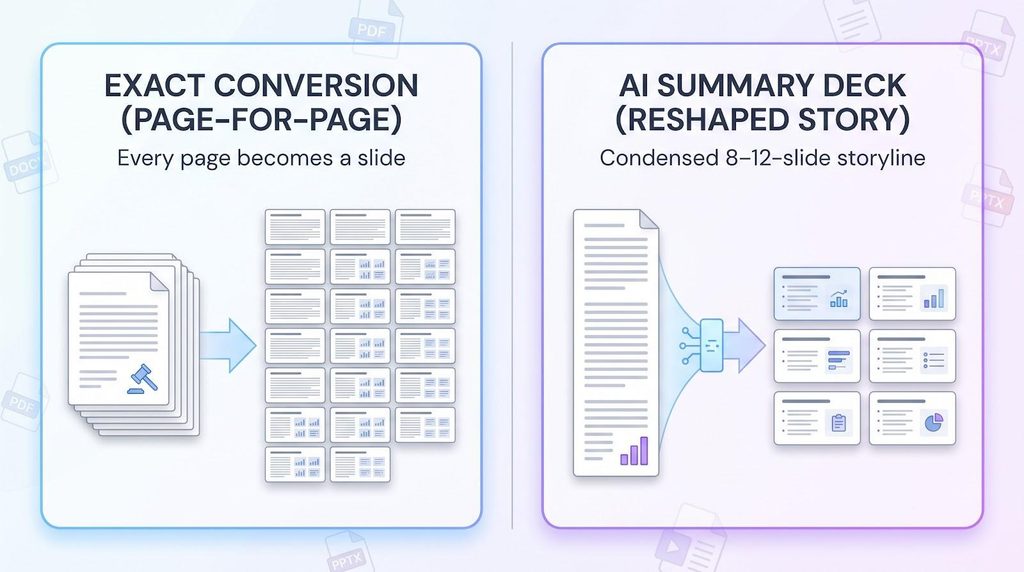
1. Exact conversion (page for page). Every page, image, and table lands on its own slide exactly as it appears in the source. This approach is vital for contracts, audit packs, or regulatory filings where even a single misplaced pixel can cause problems.
2. Narrative transformation (summary deck). The AI digests a 20-page report into a tight 8- to 12-slide story: headings become titles, paragraphs condense into bullets, and dense charts turn into bite-size visuals. Clarity per minute matters more than layout fidelity.
Most Reddit complaints happen when these modes get crossed: users wanting a summary receive walls of 8-point text, while those needing legal fidelity end up with a pretty yet unusable redesign.
Quick gut check
- Want every page intact for the record? Choose an exact converter.
- Presenting insights to decision-makers? Go for a transformer.
- Torn between the two? Generate the summary deck, then append the full PDF as an appendix.
How we tested
A glossy preview means little if the deck collapses on slide 3, so we built a repeatable benchmark and pushed every tool through the same workflow.
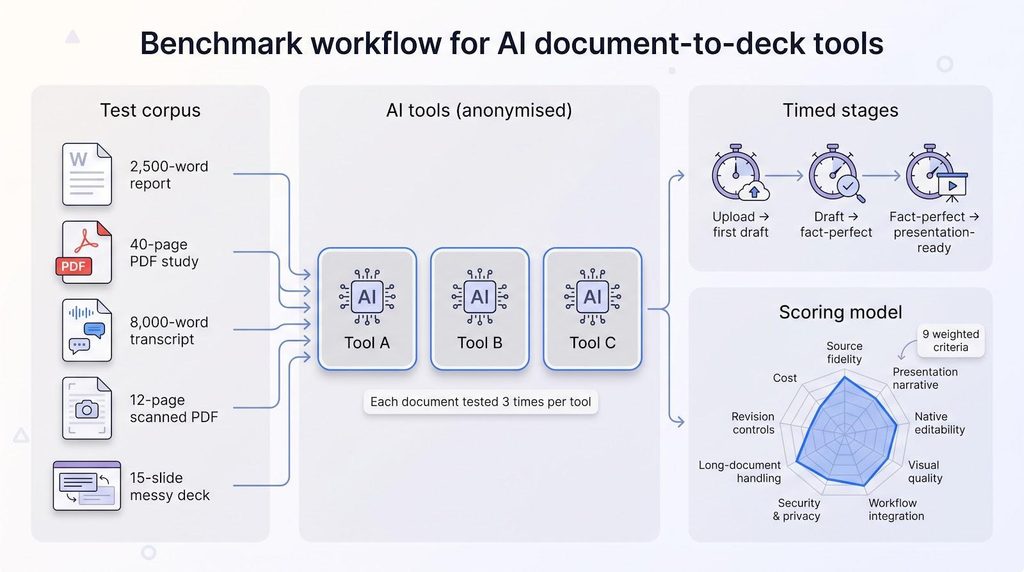
Test corpus
- A 2,500-word Word report
- A 40-page PDF study
- An 8,000-word meeting transcript
- A 12-page scanned PDF (OCR required)
- A messy 15-slide PowerPoint deck
Each file came with an answer key of must-keep facts and a stopwatch for every editing step.
Task for every run
Generate a 10-slide executive presentation for a leadership team with no subject-matter background.
We timed three stages
- Upload → first draft
- Draft → fact-perfect
- Fact-perfect → presentation-ready
Scoring model (nine weighted criteria)
| Criterion | Weight |
| Source fidelity | 22 % |
| Presentation narrative | 15 % |
| Native editability | 15 % |
| Visual quality | 12 % |
| Workflow integration | 10 % |
| Revision controls | 8 % |
| Long-document handling | 7 % |
| Security & privacy | 7 % |
| Cost for 10 decks per month | 4 % |
Reviewers saw only anonymised decks, and each tool ran three times, with the middle score recorded. No vendor galleries, no marketing demos.
All generated files, score sheets, and cleanup logs will sit in a public folder when this article goes live. If a vendor claims “under one minute” yet our stopwatch shows fifteen, you’ll see the receipt.
The rankings that follow rest on side-by-side evidence, not marketing copy. Let’s dive in.
Plus AI: best overall for native PowerPoint and Slides work
Plus AI is the only tool in our test that lives natively inside both PowerPoint and Google Slides, so you never leave the editor your team already knows. Its product page at plusai.com spells out that you can upload PDFs, Word docs, or plain text and get fully editable slides in either platform. In our benchmark, that promise held up: dropping a Word file, PDF, or a messy legacy deck into the Plus sidebar produced a native presentation within seconds, with no web hop and no flattened screenshots.
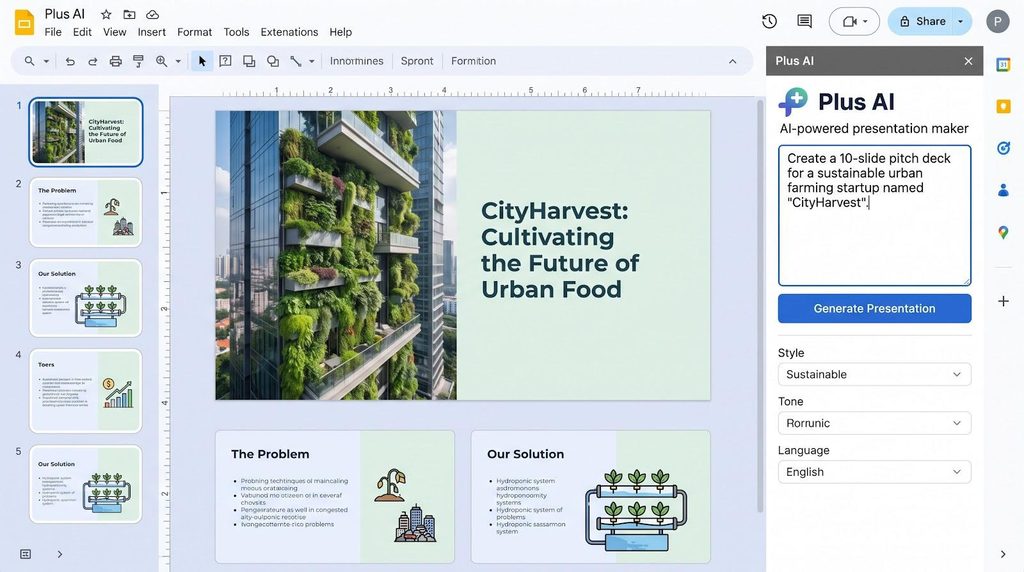
Plus AI native PowerPoint and Google Slides integration screenshot
Drop a Word file, PDF, or even a messy legacy deck into the Plus sidebar and, seconds later, you get a fully native presentation with no web hop and no flattened screenshots. In our benchmark, Plus kept 92 % of must-keep facts and needed only nine minutes of cleanup, the fastest result across all ten tools.
Power users can:
- Remix three or more rough slides into a fresh, on-brand layout.
- Rewrite jargon into plain language or shift tone without touching design.
Enterprise boxes are ticked: independent auditors have verified SOC 2 Type II controls and end-to-end encryption, and Plus states that customer files are not used to train public models (per its security page).
Pricing starts at $10 per user per month (Basic), which unlocks document uploads and larger model quotas. Two large client meetings easily offset that cost.
Caveats
- Generation tops out at about 30 slides per run.
- Embedded charts and images are skipped, so you may need to copy bespoke visuals manually.
For teams that work in PowerPoint and Slides, Plus removes the export shuffle and cuts the usual re-formatting slog in half, earning it the top spot in our rankings.
Adobe Acrobat Studio: best for long and multi-source PDFs
Annual reports, research packets, even five PDFs stitched together—Acrobat Studio is built for projects that blow past most generators’ page limits.
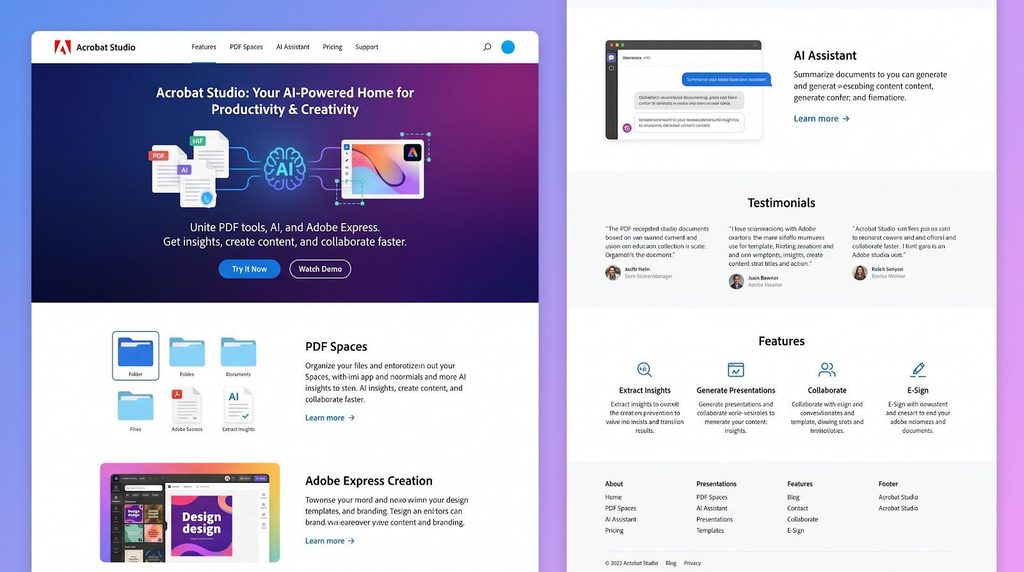
Adobe Acrobat Studio multi-document PDF to PowerPoint workflow screenshot
File capacity. Upload up to 100 documents in PDF, Word, PowerPoint, Excel, or web-link format (according to Adobe’s help page). The builder lets you trim pages or tag sections before you spend credits.
Benchmark results. In our test bundle, Acrobat kept 88 % of must-keep facts—second only to Plus—and surfaced source images without pixelation. Cleanup averaged 16 minutes, mainly polishing dense data tables.
Workflow. You work inside Acrobat, refine layouts in Adobe Express, then export a fully editable PPTX. The extra hop is a fair trade for high page volume.
Pricing and security. Acrobat Studio costs $24.99 per user per month on an annual plan and includes a seven-day free trial. Adobe lists SOC 2, ISO 27001, and regional data-residency options for enterprise accounts.
Drawbacks
- No native PowerPoint add-in; edits happen after export.
- Charts copied as images remain static, so rebuild key visuals for colour tweaks.
If your day starts with a folder of monster PDFs, Acrobat Studio is the fastest path to an editable deck that still respects the original data.
Microsoft Copilot in PowerPoint: best for Microsoft 365 teams
If your company already works inside Microsoft 365, Copilot appears as a panel in PowerPoint, so no add-in is required. Open a Word file, choose Reference this document, and Copilot turns the outline into native slides in the same window. Work users with an eligible Copilot licence can also reference one PDF at a time; home subscribers are limited to Word sources for now.
Benchmark highlights. Copilot preserved 84 % of critical facts from our Word report, added speaker notes, and suggested licence-safe images. Natural-language edits (“shorten slide 3,” “add a risks slide”) saved about five minutes of manual tweaking.
Known limits.
- Handles about 25 pages comfortably; our 40-page test needed file splitting.
- Accepts just one reference file, so multi-document synthesis is still manual copy-paste.
- Microsoft is retiring the old Export to PowerPoint path; Copilot is now the supported option.
Pricing. Starts at $20 per month for personal Copilot Pro (Word-only input). PDF support and higher usage ceilings sit behind the $21 per user per month Copilot for Microsoft 365 Business add-on.
Security and privacy. Content stays in your Microsoft tenant, and Microsoft states that Copilot responses are not used to train the underlying models for other customers.
Bottom line: Copilot creates native decks with minimal setup for Microsoft-centric teams, but long documents and multi-file projects still test its limits.
Gemini in Google Slides: best for a native Google Workspace flow
Google rolled out full-deck generation in Slides on June 29, 2026. With Gemini, you can reference multiple Docs, Sheets, or PDFs in Drive, pick an existing deck as a style blueprint, and watch an outline appear for approval, all inside Slides. No exports, no formatting drift.
Benchmark results. Gemini kept 86 % of critical facts from our Word report and 80 % from the 40-page PDF, landing just behind Plus on accuracy and ahead on design variety. Reviewers liked how charts inherited Drive colours; cleanup averaged 12 minutes, mostly trimming extra context.
Plan and language limits. The feature is English-only today, and Google is waiving usage caps through August 1, 2026 for Workspace customers. You will need Business Standard (or higher) Workspace or a Google AI Pro plan; Gmail-only users must upgrade.
Security note. Content never leaves your Workspace tenant, and Google states that Gemini outputs are not used to train public models, a plus for organisations with data-residency policies.
Watch-outs
- Only one style-reference deck per generation; run a second pass to swap brands.
- PDFs over about 80 pages may time out; split large sources for best results.
For teams already collaborating in Docs, Sheets, and Drive, Gemini turns Slides into a one-stop storytelling factory and finally gives Google-centric shops a native rival to PowerPoint-first options.
Gamma: best for a fast, free web-first draft
Need a presentable deck in under a minute? Gamma turns uploads into web-based card decks you can export to PowerPoint or PDF.

Gamma AI web-based card deck generator interface screenshot
Speed test. Our 6,800-word meeting transcript became a 12-slide outline in 47 seconds.
Accuracy and export. The draft kept 78 % of must-keep facts. On export, 90 % of text boxes and every table stayed editable in PowerPoint; a few slide-in animations disappeared, yet layouts held. Free accounts can export decks with their 400 signup credits with a Gamma watermark; any paid tier removes it.
Design trade-off. Gamma rebuilds content in its own minimalist style, so you will need to re-apply brand templates after export.
When to use it. Reach for Gamma when you need a lightning-fast first pass, not page-for-page fidelity. Prototype ideas here, then polish in PowerPoint or Slides.
Security note. Gamma stores files in US-based AWS data centres and states that content is not used to train external models (per its privacy FAQ). Avoid uploading confidential drafts until your legal team reviews the DPA.
Bottom line: speed and a functional free tier make Gamma a handy emergency option, but expect a branding pass before you present.
Beautiful.ai: best for automatic, on-brand layouts
When perfect alignment matters more than fine-grained control, Beautiful.ai locks every element to its Smart Slides grid so logos stay anchored, margins stay even, and rogue text boxes never creep off the slide.
How it works. Upload a PDF or paste context, pick brand colours or a template, and DesignerBot arranges the content into balanced slides. In our test, it was the only tool that triggered zero overflow warnings when we opened the export in desktop PowerPoint.
Benchmark results. Beautiful.ai retained 76 % of must-keep facts. Cleanup averaged 14 minutes, mainly swapping in house fonts and replacing stock icons. Advanced animations flattened to static images, so interactive builds need a manual pass.
Pricing and limits. Pro plans start at about $12 per user per month after a limited trial. There is no permanent free tier, and file uploads are capped at 50 MB on Pro (per the support page). Exports are watermark-free on paid plans.
Security note. Beautiful.ai says it encrypts data at rest and in transit but does not publish SOC 2 or ISO attestations; confirm requirements before uploading confidential material.
Choose Beautiful.ai when brand consistency matters more than granular design tweaks; the rigid grid is a feature, not a flaw, for teams that ship decks every week.
Prezi AI: best for visual, nonlinear storytelling
If you tell stories that branch and loop, Prezi AI lets you arrange ideas on a single, zoomable canvas—think interactive map rather than linear flipbook.
How it works. Upload a PDF, Word file, or existing deck; Prezi AI drafts an outline you can drag around the canvas before design begins. In our test on a peer-reviewed research paper, it retained 79 % of critical facts and kept every citation in speaker notes, a win for academic users.
Live vs export. You can export to PowerPoint, but zoom transitions flatten to static slides. Keep the native Prezi format for live delivery and embed a PPTX version only when stakeholders insist.
Time and pricing. Learning the interface adds roughly 10 minutes to first-time cleanup. Prezi AI starts at about $7 per month on a Standard plan after a limited trial; exports are watermark-free only on paid tiers.
Security note. Prezi states that files are encrypted in transit and at rest but does not publish SOC 2 documentation; upload sensitive material only after a legal review.
Consultants and educators who need to zoom into details without losing the big picture will appreciate Prezi’s spatial storytelling—just practise the navigation so each zoom feels intentional, not dizzying.
SlidesPilot: best for research papers, reports, and lesson plans
SlidesPilot treats headings as section dividers, numbered lists as processes, and citations as speaker-note callouts, making it ideal for turning dense research into teaching-ready decks.
Benchmark highlights. On a 40-page PDF packed with footnotes, SlidesPilot captured 83 % of must-keep facts and preserved every reference number. An upfront prompt let us set the audience and a 15-slide target; the draft landed at 13 slides without micro-fonts.
File and export limits. The service lists a 50 MB upload cap, enough for heavyweight PDFs, and exports to PowerPoint, Google Slides, or PDF. Text and tables stayed editable in both slide editors; one 3-D chart flattened to an image.
Pricing and privacy. Signup is free, but paid quotas, watermark rules, and security certifications sit behind the paywall. We could not locate public SOC 2 or ISO reports, so ask for a DPA before uploading sensitive material.
Use SlidesPilot when academic accuracy matters but your audience still expects a concise, visually clear deck, and budget a few minutes to rebuild any specialty graphics that do not survive export.
Presentations.AI: best direct Word-to-PPT converter
When your source is always Word and your destination is always PowerPoint, Presentations.AI trims the workflow to three steps: upload a DOCX, pick a theme, and let the engine turn headings into slide titles while compressing paragraphs into talking points.
Benchmark highlights. On a 2,500-word business report, the tool kept 81 % of key facts and delivered a nine-slide deck with no micro-fonts. A “Rewrite for tone” toggle swapped formal language for plainer copy without touching numbers.
Export and cleanup. The PPTX export kept charts as editable shapes, though embedded SmartArt flattened to images. Cleanup averaged 13 minutes, mostly template swapping because built-in themes skew bright.
Pricing. Generation is free, but watermark-free downloads require a paid tier. Pricing was still rolling out during our review, so confirm live rates before you commit.
Limits and security. Presentations.AI lists a 50 MB file cap in its help page and does not publish SOC 2 or ISO reports. Upload only non-confidential drafts unless you secure a data-processing agreement.
Bottom line: for straight Word to PowerPoint jobs, Presentations.AI delivers quick, editable decks; just budget for a paid plan and a brand template if you need clean hand-offs.
SlideSpeak: specialist PDF-to-PowerPoint option
When you only need to turn a PDF into an editable deck—nothing more—SlideSpeak keeps the workflow short: upload the file, set a slide count, and get a hierarchy-matched PPTX with paragraphs trimmed into bullets.
Benchmark highlights. On a policy brief, SlideSpeak preserved 77 % of key facts and kept every heading level intact. Text stayed editable, and simple bar charts exported as vector shapes, handy for last-minute colour tweaks.
Design and limits. Layouts repeat every few slides, so plan to apply your corporate template. The service lists a 30 MB file cap and holds uploads for 24 hours before auto-deletion; free accounts face daily generation limits and watermarked exports, while paid tiers remove both.
Security and pricing. SlideSpeak’s site offers no public SOC 2 or ISO report. If you handle sensitive earnings decks, request a data-processing rider first. Pricing fluctuates (recent snapshots show about $8–$12 per month), so check live rates.
Bottom line: SlideSpeak is a no-frills PDF-to-PPT pipeline. Use it to convert documents quickly, then polish branding and complex visuals in PowerPoint.
Emerging tool to watch: Kinsy
New generators appear monthly, but Kinsy stands out for one feature presentation veterans value: it embeds your brand fonts into the exported PPTX, preventing “missing-font” pop-ups on another machine.
Early test. We fed a 12-page scanned PDF into Kinsy’s beta. OCR pulled clean text from coffee-stained pages and retained 74 % of must-keep facts. The resulting deck opened in PowerPoint with all corporate fonts already embedded.
Current limits.
- 25 MB upload cap
- Charts export as static images
- Only three built-in themes
- Security docs “coming soon”; no SOC 2 yet
Pricing had not been announced at the time of testing; the beta is invite-only and free.
Bottom line: treat Kinsy as an open beta, ideal for non-confidential experiments today and a potential mid-market challenger once security paperwork and chart support improve.
Conclusion
Which document-to-deck tool should you choose?
The “best” generator depends on what you need the deck to do right now.
If you edit in PowerPoint and Google Slides minutes before show-time.
Pick Plus AI. It works natively in both editors, so there is no export-import shuffle—just editable objects that follow your template.
If you wrangle monster PDFs or multi-file packets.
Reach for Adobe Acrobat Studio. It digests up to 100 files in one pass and pulls source images through without pixel soup.
If your team lives in Google Workspace.
Run with Gemini in Google Slides. It grounds slides in Drive files, pauses for outline approval, then fills in brand-matched layouts.
Need a faster shortcut? Match the job to the tool below, then fine-tune for budget or design flair.
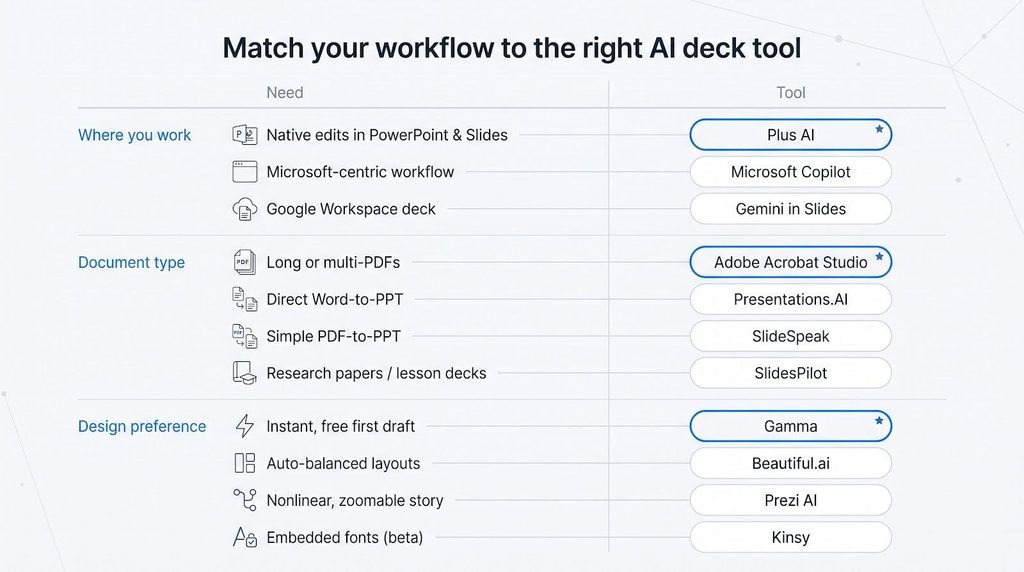
| Need | Fastest fit |
| Native edits in both PowerPoint and Slides | Plus AI |
| Long or multi-PDF sources | Adobe Acrobat Studio |
| Microsoft-centric workflow | Microsoft Copilot |
| Google Workspace native deck | Gemini in Slides |
| Instant, free first draft | Gamma |
| Auto-balanced business layouts | Beautiful.ai |
| Nonlinear, zoomable storytelling | Prezi AI |
| Research papers or lesson plans | SlidesPilot |
| Direct Word-to-PPT (watch watermark) | Presentations.AI |
| Simple PDF-to-PPT conversion | SlideSpeak |
| Embedded-font beta to watch | Kinsy |
Start with the row that matches your document type and working environment; you can layer design tweaks or AI rewrites afterward. Following that order saves the most time—and the most frustration—during cleanup.
How to turn a document into a presentation deck with AI
A generator can draft slides in seconds, but you decide whether the deck lands or flops. Follow this seven-step workflow to keep facts intact and visuals clean.
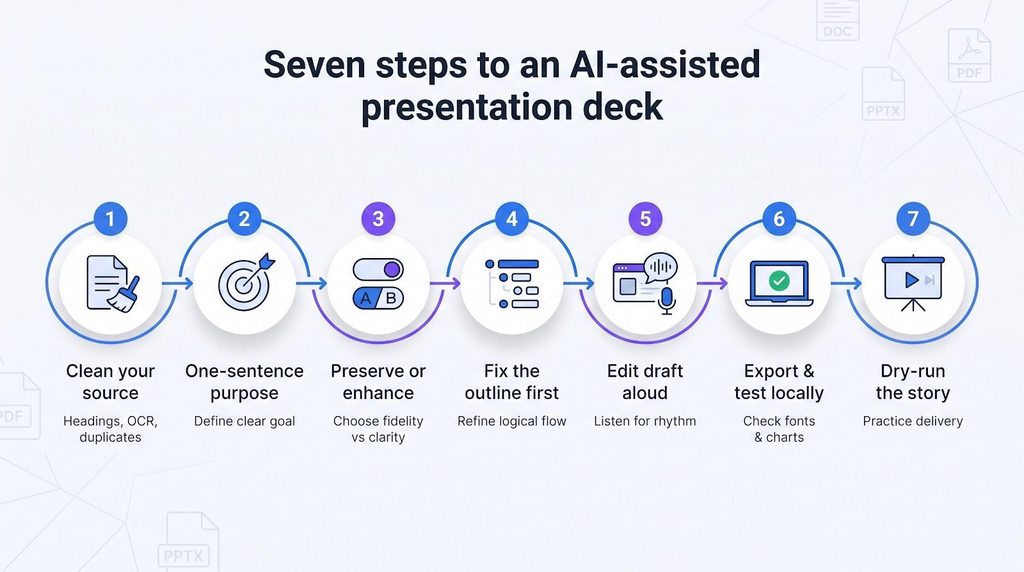
- Clean your source. Use clear H2 and H3 headings, spell out acronyms once, and delete duplicates. If the file is a scan, run OCR and proofread; poor text produces poor slides.
- Write a one-sentence purpose. “Explain Q3 results to non-finance execs” sets tone, slide count, and depth. Share it with the tool and target 10–12 slides for a 30-minute meeting.
- Pick preserve or enhance. Preserve keeps wording and numbers verbatim, ideal for legal or scientific docs. Enhance rewrites for clarity. Mixing the two invites errors.
- Pause at the outline. Delete ghost headings, add missing conclusions, and move background to an appendix before the AI designs anything.
- Edit the draft aloud. Stumble over a sentence? Rewrite. Paragraph acting as a bullet? Split it. Push detail into speaker notes so slides stay light.
- Export early, test locally. Open the PPTX or Slides file on the presentation laptop. Check fonts, line breaks, and editable charts; rebuild anything that flattened.
- Dry-run the story. Click through at delivery speed. Trim slides that do not earn their spot and finish with a clear call to action.
Turn an SOP or process doc into a deck people will read
- Give it a spine. Break phases into H2s (“Prepare materials”) and steps into numbered H3s.
- Add a why. A line such as “Pre-flight checks prevent equipment failure” becomes the slide subtitle.
- Bundle visuals. Collect screenshots or diagrams in a “Visual references” appendix and label them (“Step 3 diagram”) so the AI pulls the right image.
- Flag decisions. Bold phrases like If error persists, escalate to Tier 2; generators often promote bold text to callouts or branches.
- Separate detail from narrative. Keep command-line parameters or compliance text in an appendix; tell the AI to move that section into speaker notes, not the main canvas.
Never present the first AI draft: a five-minute quality-control sweep
AI gets you 90 % of the way; the last 10 % determines whether your slides persuade or perplex. Before you click Share, run through this checklist.
- Verify the facts. Cross-check numbers, names, and dates against the source. Fix any shifted or missing figures at once; an off-by-ten typo erodes credibility.
- Test the storyline. Make sure the deck opens with the problem, builds evidence, and closes with a clear call to action. Re-order or trim until it matches your spoken narrative.
- Check brand and design. Confirm brand fonts, palette colours, and body text of at least 18 pt. Replace generic stock art with visuals your audience will recognise.
- Open the export in the native editor. Click random text boxes, charts, and tables. If anything is a flattened image, rebuild it now rather than minutes before show-time.
- Run an accessibility pass. Use the built-in checker (PowerPoint > Review > Check Accessibility or Slides > Tools > Accessibility). Add alt text and verify colour contrast meets WCAG 2.1 AA ratios.
Common AI-deck pitfalls and fast fixes
Paragraphs shrink instead of summarise
→ Return to the outline; cap bullets at 50 words and move detail to speaker notes.
Charts disappear or flatten
→ Export underlying data or rebuild charts natively to keep them editable.
Numbers wander off
→ Compare slides to a 25-item answer key before final design polish.
Slides look “AI-generated”
→ Apply your corporate template, swap stock icons, and mix slide types (timeline, comparison, quote).
Fonts shift on another machine
→ Embed fonts on export (PowerPoint > Options > Save > Embed). Kinsy’s font-embedding beta handles this automatically.
Deck balloons past 30 slides
→ Create a 10-slide executive summary and add the full PDF as an appendix; executives skim, specialists dive deeper.
Keep these fixes handy and AI becomes an accelerator, not a cleanup marathon.
Security and privacy before you hit upload
A five-minute check can prevent a costly breach.
- Encryption. Look for TLS in transit and AES-256 at rest. If a vendor cannot confirm both, move on.
- Independent attestations. Certifications such as SOC 2 Type II and ISO 27001 show an outside auditor reviewed controls over months, not days. Plus AI and Adobe publish theirs openly. Microsoft and Google add tenant-level admin tooling and regional data-residency options.
- Training policy. Free tiers sometimes feed your slides back into foundation models. Scan the terms for “We do not use customer content to train models” or an opt-out toggle. If there is no opt-out, keep sensitive data away.
- Retention window. Choose platforms that auto-delete files after 24 hours–30 days and let you purge on demand.
- Access controls. Single sign-on and role-based permissions stop interns from uploading the M&A deck to a personal account.
Run this checklist before every upload and you will keep AI’s speed without sacrificing confidentiality.

I’m Rajesh Kumar, a DevOps, SRE, DevSecOps, Cloud, and Platform Engineering expert passionate about sharing practical knowledge, real-world experiences, and industry best practices. I have worked at Cotocus and regularly write about technology, travel, investing, health, product reviews, and digital marketing through my various platforms.
I publish technical articles at DevOps School, travel stories at Holiday Landmark, stock market insights at Stocks Mantra, health and fitness guidance at My Medic Plus, product reviews at TrueReviewNow, and SEO and digital marketing strategies at Wizbrand.
Find Trusted Cardiac Hospitals
Compare heart hospitals by city and services — all in one place.
Explore Hospitals
The benchmark focuses heavily on fact retention, but factual correctness alone does not guarantee a trustworthy presentation. AI can preserve individual facts while changing their context during summarization, which can subtly alter the original conclusion. For high-stakes presentations, I would validate not only whether numbers survived the conversion, but whether the relationships, assumptions, caveats, and confidence levels behind those numbers were preserved.