What is IBM Watson Studio?

IBM Watson Studio is an integrated development environment (IDE) designed to help data scientists, analysts, and developers collaborate and build AI-powered solutions. It provides tools for data preparation, model building, deployment, and collaboration, allowing users to create and manage end-to-end machine learning and AI projects.
Top 10 use cases of IBM Watson Studio:
Here are the top 10 use cases of IBM Watson Studio:
- Data Exploration and Analysis: Watson Studio enables data scientists to explore and analyze data using a variety of tools, including Jupyter notebooks, RStudio, and data visualization libraries.
- Machine Learning Model Development: Users can build and train machine learning models using a wide range of algorithms and frameworks, including popular libraries like TensorFlow, scikit-learn, and PyTorch.
- Predictive Analytics: Watson Studio supports predictive modeling, enabling users to build models that make predictions based on historical data.
- Natural Language Processing (NLP): The platform allows for the development of NLP models, sentiment analysis, text classification, and language translation.
- Computer Vision: Watson Studio can be used to build computer vision models for tasks like image recognition, object detection, and image classification.
- Time Series Analysis: Users can leverage Watson Studio for time series analysis, forecasting, and anomaly detection in various industries such as finance, energy, and manufacturing.
- Healthcare and Life Sciences: Watson Studio is used for analyzing medical data, genomics research, drug discovery, and predictive modeling in healthcare.
- Financial Services: The platform can be applied to fraud detection, credit risk assessment, algorithmic trading, and financial forecasting.
- Internet of Things (IoT): Watson Studio helps with analyzing data from IoT devices, sensor data, and real-time monitoring for predictive maintenance and anomaly detection.
- Retail and Marketing: Businesses can use Watson Studio for customer segmentation, recommendation systems, demand forecasting, and retail analytics.
- Energy and Utilities: Watson Studio can be applied to energy consumption analysis, equipment maintenance prediction, and optimization of energy grids.
- Education and Research: The platform supports educational institutions and researchers by providing tools for data analysis, research collaboration, and sharing of findings.
IBM Watson Studio’s flexibility, collaboration features, and support for various data science and AI tasks make it a powerful solution for organizations looking to harness the potential of their data and build AI-driven applications.
What are the feature of IBM Watson Studio?
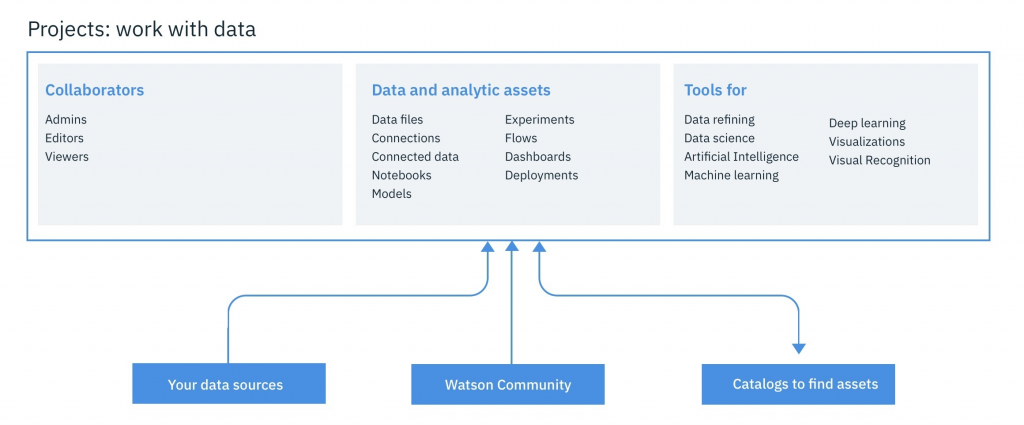
- Collaborative Environment: IBM Watson Studio provides a collaborative workspace where data scientists, analysts, and developers can work together on projects, share code, and insights.
- Integrated Tools: The platform offers a variety of integrated tools, including Jupyter notebooks, RStudio, and SPSS Modeler, for data exploration, analysis, and modeling.
- Data Preparation: Watson Studio offers data wrangling capabilities, allowing users to clean, transform, and prepare data for analysis and modeling.
- Machine Learning: The platform supports building and training machine learning models using a wide range of algorithms and frameworks, along with hyperparameter tuning.
- AutoAI: Watson Studio includes AutoAI, which automates the process of model selection, feature engineering, and hyperparameter tuning.
- Model Deployment: Users can deploy models as web services or APIs for integration into applications, allowing real-time predictions.
- Data Visualization: Watson Studio supports data visualization using libraries like Matplotlib, Seaborn, and Plotly to create interactive charts and graphs.
- Version Control: The platform integrates with Git for version control, enabling teams to track changes and collaborate effectively.
- Model Monitoring: Watson Studio provides tools for monitoring and evaluating the performance of deployed models over time.
- Integration: The platform can integrate with various data sources, cloud services, and IBM Watson services for broader AI capabilities.
- Model Explanations: Watson Studio offers tools to help interpret and explain machine learning model predictions, enhancing transparency.
- Security and Compliance: The platform provides security features, including data encryption, role-based access control, and compliance certifications.
How IBM Watson Studio Works and Architecture?
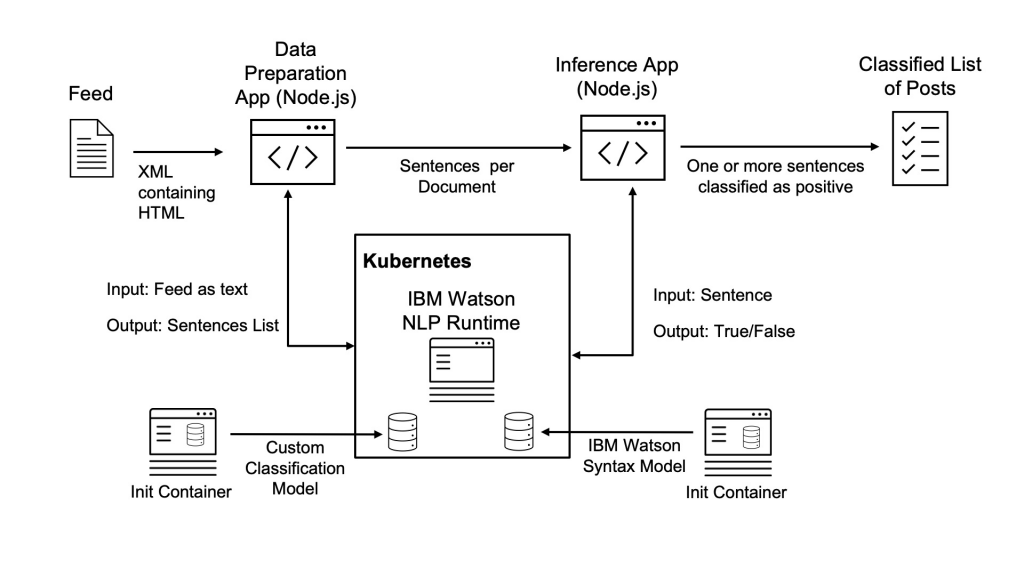
1. Workspace:
IBM Watson Studio provides a web-based workspace where users can create and manage projects. The workspace includes tools for data analysis, modeling, and deployment.
2. Projects:
Projects in Watson Studio serve as containers for related resources, including data assets, notebooks, models, and deployment services.
3. Notebooks:
Users can create Jupyter notebooks or RStudio notebooks within projects. Notebooks allow users to write code, perform analysis, and visualize data.
4. Data Assets:
Watson Studio supports importing and managing data assets, which can include structured and unstructured data from various sources.
5. Model Building:
Users can build machine learning models using various algorithms and frameworks. AutoAI automates the model building process.
6. Model Deployment:
Deployed models can be exposed as web services or APIs, allowing integration with applications for real-time predictions.
7. Collaboration:
Teams can collaborate within projects by sharing notebooks, code, and insights. Version control helps track changes and manage contributions.
8. Integration with IBM Watson Services:
Watson Studio can integrate with other IBM Watson services, such as Watson Language Translator and Watson Natural Language Understanding, to enhance AI capabilities.
9. Data Visualization:
Users can create visualizations using libraries like Matplotlib, Seaborn, and Plotly, enhancing data analysis and communication.
10. Monitoring and Management:
Deployed models can be monitored for performance and accuracy, and updates can be applied as needed.
11. Security and Compliance:
Watson Studio provides security features such as data encryption, authentication, and role-based access control to ensure data protection.
12. Cloud-based Architecture:
IBM Watson Studio operates in a cloud-based architecture, where resources are provisioned and managed by IBM Cloud services. This allows users to focus on data science tasks without managing infrastructure.
IBM Watson Studio’s architecture is designed to provide an integrated, collaborative, and scalable environment for data science and AI projects, from data preparation to model deployment and monitoring.
How to Install IBM Watson Studio?
There are two ways to install IBM Watson Studio:
- On-premise
To install IBM Watson Studio on-premise, you need to have a Linux or Windows server with at least 4GB of RAM and 10GB of free disk space. You also need to have the following software installed:
  * Java 8
  * Node.js 12.x
  * DockerCode language: CSS (css)
Once you have the required software installed, you can download the IBM Watson Studio installer from the IBM website. Through the installation process, the installer will guide you.
- Cloud-based
To install IBM Watson Studio cloud-based, you need to have an IBM Cloud account. You can create an IBM Cloud account for free. Once you have an IBM Cloud account, you can create a Watson Studio service instance.
Here are the detailed steps on how to install IBM Watson Studio on-premise and cloud-based:
Installing IBM Watson Studio on-premise
- Download the IBM Watson Studio installer from the IBM website.
- Run the installer.
- Follow the on-screen instructions.
Installing IBM Watson Studio cloud-based
- Create an IBM Cloud account.
- Go to the IBM Cloud console.
- Click the Services tab.
- Search for Watson Studio.
- Click the Create button.
- Follow the on-screen instructions.
Here are some additional things to keep in mind when installing IBM Watson Studio:
- IBM Watson Studio is a free service for non-commercial use.
- For commercial use, you need to purchase a subscription.
- IBM Watson Studio can be applied to build and deploy machine learning models.
- IBM Watson Studio also provides access to a variety of data science tools and libraries.
Basic Tutorials of IBM Watson Studio: Getting Started
The following are the steps of basic tutorials of IBM Watson Studio:
- Create a Watson Studio project
To create a Watson Studio project, go to the Watson Studio website: https://dataplatform.cloud.ibm.com/. Hit the Create project button and apply the instructions over the screen.
- Import data into a Watson Studio project
You can import data into a Watson Studio project from a variety of sources, such as cloud storage, databases, and files. To import data, click the Data tab and select the type of data source you want to import from.
- Build a machine learning model
Once you have imported your data, you can build a machine learning model using Watson Studio’s built-in tools and libraries. To build a model, click the Machine Learning tab and select the type of model you want to build.
- Deploy a machine learning model
Once you have built a machine learning model, you can deploy it to production so that it can be used to make predictions. To deploy a model, click the Deploy tab and follow the on-screen instructions.
- Share your work
You can share your work with others by publishing it to a Watson Studio repository. A repository is a collection of projects, models, and other artifacts that you can share with others.
Here are some additional tips for using IBM Watson Studio:
- Use the Watson Studio documentation to learn more about the platform.
- Join the Watson Studio community to get help and support from other users.
- Attend Watson Studio training to learn how to use the platform more effectively.

👤 About the Author
Ashwani is passionate about DevOps, DevSecOps, SRE, MLOps, and AiOps, with a strong drive to simplify and scale modern IT operations. Through continuous learning and sharing, Ashwani helps organizations and engineers adopt best practices for automation, security, reliability, and AI-driven operations.
🌐 Connect & Follow:
Website: WizBrand.com
Facebook: facebook.com/DevOpsSchool
X (Twitter): x.com/DevOpsSchools
LinkedIn: linkedin.com/company/devopsschool
YouTube: youtube.com/@TheDevOpsSchool
Instagram: instagram.com/devopsschool
Quora: devopsschool.quora.com
Email– contact@devopsschool.com
Find Trusted Cardiac Hospitals
Compare heart hospitals by city and services — all in one place.
Explore Hospitals