
A practical, no-deployment tutorial for replying to multiple existing Gmail conversations with one common response.
Featured image. Gmail bulk reply automation (1200 × 630 pixels).
Imagine receiving 20 customer enquiries that all ask the same question. Copying and pasting the same response into each conversation wastes time and makes it easy to miss a customer. Gmail’s regular reply controls operate on individual conversations. This tutorial shows how to automate the repetitive work while keeping the operator in control of exactly what gets sent.
The solution uses Gmail labels, a standalone Google Apps Script project and two explicit functions: previewEmails and sendBulkReplies. Every eligible conversation receives a separate reply inside its existing thread. No external server, extension, API-key setup, scheduled trigger or web-app deployment is needed.
What you will build
Move selected conversations out of the inbox into a BulkReply queue.
Preview the recipients and common response without sending anything.
Send one plain-text reply per eligible thread and move successful items to Replied.
Validation note: Google API behavior is documented; the JavaScript syntax and seven local mock scenarios were tested. Live Gmail execution and the WordPress plugin import are not independently tested. Use the two-message acceptance test before production use.
1. Understand the workflow and Gmail labels
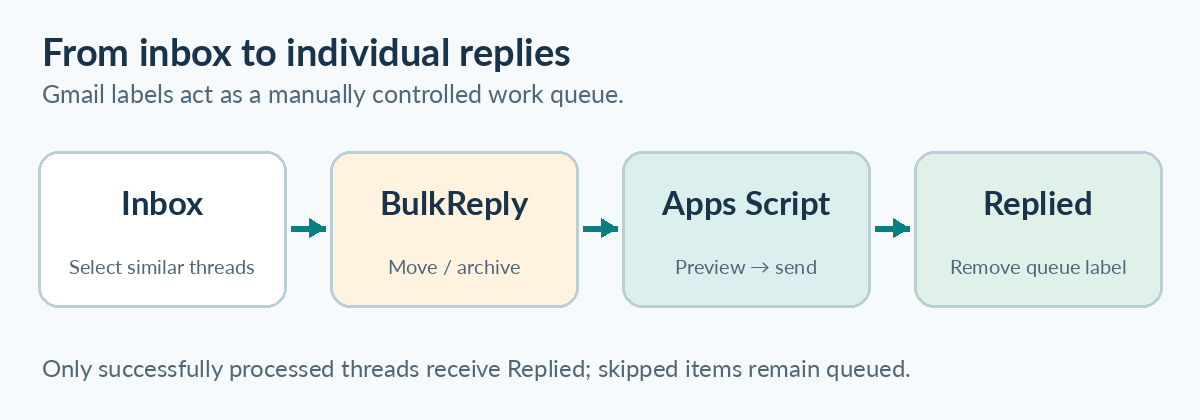
Figure 1. Manually controlled Gmail bulk-reply architecture.
Gmail uses labels rather than conventional folders. Moving a conversation to BulkReply from the inbox applies the label and removes it from the inbox. Label as leaves it in the inbox. Archiving does not delete the email: it remains searchable in All Mail. A new customer reply can return an archived conversation to the inbox.
Method | Original thread? | Best use |
|---|---|---|
BCC / new message | No | One announcement; not an individual reply |
Gmail templates | Yes, manually | A handful of similar questions |
Mail merge | Generally no | New personalized outreach messages |
Apps Script reply | Yes | A reviewed queue of existing enquiries |
Prerequisites
A Gmail or Google Workspace mailbox and a desktop browser.
Permission to run Google Apps Script and authorize Gmail access. Workspace policy may restrict this.
Two test conversations from an address you control, with different subjects.
A common response that is appropriate for every chosen conversation.
2. Configure Gmail and Google Apps Script
Step 1 — Create the two labels
Open Gmail in your browser. In the left sidebar, locate Labels and click the plus icon (or use Settings → See all settings → Labels).
Create BulkReply, then create Replied. Use exactly these names, including capitalization.
Step 2 — Move selected emails into the queue
Select the checkboxes for the similar conversations in Inbox. Start with only two test conversations.
Click the Move to icon in the toolbar and choose BulkReply. If necessary, apply the BulkReply label and then archive the selection to achieve the same inbox state.
Open BulkReply and confirm the intended conversations are present. Remove any unrelated item from the queue before continuing.
For a clean inbox, use Move to, not merely Label as. The script does not archive after sending; using Move to before processing achieves the intended organization without hiding a new incoming reply during processing.
Step 3 — Create a standalone script
Open Google Apps Script using the same account as the Gmail mailbox.
Select New project, name it Gmail Bulk Reply Automation, and open Code.gs.
Remove the sample function. Paste the entire script from the next section, then save the project.
Step 4 — Configure your response
Edit the response value in CONFIG. Keep the surrounding backticks. The default example is plain text. Set max to 20 for a manageable batch; the script refuses a queue larger than that limit rather than silently sending an arbitrary subset. Do not include sensitive or customer-specific information in a common reply.
3. Complete Google Apps Script source code
Copy all lines below into Code.gs as a single script. It contains the two operator functions and their helper functions. The page breaks in this Word document are only visual; do not paste page numbers or headings into Apps Script.
const CONFIG = {
  queue: 'BulkReply',
  done: 'Replied',
  max: 20,
  response: `Hi,
Thank you for your enquiry.
Please share your requirements and budget.
We will be happy to assist you.
Best regards,
Team`
};
const PREVIEW_KEY = 'bulkReplyPreview';
function previewEmails() {
  withLock(() => {
    const props = PropertiesService.getUserProperties();
    props.deleteProperty(PREVIEW_KEY);
    const batch = collectBatch();
    batch.forEach(item => {
      console.log(`PREVIEW | ${item.to} | ${item.subject}`);
    });
    console.log('Response:\n' + CONFIG.response);
    console.log(`Eligible: ${batch.length}; sent: 0`);
    if (batch.length) {
      props.setProperty(PREVIEW_KEY, fingerprint(batch));
    }
  });
}
function sendBulkReplies() {
  withLock(() => {
    const props = PropertiesService.getUserProperties();
    const approved = props.getProperty(PREVIEW_KEY);
    if (!approved) throw new Error('Run previewEmails first.');
    const batch = collectBatch();
    props.deleteProperty(PREVIEW_KEY);
    if (approved !== fingerprint(batch)) {
      throw new Error('Batch or response changed. Preview again.');
    }
    const queue = GmailApp.getUserLabelByName(CONFIG.queue);
    const done = GmailApp.getUserLabelByName(CONFIG.done) ||
      GmailApp.createLabel(CONFIG.done);
    let sent = 0;
    let completed = 0;
    for (const item of batch) {
      try {
        item.thread.refresh();
        const current = inspect(item.thread, ownAddresses());
        if (!current || current.id !== item.id ||
            current.to !== item.to) {
          console.warn('SKIP changed thread: ' + item.subject);
          continue;
        }
        current.message.reply(CONFIG.response);
        sent++;
        item.thread.addLabel(done);
        item.thread.removeLabel(queue);
        completed++;
        console.log('SENT | ' + item.to + ' | ' + item.subject);
      } catch (error) {
        console.error('STOP | ' + item.subject + ' | ' + error);
        console.log(`Sent: ${sent}; labeled: ${completed}`);
        throw error; // Review Sent before retrying.
      }
    }
    console.log(`Sent: ${sent}; labeled: ${completed}`);
  });
}
function collectBatch() {
  if (!CONFIG.response.trim()) throw new Error('Empty response.');
  const queue = GmailApp.getUserLabelByName(CONFIG.queue);
  if (!queue) throw new Error('Create the BulkReply label.');
  const threads = queue.getThreads(0, CONFIG.max + 1);
  if (threads.length > CONFIG.max) {
    throw new Error('Queue exceeds limit. Reduce it first.');
  }
  const own = ownAddresses();
  return threads.map(t => inspect(t, own)).filter(Boolean);
}
function inspect(thread, own) {
  const labels = thread.getLabels().map(l => l.getName());
  if (!labels.includes(CONFIG.queue) ||
      labels.includes(CONFIG.done) || thread.isInTrash() ||
      thread.isInSpam()) return null;
  const messages = thread.getMessages();
  if (!messages.length || messages.some(m => m.isDraft())) {
    return null;
  }
  const message = messages[messages.length - 1];
  const from = address(message.getFrom());
  const to = address(message.getReplyTo() || message.getFrom());
  if (!from || !to || own.includes(from) || own.includes(to) ||
      /^(no[._-]?reply|do[._-]?not[._-]?reply)@/i.test(to)) {
    return null;
  }
  return {thread, message, id: message.getId(), to,
    subject: message.getSubject()};
}
function ownAddresses() {
  const primary = Session.getEffectiveUser().getEmail();
  if (!primary) throw new Error('Cannot identify your mailbox.');
  return [primary, ...GmailApp.getAliases()].map(address);
}
function address(value) {
  const match = value.match(/<([^<>]+)>\s*$/);
  const result = (match ? match[1] : value).trim().toLowerCase();
  return /^[^\s@,;<>]+@[^\s@,;<>]+\.[^\s@,;<>]+$/.test(result)
    && (!match || !value.slice(0, match.index).includes('>'))
    ? result : '';
}
function fingerprint(batch) {
  const items = batch.map(x => [x.id, x.to]).sort();
  const data = JSON.stringify([CONFIG, items]);
  const bytes = Utilities.computeDigest(
    Utilities.DigestAlgorithm.SHA_256, data);
  return Utilities.base64EncodeWebSafe(bytes);
}
function withLock(action) {
  const lock = LockService.getUserLock();
  lock.waitLock(10000);
  try { action(); } finally { lock.releaseLock(); }
}Code language: JavaScript (javascript)
4. Authorize, preview and send
Step 5 — Save and authorize the script
Click Save in the Apps Script editor. Select previewEmails from the function dropdown next to Run.
Click Run. On the first execution, review the authorization prompt, choose the correct mailbox and allow the required access if your organization permits it.
Review the Execution log. A successful preview reports eligible recipients and the body but sends zero messages.
Do not click Deploy. Deploy is relevant for published web apps and other deployment-based integrations, not for manually running a standalone function from the editor. No triggers are configured in this tutorial.
Step 6 — Review the preview
The following is illustrative output for two fictional addresses. The actual subject and recipient are read from your selected Gmail conversations.
PREVIEW | alice@example.com | Test enquiry A
PREVIEW | bob@example.com | Test enquiry B
Response:
Hi,
Thank you for your enquiry.
Please share your requirements and budget.
We will be happy to assist you.
Best regards,
Team
Eligible: 2; sent: 0
Check the recipient list, subject lines, body, number of eligible messages and any missing items. If a conversation was excluded, inspect its labels, sender, draft status and latest message. Make corrections, save the script and run preview again.
Step 7 — Execute the actual bulk reply
Select sendBulkReplies in the function dropdown and click Run. This is the operation that sends real email.
Do not change the response or move emails while sending. A changed batch or response requires another preview.
Check the log for the final Sent and labeled counts. Gmail’s Sent view and the original conversations are your independent confirmation.
5. How the safeguards work
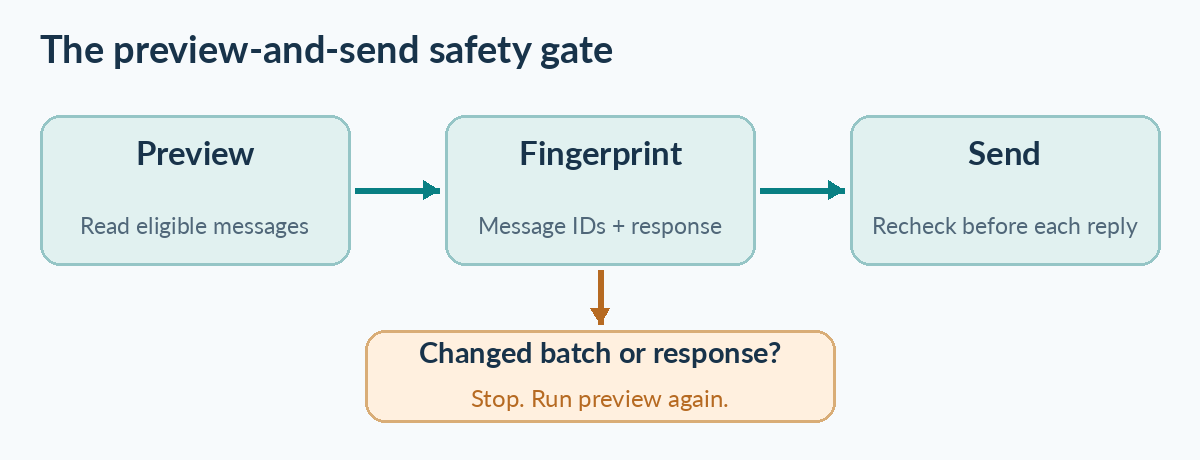
Figure 2. Preview fingerprint and sending safety gate.
Safeguard | What it does |
|---|---|
Preview fingerprint | Stores a digest of the selected message IDs, recipient addresses and configuration in user properties. It does not store the message bodies. |
One-use preview | Consumes the stored preview before attempting any send. A second send requires a new preview. |
Eligibility checks | Excludes Replied, spam, trash, drafts, own addresses and common no-reply addresses. |
Per-thread recheck | Refreshes the thread and checks the latest eligible message before replying. |
User lock | Prevents two executions by the same user in this project from overlapping. |
Fail-stop processing | Stops on the first send or label error; the log and Sent folder are used for reconciliation. |
These checks reduce accidental duplicates but cannot guarantee exactly-once delivery. Gmail sending and label changes are separate operations. A timeout, partial failure or a customer message arriving between checks can still create an ambiguous outcome. The lock does not stop someone using Gmail manually or running a separate project.
6. Verify the result in Gmail
After successful execution, open Replied, Sent and the original conversations. For the two-message test, the expected output is:
SENT | alice@example.com | Test enquiry A
SENT | bob@example.com | Test enquiry B
Sent: 2; labeled: 2
Location | Expected state for a successful 20-thread run |
|---|---|
BulkReply | No successfully processed items remain. Skipped items stay. |
Replied | 20 newly processed conversations, if all were eligible. |
Sent | 20 new individual outgoing replies. |
Original conversation | Response appears within the existing thread. |
Inbox | Previously moved items stay archived unless new activity returns them. |
Hands-on acceptance tests
Test | Expected result |
|---|---|
Preview two test threads | Two eligible items, zero outgoing replies. |
Run send once | Two individual replies, queue labels replaced. |
Run send again | Rejected because preview has been consumed. |
Edit response after preview | Rejected; preview the revised response. |
Add an eligible item after preview | Rejected; preview the new batch. |
New inbound message after preview | Changed message ID causes rejection or skip. |
Move a thread with own latest reply or draft | Skipped; review manually. |
Daily operating routine
For each batch: select related enquiries → Move to BulkReply → update the response and save → preview → review → send → verify. Bookmark the script editor. For later customer follow-ups, remove Replied from the conversation first, then move it back to BulkReply and preview the new inbound message.
7. Production limits and best practices
Google Apps Script publishes account-dependent quotas. The official quota table lists these values as of the documentation review on 27 November 2026. Gmail account restrictions, trial conditions and anti-abuse policies can impose additional limits.
Published limit | Personal Gmail | Google Workspace |
|---|---|---|
Email recipients/day (Apps Script) | 100 | 1,500 |
Email read/write operations/day (excluding send) | 20,000 | 50,000 |
Script runtime/execution | 6 minutes | 6 minutes |
Tutorial batch limit | 20 (chosen) | 20 (chosen) |
Daily recipient quotas are not a promise that every message will be accepted or delivered. Quotas are per user and can change. The script does not query the remaining quota; if a service error occurs, inspect the results before resuming. Do not attempt to circumvent sending restrictions.
Security and operational practices
Use only for legitimate existing enquiries. Avoid unsolicited outreach, newsletters and mass marketing.
Review Gmail authorization carefully; GmailApp uses broad mailbox access. Keep the script private and avoid sharing editor permissions.
Treat execution logs as private customer information: they include addresses, subjects and the response. Do not publish real logs or screenshots.
Keep batches small and consistent. Avoid mixing support tickets, refunds and commercial enquiries in one queue.
Verify Reply-To addresses. The script uses reply, not replyAll; group recipients and CC are not intentionally copied.
Do not assume that a successful send means delivery; review bounces and customer replies separately.
8. Troubleshooting
Symptom | Cause / resolution |
|---|---|
No eligible threads | Check the BulkReply label, Replied label, latest sender, drafts and trash/spam status. If the intended item is a new follow-up, remove Replied and preview again. |
Run previewEmails first | No valid stored preview exists. Run preview, review and then send. |
Batch or response changed | An eligible thread, recipient, message ID or configuration changed. Save and preview again. |
Queue exceeds limit | Move excess items out of BulkReply, leaving 20 or fewer. Process the remaining items in a later batch. |
Authorization denied | Check the selected Google account and Workspace admin policy. Do not bypass company controls. |
Quota or runtime exceeded | Stop; inspect Gmail Sent and Replied, reconcile partial results, and resume later within the documented limits. |
Sent count exceeds labeled count | A send may have succeeded before the label update failed. Inspect Sent and the conversation; label successful threads manually. Do not blindly rerun. |
Customer still appears in Inbox | Label as was used instead of Move to, or a new incoming reply returned the conversation to Inbox. |
Recovery after a partial failure
Step 1 — Reconcile before retrying
Open Sent and each uncertain original conversation. Confirm which replies exist. If a reply already went out, apply Replied and remove BulkReply manually. If you cannot determine the send outcome, keep that thread out of the next batch until it can be investigated.
Step 2 — Resume only confirmed unsent threads
Leave genuinely unsent conversations in BulkReply, remove uncertain items, run preview again and send only the newly approved batch. There is no rollback of a sent email in this script.
9. Frequently asked questions
Do I need to deploy Google Apps Script?
No. Saving and running the functions from the Apps Script editor is enough. Authorize the requested Gmail access the first time.
Will all recipients see one another?
No combined recipient list is created. Each eligible message receives its own reply, normally addressed to its Reply-To address or sender.
Should I move the emails or apply a label?
Move to BulkReply if you want a cleaner inbox. Apply the label only if you want to retain the conversations in Inbox; the script reads the queue either way.
Does this work on personal Gmail and Workspace?
Yes in principle, provided Gmail service access is allowed and quota is available. Managed accounts can have additional restrictions.
Can I include HTML or attachments?
The GmailMessage reply method supports options such as htmlBody and attachments. This tutorial deliberately uses plain text; HTML and attachments require a separately reviewed implementation.
Can I reply to the same customer again?
Yes, after a new inbound message. Remove Replied, queue the thread and run preview again. If the latest message is from you, it will be skipped.
Can I run it automatically every day?
Installable triggers can schedule functions, but this guide intentionally uses manual preview and send to avoid unreviewed responses.
Can I send 500 replies at once?
Do not use this tutorial for that. It limits each queue to 20 and remains subject to Google quotas and anti-abuse rules.
Conclusion
For repetitive inbound enquiries, a small Apps Script project can replace tedious copying and pasting. Keep the queue narrow, preview before sending, and reconcile any uncertain result. You gain a tidy inbox and individual conversations without deploying a separate application.
Official documentation and further reading
Google Apps Script — standalone scripts
Google Apps Script — authorization
GmailMessage — reply and recipient methods
GmailThread — label and conversation methods
GmailApp — mailbox methods and aliases
Google Apps Script — quotas and limits
Gmail Help — labels and moving messages
Google Apps Script — properties service
Google Apps Script — lock service
WordPress — Mammoth .docx converter
Mammoth.js — style mapping documentation
References reviewed 27 November 2026. API behavior is based on Google documentation; the implementation is original and local mock checks are not a live Gmail test.
Editorial publishing metadata (remove from article body)
Field | Recommended value |
|---|---|
SEO title | Gmail Bulk Reply Using Google Apps Script (Step-by-Step) |
Meta description | Learn how to bulk reply to Gmail emails in their original threads using Google Apps Script, preview recipients, move labels and send safely without deployment. |
Focus keyword | Gmail bulk reply |
Secondary keywords | Google Apps Script Gmail reply, reply to multiple emails in Gmail, Gmail bulk email response, Gmail label automation, automate Gmail replies |
URL slug | gmail-bulk-reply-google-apps-script |
Categories | Google Workspace; Automation; Productivity |
Tags | Gmail, Google Apps Script, Email Automation, Bulk Reply, Gmail Labels, Inbox Management |
Featured image | First image in this document (1200 × 630 pixels). |
WordPress import checklist
Open a new post in WordPress with Mammoth .docx converter enabled. Choose this DOCX from the Mammoth panel and insert the conversion into the editor.
Set the post title and SEO fields using the table above. Remove this editorial section and avoid duplicate H1 headings if your theme already renders the post title.
Verify that all three images imported with ALT text, that captions are visible and that the script appears as preformatted code. Set the first image as Featured image in WordPress manually; a DOCX cannot set WordPress post metadata by itself.
Preview the article at desktop and mobile widths. Check code indentation and copy/paste into Code.gs before publishing.
The embedded Mammoth mapping uses Code Block paragraphs with a newline separator and HTML pre/code markup. Actual plugin conversion can depend on the installed version and editor sanitization. The package and code text were structurally validated; the live WordPress importer was unavailable for independent verification.

I’m Rajesh Kumar, a DevOps, SRE, DevSecOps, Cloud, and Platform Engineering expert passionate about sharing practical knowledge, real-world experiences, and industry best practices. I have worked at Cotocus and regularly write about technology, travel, investing, health, product reviews, and digital marketing through my various platforms.
I publish technical articles at DevOps School, travel stories at Holiday Landmark, stock market insights at Stocks Mantra, health and fitness guidance at My Medic Plus, product reviews at TrueReviewNow, and SEO and digital marketing strategies at Wizbrand.
Find Trusted Cardiac Hospitals
Compare heart hospitals by city and services — all in one place.
Explore Hospitals