MYHOSPITALNOW.COM

Find Trusted Doctors & Hospitals

Discover healthcare providers, compare hospitals, and explore treatment options worldwide.

Free Treatment Quotes • Doctor Search • Hospital Comparison

Find Healthcare Options

www.myhospitalnow.com

How to install Linux on Windows or Virtual machine

we are going to install Linux or virtual machine on widows,
let see step by step.

Step:1 click this url https://www.virtualbox.org/
or you can search virtualbox
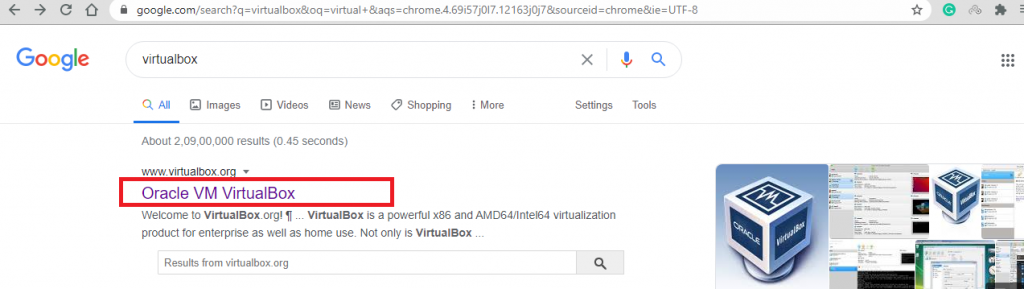
Google search results for virtualbox with the Oracle VM VirtualBox link highlighted

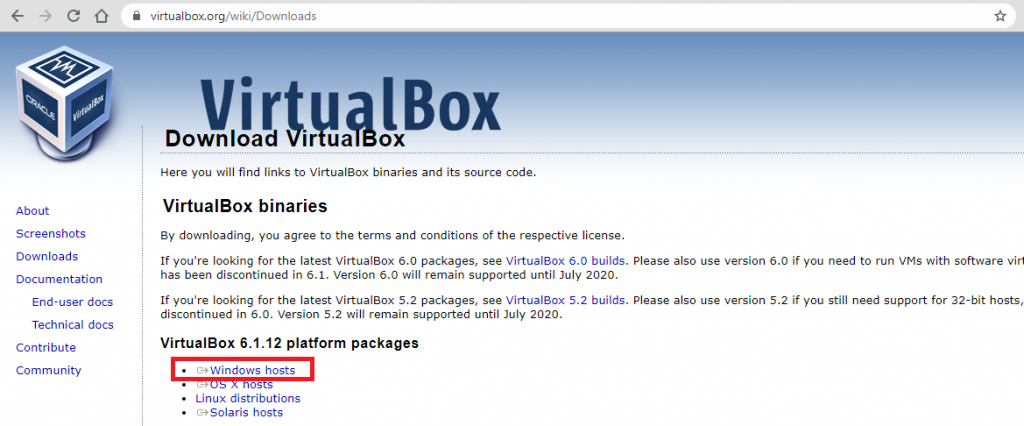
Step:2

VirtualBox downloads page with the Windows hosts link for version 6.1.12 highlighted

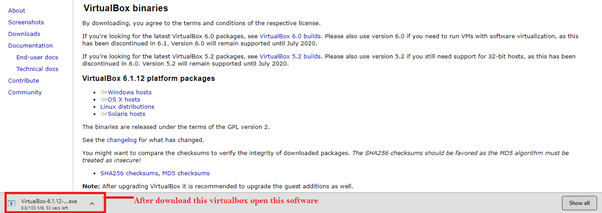
Step:3

VirtualBox 6.1.12 downloads page with the downloaded Windows installer highlighted, ready to open

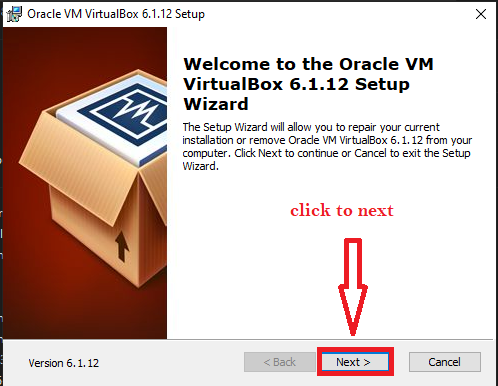
Step:4

Oracle VM VirtualBox 6.1.12 Setup Wizard welcome screen with the Next button highlighted

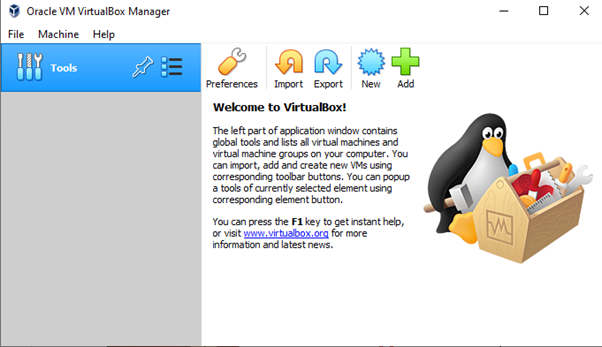
Step:5

Oracle VM VirtualBox Manager welcome screen after installation, showing the Tools toolbar

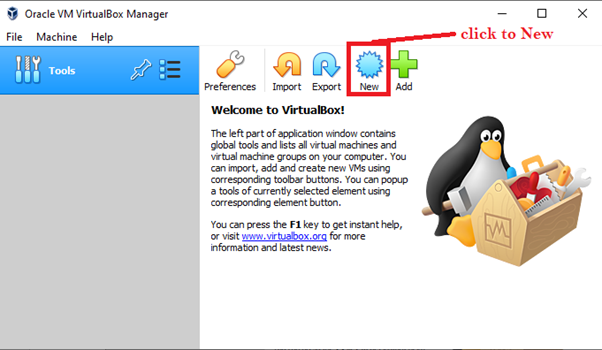
Step:6

VirtualBox Manager with the New button highlighted to create a virtual machine

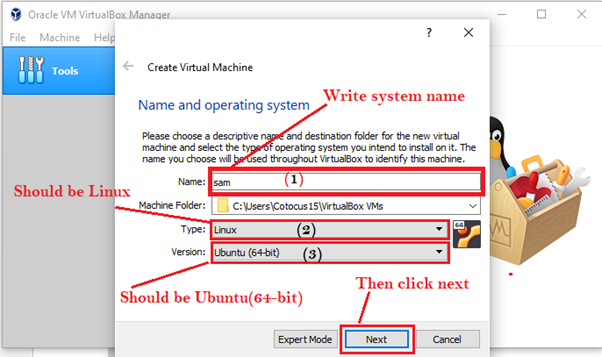
Step:7

Create Virtual Machine dialog with name sam, type Linux, version Ubuntu 64-bit, and Next highlighted

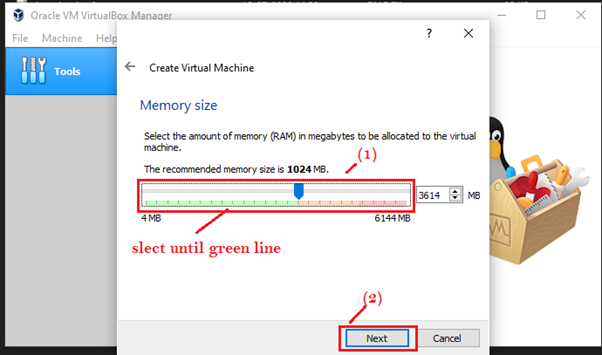
Step:8

VirtualBox memory size step with slider set to 3614 MB within the green range, then Next

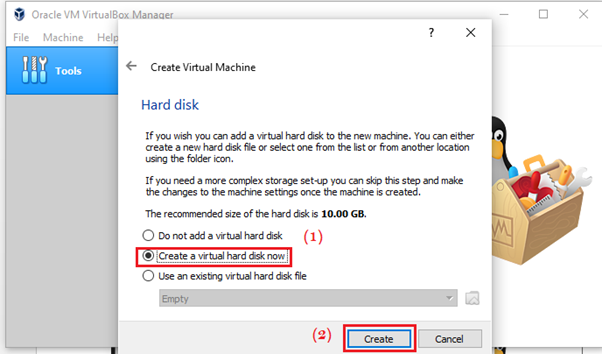
Step:9

VirtualBox hard disk step with Create a virtual hard disk now selected and Create highlighted

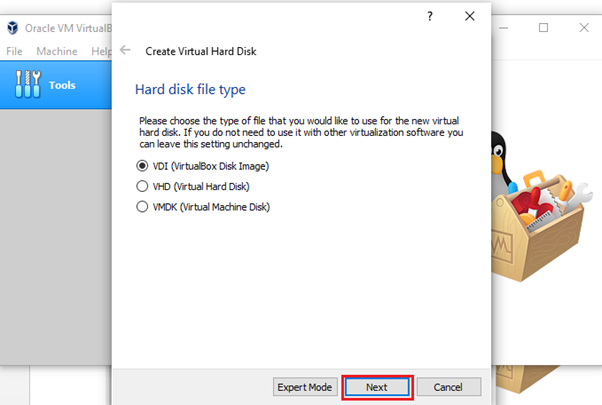
Step:10

VirtualBox hard disk file type step with VDI selected and Next highlighted

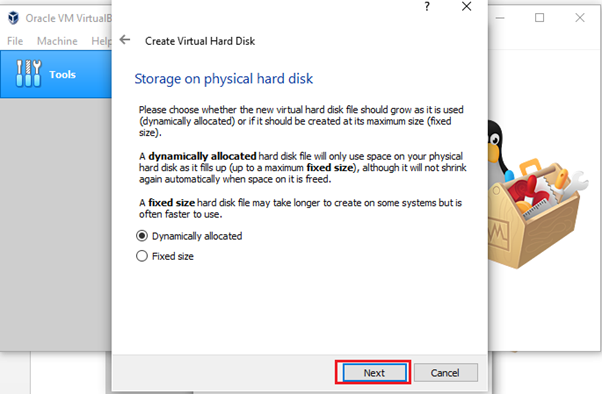
Step:11

VirtualBox storage step with Dynamically allocated selected and Next highlighted

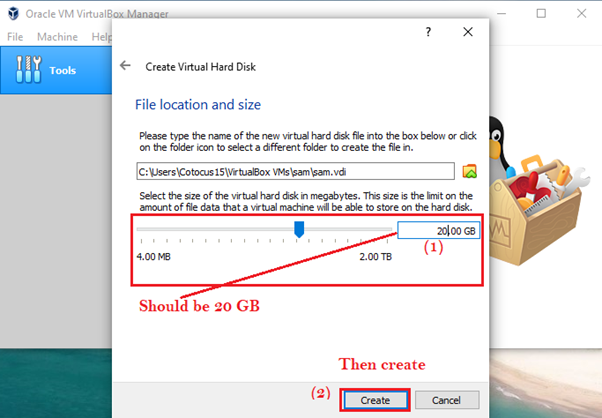
Step:12

VirtualBox file location and size step with virtual disk set to 20 GB, then Create

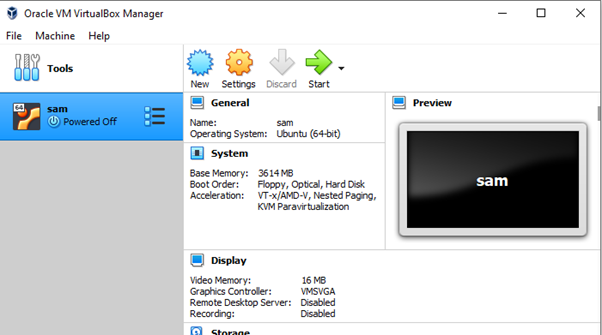
Step:13

VirtualBox Manager showing new VM sam, Ubuntu 64-bit, powered off, with its settings summary

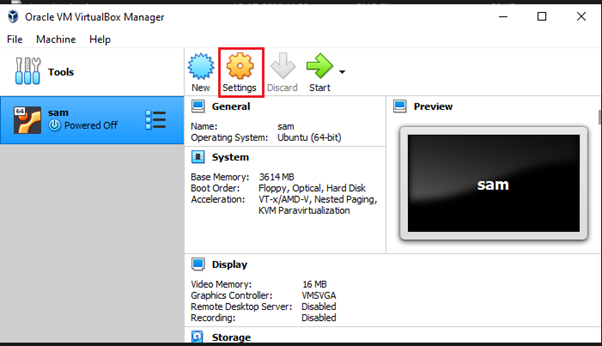
Step:15

VirtualBox Manager with the Settings button highlighted for the sam virtual machine

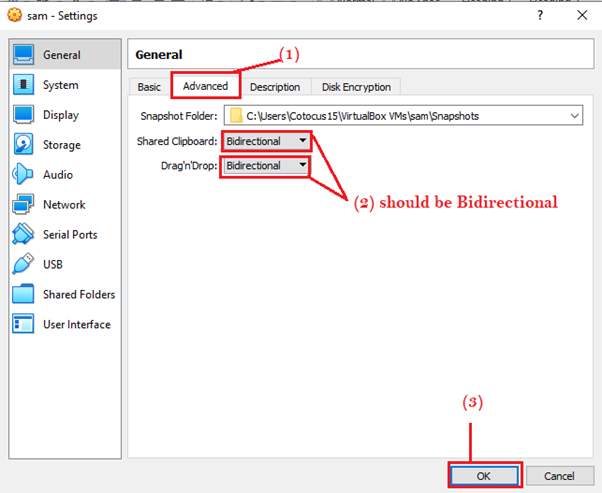
Step:16

Sam Settings, General Advanced tab with Shared Clipboard and Drag and Drop set to Bidirectional, then OK

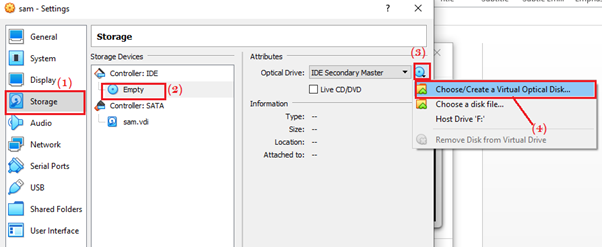
Step:17

Sam Settings Storage page: empty IDE optical drive selected, Choose/Create a Virtual Optical Disk menu option

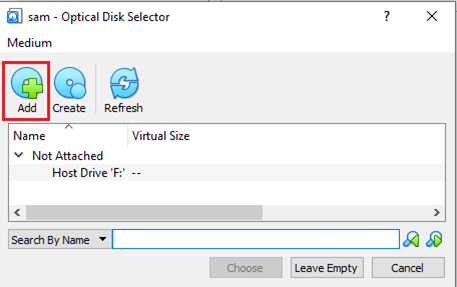
Step:18

VirtualBox Optical Disk Selector with the Add button highlighted to attach the Linux ISO

Step:19 you have to download linux mint
https://www.linuxmint.com/
after download then select file where you have download
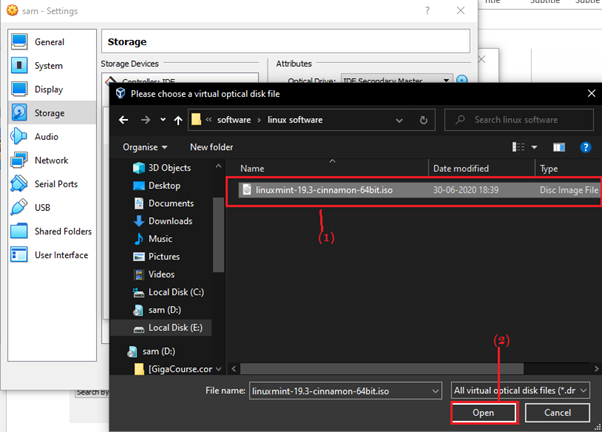
VirtualBox file dialog selecting linuxmint-19.3-cinnamon-64bit.iso, with the Open button highlighted

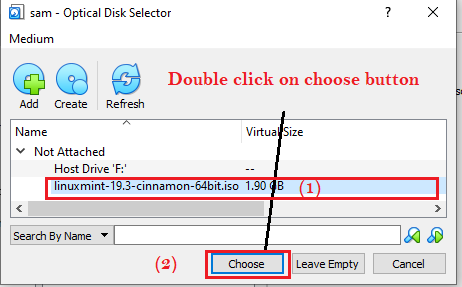
Step:20

VirtualBox Optical Disk Selector with the Linux Mint 19.3 ISO selected and the Choose button highlighted

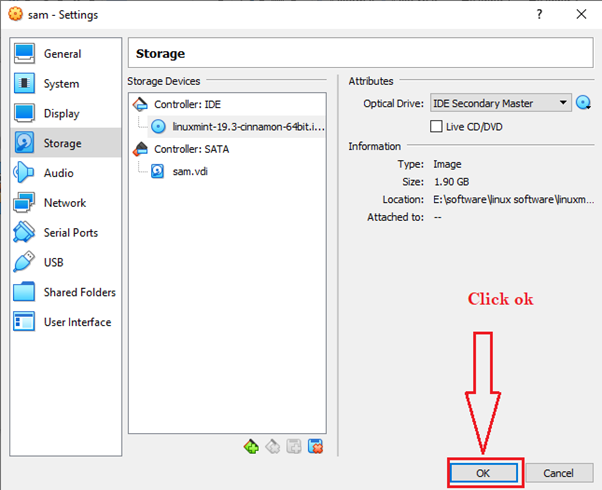
Step:21

VirtualBox Storage settings showing the Linux Mint ISO on the IDE controller, with an arrow to OK

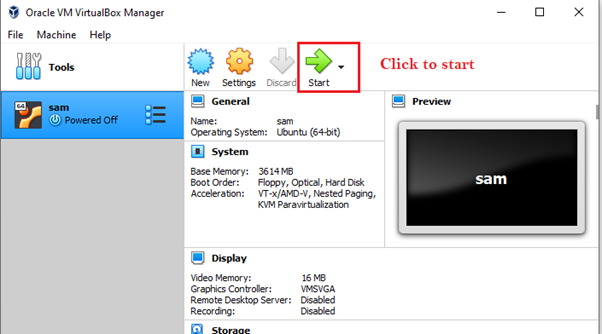
Step:22

Oracle VM VirtualBox Manager with the powered-off VM sam selected and the Start button highlighted

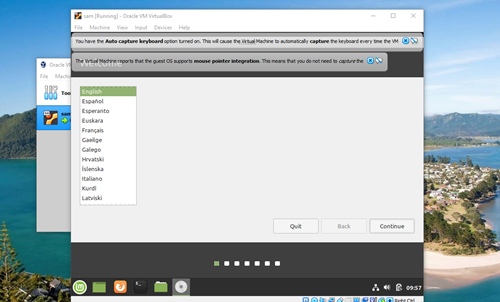
Step:23

Step:24

Find Trusted Cardiac Hospitals

Compare heart hospitals by city and services — all in one place.

Explore Hospitals
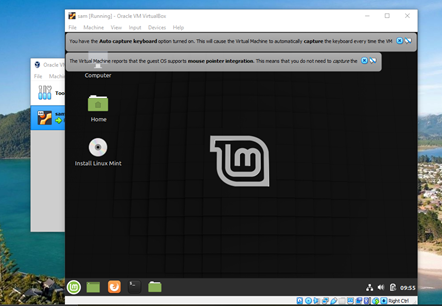
sam
MotoShare.in is your go-to platform for adventure and exploration. Rent premium bikes for epic journeys or simple scooters for your daily errands—all with the MotoShare.in advantage of affordability and ease.

Related Posts

Puppet Learning VM Setup Guide: Import, Networking, SSH Access, and Troubleshooting

Learn how to set up the Puppet Learning VM from the OVA download through first login, networking, and web access. This revised guide also consolidates the most useful troubleshooting fixes from the original courseware.

Read More

How to check VT-X/AMD-v enabled or not in your Laptop?

Method 1 – Using task Manager If you have Windows 10 or Windows 8 operating system, the easiest way to check is by opening up Task Manager->Performance Tab….

Read More

How To Create Linux Virtual Machine Using VirtualBox

Step by Step with Screenshot – https://www.devopsschool.com/blog/how-to-install-linux-on-windows-or-virtual-machine/ Rajesh Kumar I’m Rajesh Kumar, a DevOps, SRE, DevSecOps, Cloud, and Platform Engineering expert passionate about sharing practical knowledge, real-world…

Read More

Install & configure VirtualBox & Access Linux VMs using putty

Step 1 – Download and Install VirtualBox https://www.virtualbox.org/wiki/Downloads Step 2 – Download Centos 7 VM ISO file or Ubuntu 20.X VM ISO file https://www.centos.org/download/ https://ubuntu.com/download/desktop https://ubuntu.com/download/server Step…

Read More

Top 10 Software Defined Networking (SDN) Tools in 2026: Features, Pros, Cons & Comparison

Introduction Software Defined Networking (SDN) has revolutionized the way modern networks are designed, deployed, and managed. By decoupling the control plane from the data plane, SDN allows…

Read More

Top 10 Virtualization Software Tools in 2026: Features, Pros, Cons & Comparison

Introduction Virtualization software is one of the foundational technologies driving the IT landscape in 2026. With the growing demand for cloud computing, IT professionals and businesses are…

Read More