
Your Microsoft Teams interview is about to start, but the AI note-taker you relied on is still waiting in the lobby. If company policy keeps bots out, you need an AI interview assistant for Microsoft Teams that never tries to join the meeting at all.
This guide compares nine candidate-side assistants on what each vendor publishes on its own site: whether it says a bot joins the call, how you install it, what you can try for free, and what it costs. It is a desk review of public pages, not a lab test, so the guide ends with checks you can run on your own machine before the hiring manager asks, “Can you hear me?”
Quick answer: the right assistant for 5 common scenarios
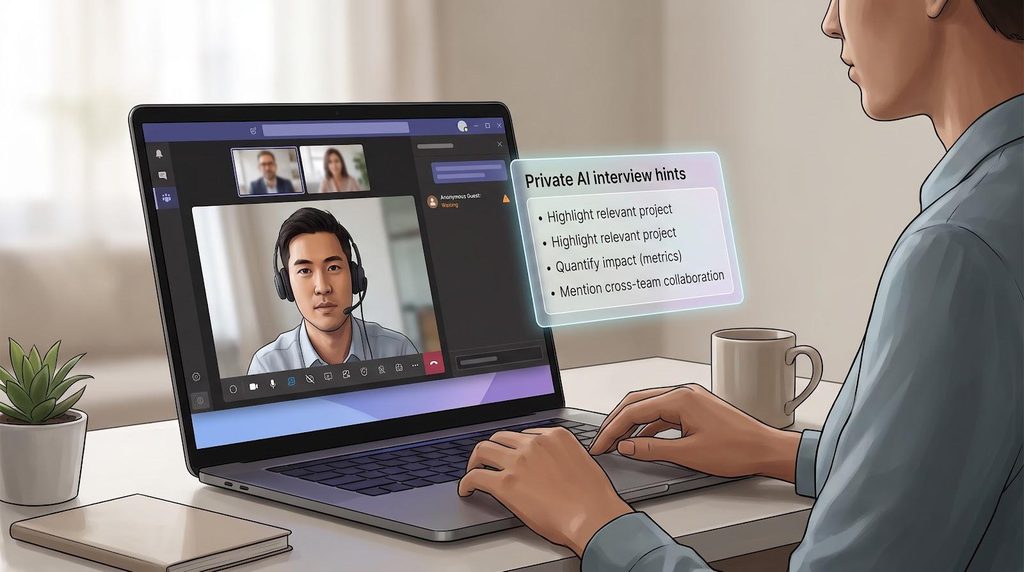
Need the short version? Use this cheat sheet to match each AI interview assistant for Microsoft Teams to a typical roadblock.
| Your situation | Best tool |
| You want a no-bot desktop app with one flat price and every feature | Interview Copilot |
| You want prep, live guidance, and automatic debriefs in one app | Final Round AI |
| You’d rather buy prepaid hours than subscribe | Cluegent |
| You want a trusted friend to help you during the call | LockedIn AI |
| You cannot install software, but a desktop browser works | OphyAI |
Pick the row that matches your restriction, then keep reading for the details, caveats, and a visibility test you can run before the call.
First identify what your IT department is blocking
Every AI interview assistant for Microsoft Teams needs a clear audio path. Corporate controls can block that path in five places:
1. External meeting bots and anonymous guests
Note-takers such as Otter join a Teams meeting as a separate participant. The Teams lobby holds certain participants until an organizer, co-organizer, or presenter admits them, and admins can control whether anonymous users can join meetings at all. A bot that waits in the lobby hears nothing.
2. Third-party Teams apps
Some tools run as apps inside Teams. In the Teams admin center, one org-wide setting controls whether third-party apps are available, so an app that depends on tenant approval may never appear.
3. Desktop installation and permissions
No bot does not mean no friction. Locked-down laptops may block installers or the screen and audio permissions an assistant needs, which silences it.
4. Browser-based tools
Web tools skip installers, but they depend on the browser your IT team allows. Parakeet AI, for example, needs desktop Chrome for live sessions in a browser.
5. Interview or assessment rules
Some hiring teams forbid real-time aids outright. Breaking that rule can cost you the offer, so read the invitation closely and ask if it is unclear.
Once you know which gate is locked, choosing the right assistant becomes a five-minute decision instead of guesswork.
How this list is ordered
The list puts candidate-side assistants first that run as desktop apps and say no bot joins the meeting, because that design avoids the lobby problem completely. Web-based tools follow, then broader meeting assistants. Each entry rests only on the vendor’s own website. Speed, accuracy, and “undetectable” claims are the vendors’ words, not test results, and you should check them on your own device.
Microsoft Teams interview-assistant comparison table
(Prices from each vendor’s site. Confirm before purchase.)
| Rank | Tool | Says no bot joins? | Install type | Free option | Starting price | Limits |
| 1 | Interview Copilot | Yes | Desktop app (macOS, Windows) | Free download and setup; no free trial for live use | $49/month or $149/year | No credits, no session limits |
| 2 | Final Round AI | Yes | Desktop app (macOS, Windows) | Free plan for Goals and materials; no free trial for live sessions | Pro from $25/month | Unlimited live sessions on Pro |
| 3 | Cluegent | Yes | Desktop app (Windows, macOS) | 12 minutes total | $5.99 for 3 hours | Plan hours |
| 4 | LockedIn AI | Not stated | Desktop app or web app | Free to start, no card | Unlimited, Credits, or Lifetime plans | Credits are used per minute |
| 5 | OphyAI | Not stated | Desktop browser | First Copilot session free (15 min) | Pro $29/month | 300 credits a month |
| 6 | Sensei AI | Not stated | Not stated | 15-minute Copilot sessions | $89/month, or $24/month billed annually | Unlimited sessions on Pro |
| 7 | InterviewMan | Not stated | Desktop app | Free minutes, no card | $30/month, or $144/year | Unlimited minutes |
| 8 | Cluely | Yes | Desktop app | Starter plan, free | Pro $19.99/month | Undetectability tier $149.99/month |
| 9 | Parakeet AI | Not stated | Desktop app or desktop Chrome | One 10-minute session | Credit packs from $59 | 0.5 credit = 30-minute call |
Two patterns stand out:
- Desktop apps that never enter the meeting sidestep the lobby, though a managed laptop may block the install.
- Credits, hours, and tiers vary widely, so read the plan details before you count on “unlimited.”
Keep this grid close; the profiles ahead explain each row.
1. Interview Copilot: the no-bot desktop app that tops our list
The homepage at interviewcopilot.ai leads with the marketing line “Undetectable in any meeting,” and the product takes the No. 1 spot here for two reasons. First, it never joins your Microsoft Teams meeting as a participant, so a lobby or bot block does not affect it. Second, it includes every feature in one flat price, with no credits and no session limits. The company says the overlay never appears in screen shares, recordings, or screenshots, whether you share a window or an entire monitor. The company also says this protection does not cover every managed device or proctoring system.
Interview Copilot is a native desktop app for macOS and Windows (Windows 10 version 2004 or newer). It needs an internet connection. It hears the call audio through your computer, detects each question, and shows answer guidance in a private on-screen overlay. The company calls it “a smart teleprompter for your own experience.”
Why it works when bots are blocked
Teams can hold guests such as note-taker bots in the lobby. Interview Copilot avoids that barrier because it never tries to enter the meeting. It works with Zoom, Google Meet, Microsoft Teams, and Webex, and you join the call as usual.
What you see on screen
Guidance comes from the résumé and job description you add, so answers draw on work you actually did. Answers follow the question type: STAR structure for behavioral questions, trade-offs for technical ones, and structure for case questions. Glance mode compresses the answer into short speaking points you can read while you keep eye contact. One shortcut sends a coding task, diagram, document, or job post on your screen for analysis, and coding help explains the approach, complexity, and trade-offs. The company says answers start in under a second.
Pricing in plain English
- $49 per month or $149 per year (the site says yearly billing saves 75 percent)
- Both plans include every feature, with no credits and no session limits
- Free to download and set up, so you can check audio capture and the overlay on your own machine; a live interview needs a subscription
- No free trial; you can cancel renewal any time, and fees already paid are not refunded
Pros
- No meeting bot, so lobby blocks do not matter
- The company says the overlay stays out of screen shares, recordings, and screenshots, with no Dock or taskbar icon
- One price with every feature, including coding help
- The company says interview audio is streamed for transcription, not stored; final transcript segments and analyzed screenshots are stored with the account; interview data is not used to train public models, and personal data is not sold
Cons
- Requires a local install, which some locked-down laptops may block
- No free trial for live use, only a free setup check
- Not the cheapest option on this list
- The company says its protection does not cover every managed device or proctoring system, so test your exact setup
If you control your laptop and want a no-bot AI interview assistant for Microsoft Teams with one simple price, Interview Copilot is the simplest first test.
2. Final Round AI: prep, live answers, and debriefs in one app
Final Round AI’s Interview CoPilot (finalroundai.com) is a desktop app for macOS 14.4 or newer and Windows. It combines practice interviews, live guidance, and automatic debriefs around a single job Goal.
How the workflow starts
Create a Goal with the role, your résumé, your materials, and the round you are preparing for. A checklist shows what is missing. Practice runs from the same Goal, with eight scenarios: General, Coding, System Design, Behavioral, Product Case, Data / ML, Salary Negotiation, and Recruiter Screen.
What happens in the call
The site says CoPilot listens to the real call and streams a short suggested answer seconds after the question, in a private window. It lists Zoom, Meet, Teams, Webex, HackerRank, and CoderPad, and says no bot joins your call. There is no coding mode to switch into: Screen Help reads the problem, diagram, or document on your screen. Stealth Mode, on by default, is designed to keep its windows out of supported screen shares and recordings.
After the call
The app writes a plain-language debrief when the session ends: what worked, what to fix, and how ready you sound.
Pricing
The Free plan covers Goals, résumé, and materials. Pro starts at $25 per month and unlocks unlimited live CoPilot sessions, Stealth Mode, debriefs, practice interviews, and Screen Help. The site says there is no free trial; live sessions need an active Pro subscription.
Pros
- Single app for prep, live guidance, and debrief
- No meeting bot, according to the vendor
- Practice and live sessions share the same job context
- Unlimited live sessions on Pro
Cons
- No free trial for live sessions
- Feature depth may feel heavy for one interview
- Requires a local install; managed laptops may block it
Choose Final Round AI if you want one place for practice, live help, and review.
3. Cluegent: prepaid hours instead of a subscription
Cluegent (cluegent.com) sells hour packs and prepaid plans that the site says do not charge again automatically, which suits candidates who only interview now and then.
How it works on Teams
Cluegent is a Windows and macOS desktop overlay. Its FAQ says it does not appear as a meeting participant or install a browser extension into the call, and it lists Google Meet, Zoom, Microsoft Teams, and Slack Huddles. The site says its private overlay mode is designed to stay out of standard screen sharing, but adds that behavior can vary by app, operating system, and permissions, so test your setup.
What you see on screen
- Listening mode shows a rolling transcript and sends the current context for an answer.
- Type mode lets you ask a direct question.
- Screenshot mode attaches the visible screen for coding problems, errors, or slides.
You can add your résumé so answers draw on your projects and skills.
Pricing (USD prices on the vendor site)
| Plan | Price | What you get |
| Free trial | $0 | 12 minutes total |
| 3-hour pack | $5.99 | One-time purchase |
| 10-hour pack | $16.99 | One-time purchase |
| Monthly | $39.99 | 200 listening hours per month, paid upfront |
The site also lists 3-month and yearly prepaid plans with the same 200 listening hours per month.
Pros
- Buy only the hours you need; prepaid plans do not renew automatically
- Vendor says it never joins the meeting
- Screenshot capture handles visual questions
Cons
- Free trial is 12 minutes in total
- The vendor says screen-share behavior can vary by app, system, and permissions
- Listening is limited to the hours in your plan
Cluegent is a practical middle ground when you want an occasional desktop assistant without a recurring bill.
4. LockedIn AI: many extras, including a human helper
LockedIn AI (lockedinai.com) pairs an AI interview assistant with LockedIn Duo, which lets you invite a trusted friend who sees your interview live and sends guidance.
How it runs
LockedIn offers a desktop app and a web app. The site says it captures system audio to identify interview content and lists Zoom, Google Meet, and Microsoft Teams. Its FAQ gives the system needs: Windows 10 or newer and macOS 13.1 or newer for the desktop app; Chrome, Edge, Chromium, Opera, or Brave for the web app. On macOS, the web app can share only Chrome tabs, so you would run the video call in a Chrome tab instead of the desktop client.
What you get
- A choice of AI models, which the site lists as ChatGPT, Gemini, Claude, DeepSeek, Grok, and more
- A coding copilot, plus an extension for VS Code and Cursor
- Practice interviews with a performance report after each session
- LockedIn Duo for a human helper
Pricing
The pricing page offers Unlimited, Credits, and Lifetime plans. The site says credits are used for each minute of a session and never expire, and new users can start free without a credit card. Check the current prices on the pricing page before you buy.
Pros
- Many AI models and a human-helper option
- Desktop and web versions
- Free start with no card
Cons
- Plan grid is complex, and prices are shown only on the live pricing page
- Web app on macOS limits what you can share
- The site does not say whether anything joins the meeting
Choose LockedIn if you want the extras and a helper, and you can work within its setup rules.
5. OphyAI: browser-based, no install required
When IT blocks every installer, a web-based AI interview assistant for Microsoft Teams can be the answer. OphyAI (ophyai.com) says its live Interview Copilot and Coding Interview work best in a desktop browser, and it lists Google Meet, Zoom, and Microsoft Teams.
Setup caveats
The site says what another participant can see depends on the browser, meeting app, device, and sharing mode, so test your exact setup and follow the interviewer’s rules.
What you see
OphyAI surfaces answers, talking points, and follow-ups during the call. The site says Interview Copilot listens and suggests answers in 35 languages, and coding help needs the Premium plan.
Pricing
| Plan | Price | Credits |
| Free | $0 | 5 credits once; first Interview Copilot session free (15 min) |
| Pro | $29/month | 300 credits a month |
| Premium | $59/month | 500 credits a month, coding interview included |
| Interview pass | $9.99 | One Standard-model session of up to 2 hours |
The site lists Interview Copilot at 15 credits for Standard or Technical sessions and 25 for Advanced. Three passes cost $19.99.
Pros
- No desktop install
- 35 languages and a coding option on Premium
- One-time passes if you do not want a subscription
Cons
- Credit math adds overhead
- Screen-share behavior depends on your browser and sharing mode
- Coding help needs the higher plan
Choose OphyAI when installers are impossible and you only need a few sessions.
6. Sensei AI: unlimited sessions on the annual plan
Sensei AI (senseicopilot.com) lists Zoom, Microsoft Teams, and Google Meet among its integrations and builds answers from your résumé, personal stories, and job description.
What the free tier gives you
The Free plan includes 15-minute Copilot sessions, plus a résumé builder and story editor.
The paid plan
Pro removes the session cap: unlimited Copilot sessions for $89 per month, or $24 per month billed annually. A coding copilot is listed as an add-on.
Vendor claims
The site calls Sensei “fully undetectable and unnoticeable by interviewers.” That is a marketing claim, so treat it as unverified until you test your own setup.
Pros
- Low monthly cost when billed annually
- Free 15-minute sessions for practice
- Answers tailored to your résumé and stories
Cons
- Monthly billing costs much more than the annual rate
- The site does not say how it runs or whether anything joins the call
- Coding help is an add-on
Sensei AI is a low-cost option if you are happy to commit to a year.
7. InterviewMan: unlimited minutes at a low price
InterviewMan (interviewman.com) costs $30 a month, or $144 a year ($12 a month), with unlimited minutes and unlimited session duration. The site says students get 20 percent off the yearly plan.
What the vendor says
InterviewMan is a desktop app (mobile apps are also listed). It lists Microsoft Teams, Zoom, Google Meet, Amazon Chime, Cisco Webex, HackerRank, CoderPad, and others. The site says it stays hidden when you share your screen and runs without a Dock icon. It says the app uses voice recognition to tell the interviewer’s voice from yours.
Free trial
You can start with free minutes and no credit card.
Pros
- Low price for unlimited minutes
- Free minutes before paying
- Export of your interview history
Cons
- Hidden-window claims come from the vendor only, so test your setup
- The site does not say whether anything joins the call
InterviewMan suits cost-conscious candidates who can install a desktop app.
8. Cluely: general meeting assistant with a pricey hidden tier
Cluely (cluely.com) is a general AI meeting assistant that also serves interviews. The site says it never joins your meetings, so there are no bots on the guest list, and it lists Zoom, Slack, Webex, Microsoft Teams, and Google Meet.
Three plans
| Tier | Price | What you get |
| Starter | Free | Limited AI responses and meeting notes |
| Pro | $19.99/month | Unlimited AI responses and meeting notes |
| Pro + Undetectability | $149.99/month | Everything in Pro, hidden from screen sharing |
Everyday strength
Because Cluely is not interview-specific, you can keep it running for other calls. You can customize its instructions and upload files.
Pros
- One app for interviews and routine meetings
- Vendor says it never joins the meeting
- Free Starter plan
Cons
- Hiding from screen share costs $149.99 per month
- No interview-specific frameworks are listed
Choose Cluely when you want one assistant for every meeting and you will pay for the hidden tier.
9. Parakeet AI: many languages, credits or unlimited plans
Parakeet AI (parakeet-ai.com) says it supports more than 50 languages. It listens for one language at a time, so if the panel switches language mid-call, you update the session language to match.
Desktop or browser
The desktop app runs on Windows and macOS; in a browser, Parakeet needs desktop Chrome. The site lists Microsoft Teams among the meeting apps on which it says it checks that it stays invisible.
Pricing
| Option | Price | What you get |
| Free session | $0 | One 10-minute session |
| Weekly plan | $78 | Unlimited for a week |
| Unlimited monthly | $149.90 | Unlimited call sessions |
| Unlimited yearly | $599.90 | Unlimited call sessions |
| Credit pack | $59 | 3 credits (0.5 credit = one 30-minute call) |
Larger packs give bonus credits: 8 credits for $118 and 15 for $177.
Pros
- Wide language list
- Desktop and browser options
- Free 10-minute session to test before paying
Cons
- Unlimited plans are among the most expensive here
- One language at a time per session
- Speed claims come from the vendor, so verify
Choose Parakeet AI when language range matters more than price.
Not candidate assistants: tools you will see in the same search results
Search results for this topic often mix in tools that do a different job. Meeting note-takers such as Otter join a call as a participant, which is exactly what a bot-blocking tenant stops. Recruiter platforms such as Metaview (“the Agentic Recruiting Platform”) and JobTwine (an “AI Recruitment Platform” with interviewer copilots) serve hiring teams, not candidates. None of these gives a candidate private answer guidance.
Another candidate tool you may see is Beyz AI, a desktop app for Mac and Windows. Its $49.99 monthly plan does not include the coding assistant; its quarterly and semi-annual plans do.
Which assistant should you choose? Use this decision path
Start with one question: Where does your IT policy block you?
- Only meeting bots are blocked, and you can install desktop software
Choose a desktop app that says no bot joins: Interview Copilot (one flat price), Final Round AI (prep plus live help), or Cluegent (prepaid hours). - Installs are blocked, but a desktop browser works
Pick a web tool: OphyAI, or Parakeet AI in desktop Chrome. Test your share mode first. - Bots, installs, and browser tools are all blocked
No candidate-side assistant will run. Prepare your stories and notes before the call instead. - You need a language other than English
Parakeet AI lists more than 50 languages; OphyAI lists 35. - You want a human helper
LockedIn Duo lets a trusted friend follow your interview and send guidance.
Work through the branch that matches your environment, then run a 10-minute mock call to check screen sharing and response speed before the real interview.
What “hidden from screen sharing” really means
Vendors often call their AI interview assistant for Microsoft Teams “invisible,” but what others see depends on your setup. If you share a single window, the call shows only that window. If you share your whole monitor, the overlay stays out of the share only when the app asks the operating system to exclude its window from capture, and results can differ by operating system, meeting client, and device.
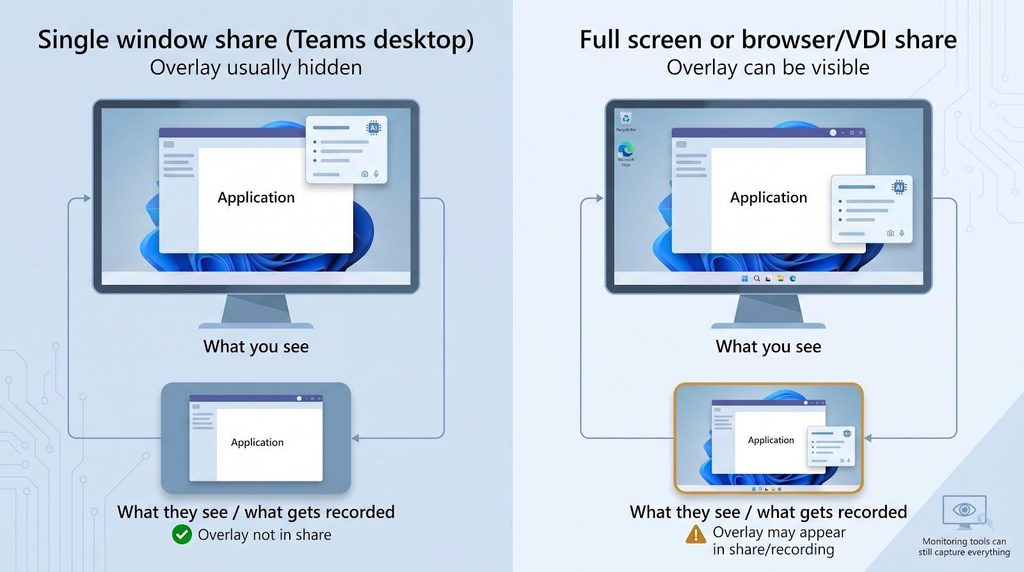
Change any variable, such as a full-monitor share, Teams in a browser, or a locked-down virtual desktop, and you should test again. Hidden windows also cannot beat every form of endpoint monitoring, and no tool masks long pauses or eyes darting to another screen.
Run this 3-step visibility test
- Launch the exact Teams client (desktop or web) you will use on interview day.
- In a mock call, share a single window, then your full monitor, and record the session.
- Replay the video. If the overlay shows even once, adjust settings or choose another tool.
Only after this dry run should you trust the setup.
How to pressure-test an assistant before interview day
Block out 20 minutes and rehearse like it is live:
- Use the same laptop, headset, and network.
- Record the mock meeting for later review.
- Alternate between behavioral, technical, system-design, and coding questions; note how long the assistant takes to show a usable response.
- Let the call run past any time or credit limit in your plan to catch surprise cut-offs.
- Check the recording for overlay leaks, audio lag, and résumé errors (for example, invented job titles).
One focused rehearsal gives you technical confidence and lets you concentrate on clear, authentic answers when it counts.
Privacy checklist before you upload a résumé or stream audio
Every AI interview assistant for Microsoft Teams sends at least some data to the cloud. Before you drag your résumé into a setup screen, review this ten-point checklist:
- Where is live audio processed? On your device, on vendor servers, or by a third party.
- Transcript retention period? Look for a published rule, not “periodically deleted.”
- User-controlled deletion? A delete option in your account beats a slow support email.
- Model training on your data? Look for a clear statement either way.
- Named subprocessors? Each partner adds another policy to read.
- Cross-border transfer? Check where servers sit and what protections apply.
- Résumé handling? Some policies cover audio but ignore uploaded documents that hold more personal data.
- Recording consent? Company rules may ban local recording even if the tool allows it; get written permission.
- Security attestations? Audits and recent security reviews give concrete assurance.
- Data ownership? Clarify whether you, the vendor, or the employer owns the transcript after the call.
Cross out any red flags before interview day and you will sleep easier.
Frequently asked questions
What is the best AI interview assistant for Microsoft Teams when bots are blocked?
Our list puts Interview Copilot first. No bot joins the call, it has one flat price with every feature, and the company says the overlay never appears in shares, recordings, or screenshots. The company also says its protection does not cover every managed device or proctoring system. You need permission to install desktop software.
Is there an assistant that works without joining Teams at all?
Yes. Interview Copilot, Final Round AI, Cluegent, and Cluely all say they never join the meeting.
Can Microsoft Teams detect an AI interview assistant?
A bot shows up in the participant list; a desktop overlay is not a participant. What others can see depends on what you share, and managed laptops may run monitoring software, so test your setup.
Will a desktop assistant appear when I share my entire screen?
It depends on the tool and your system. Interview Copilot and Final Round AI both say their windows stay out of screen shares, and Interview Copilot says this covers full-monitor shares. Interview Copilot also says its protection does not cover every managed device or proctoring system. Always test your exact setup.
What if IT blocks both meeting bots and desktop installs?
Try a web tool such as OphyAI, or Parakeet AI in desktop Chrome, if your browser policy allows it. If everything is blocked, prepare without live help.
Which assistant is best for coding interviews?
Interview Copilot, Final Round AI, LockedIn AI, Cluegent, and Parakeet AI all list coding help. Check plan limits and test that the overlay stays out of the share while you use your editor.
Which tool has no session limits?
Interview Copilot (both plans), Final Round AI Pro, Sensei AI Pro, and InterviewMan say they have unlimited sessions or minutes. Cluegent’s monthly plans include 200 listening hours.
Best free option?
For a short live test: OphyAI’s first 15-minute session, Sensei AI’s 15-minute sessions, Cluegent’s 12 minutes, or Parakeet AI’s 10-minute session. Interview Copilot is free to download and set up, but a live interview needs a subscription.
Can Otter work when bots are blocked?
Usually not. Otter’s note-taker joins the meeting as a participant, so a lobby or bot block can stop it.
Is using AI during an interview allowed?
Policies vary. Read the invitation and ask for clarification; breaking stated rules can cost you the offer.
Is a browser assistant safer than a desktop app?
Browser tools skip installers but depend on your browser policy and share mode. Desktop apps need install rights but never enter the meeting.
Conclusion
Find the gate your IT team has locked, pick the assistant that fits it, and test your setup before the call. With that done, you can enter your Microsoft Teams interview with confidence.

I’m Rajesh Kumar, a DevOps, SRE, DevSecOps, Cloud, and Platform Engineering expert passionate about sharing practical knowledge, real-world experiences, and industry best practices. I have worked at Cotocus and regularly write about technology, travel, investing, health, product reviews, and digital marketing through my various platforms.
I publish technical articles at DevOps School, travel stories at Holiday Landmark, stock market insights at Stocks Mantra, health and fitness guidance at My Medic Plus, product reviews at TrueReviewNow, and SEO and digital marketing strategies at Wizbrand.
Find Trusted Cardiac Hospitals
Compare heart hospitals by city and services — all in one place.
Explore Hospitals