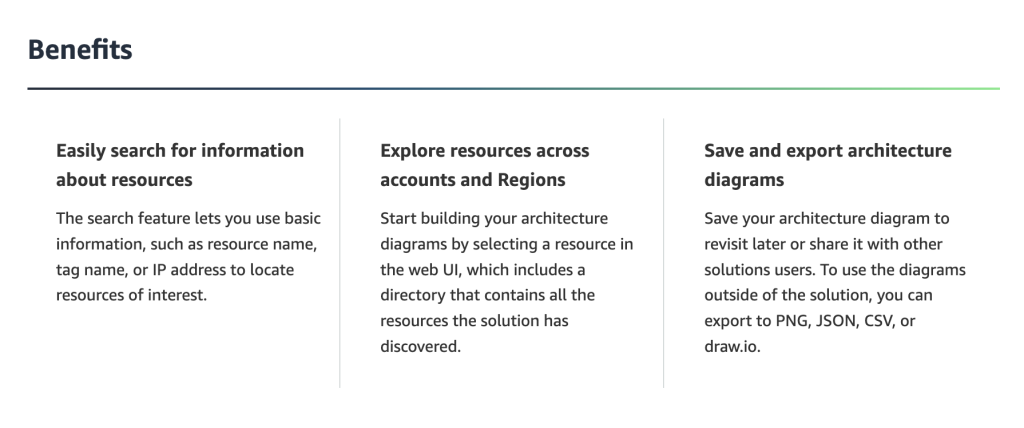
Workload Discovery on AWS is a solution provided by Amazon that allows users to visualize, manage, and understand their AWS cloud resources and architecture. It is particularly helpful for gaining insights into the structure of your cloud environment and ensuring that your resources are properly configured and optimized.
In this tutorial, I’ll walk you through the steps of setting up and using Workload Discovery on AWS to visualize your cloud resources.
Step 1: Understanding Workload Discovery on AWS
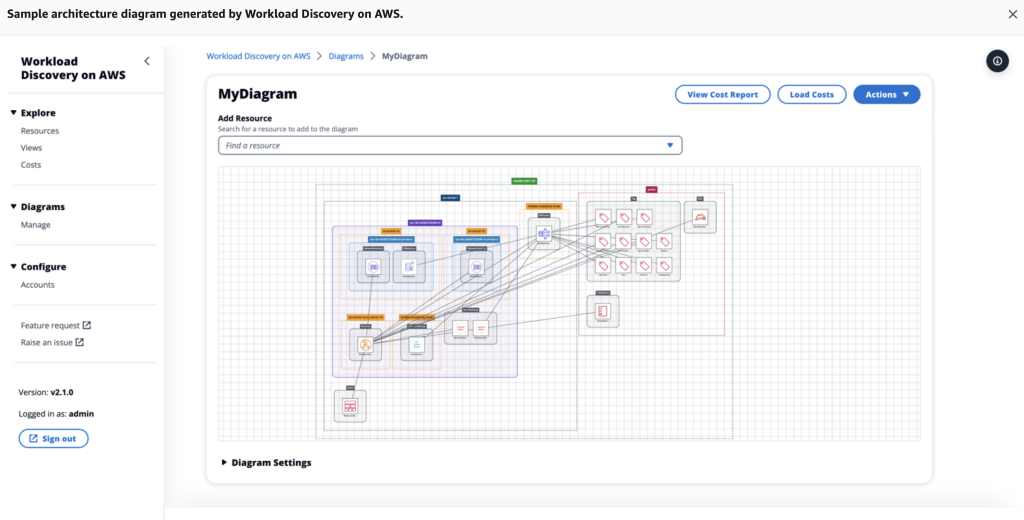
Workload Discovery on AWS automatically generates architecture diagrams based on your deployed resources. It can be used to:
- Visualize EC2 instances, RDS databases, VPC configurations, etc.
- Document cloud infrastructure and generate reports for audits or reviews.
- Perform regular reviews of your AWS architecture.
This tool is a replacement for the previously available AWS Perspective and is an improved way to create architecture diagrams and visualize AWS workloads.
Step 2: Prerequisites
Before you can set up and use Workload Discovery, you need to have:
- AWS Account: You must have an AWS account with necessary access permissions (Admin access or IAM role with relevant permissions).
- IAM Role: Ensure that your IAM role has permissions to read your AWS infrastructure resources.
Additionally, you should be familiar with basic AWS services such as EC2, VPC, and CloudFormation.
Step 3: Deploy Workload Discovery on AWS
- Go to AWS Solutions Library:
- Visit the Workload Discovery on AWS page.
- Launch the Solution:
- Click on Launch Solution or deploy the solution through the AWS CloudFormation stack. You will be directed to the AWS Management Console.
- Choose the Deployment Region:
- Select the AWS region where you want to deploy the solution.
- Set up the CloudFormation Stack:
- The CloudFormation template for Workload Discovery will set up various AWS services such as:
- AWS Lambda
- Amazon API Gateway
- Amazon DynamoDB
- Amazon Cognito (for authentication)
- Review and configure the stack’s parameters, including:
- Stack Name: Give your CloudFormation stack a name (e.g.,
WorkloadDiscoveryStack). - Administrator Email: This email will be used for administrator login to the Workload Discovery dashboard.
- Stack Name: Give your CloudFormation stack a name (e.g.,
- The CloudFormation template for Workload Discovery will set up various AWS services such as:
- Launch the Stack:
- Once you have configured the parameters, click Create Stack. The deployment may take a few minutes to complete.
Step 4: Access the Workload Discovery Dashboard
- Retrieve Login Information:
- Once the CloudFormation stack is deployed, navigate to the Outputs tab in the CloudFormation console. Here, you will find the URL to the Workload Discovery dashboard and the Administrator Login link.
- Log into the Dashboard:
- Use the login credentials (generated during setup) to access the dashboard. You will be prompted to set a new password for your account upon the first login.
Step 5: Visualize Your AWS Resources
Once logged in, you can start visualizing your AWS cloud resources:
- Select Resources:
- The dashboard will automatically display your AWS resources, including:
- EC2 instances
- RDS databases
- Elastic Load Balancers
- VPCs and Subnets
- IAM Roles
- S3 Buckets
- You can filter by resource type or region to narrow down what you want to visualize.
- The dashboard will automatically display your AWS resources, including:
- Create Custom Diagrams:
- Workload Discovery allows you to create custom architecture diagrams for specific workloads.
- Click on Add Resources and select the resources you want to visualize in the diagram.
- Drag and drop resources into a layout that makes sense for your architecture.
- Workload Discovery allows you to create custom architecture diagrams for specific workloads.
- Export Diagrams:
- Once your diagram is ready, you can export it in various formats, including PNG or PDF, or directly share it with your team.
- You can also automate diagram updates to reflect the latest changes in your infrastructure.
Step 6: Use Cases and Best Practices
Here are a few common use cases for Workload Discovery:
- Audits and Compliance: Use the visual diagrams to demonstrate compliance with security policies and ensure that all resources are correctly configured.
- Troubleshooting: Identify potential issues in your infrastructure by visualizing network configurations, firewall settings, and connectivity between services.
- Documentation: Automatically document your architecture to share with stakeholders or new team members.
Best Practices:
- Regularly update the architecture diagrams to reflect changes in your environment.
- Use filters to focus on specific regions or resource groups.
- Monitor CloudFormation stack events to stay updated on changes in infrastructure.
Step 7: Clean Up
If you no longer need Workload Discovery on AWS, remember to clean up the resources to avoid unnecessary charges:
- Delete the CloudFormation Stack: Go to the CloudFormation console and delete the stack you created. This will remove all associated AWS resources such as Lambda functions, DynamoDB tables, etc.

I’m Rajesh Kumar, a DevOps, SRE, DevSecOps, Cloud, and Platform Engineering expert passionate about sharing practical knowledge, real-world experiences, and industry best practices. I have worked at Cotocus and regularly write about technology, travel, investing, health, product reviews, and digital marketing through my various platforms.
I publish technical articles at DevOps School, travel stories at Holiday Landmark, stock market insights at Stocks Mantra, health and fitness guidance at My Medic Plus, product reviews at TrueReviewNow, and SEO and digital marketing strategies at Wizbrand.
Find Trusted Cardiac Hospitals
Compare heart hospitals by city and services — all in one place.
Explore Hospitals