As a developer, there’s that one afternoon, mid-sprint, when a build fails. Not because of bad code, but because your Mac has run out of disk space.
One quick check reveals 50GB sitting in hidden folders, most of it leftovers from Docker images, Homebrew caches, and abandoned dev tool installations that were never properly cleaned up.
If you’ve been there, you probably know how much time you have until your Mac starts having problems handling data and the performance becomes terrible, or it just crashes.
The good news is that it’s very easy to get that space back if you know where to look. Cleaning up a Mac used for development can free 20–40 GB (or more) of space by deleting unused Docker artifacts, old Homebrew packages, and cleaning caches for various tools.
Below, I’ll share with you how you can free up GB on your Mac with simple Terminal commands and more.
1. Cleaning Docker: images, containers, and volumes
Docker is perhaps the worst offender. Every image pulled, every stopped container, and every unused volume remains on disk until manually deleted.
The most efficient way to clean up unused Docker resources is by using the docker system prune command, which removes stopped containers, unused networks, and dangling images.
To get started, Open Terminal with these simple steps:


Important: You must have installed Docker first on your Mac, and it should be running (via Docker Desktop). Otherwise these commands won’t work.
The nuclear option for unused data is the Terminal command: docker system prune -a –volumes
This will remove all stopped containers, all networks not used by at least one container, and all images not referenced by any container in the system.
For a more surgical approach, you can break it down like this:
- Remove stopped containers: docker container prune
- Remove unused images:docker image prune -a
- Remove unused volumes:docker volume prune
Running the docker system df command before and after shows you what you’ve reclaimed. It’s a simple exercise that helps you save 15GB or more.
One habit worth building: run docker system prune at the end of each project sprint. It takes seconds and keeps things from compounding.
2. Cleaning up Homebrew
Homebrew is the package manager almost every Mac developer uses, and it quietly hoards old versions of formulae, cached downloads, and outdated dependencies.
The one main Command to rule them all is: brew cleanup
This will remove all old versions of software installed via Homebrew, along with their associated downloads. By default, it will keep versions that are less than 120 days old.
If you really want to delete everything, consider the command:
brew cleanup –prune=all
To see what will be removed before actually doing it:
brew cleanup -n
Run the command brew autoremove to remove all installed formulae that were pulled in as dependencies and are no longer needed by any active components. Together, these commands can recover several GB, depending on how long Homebrew has been running untouched.
For a full audit of what is installed and potentially removable, the brew list gives a complete picture. Anything unfamiliar is worth investigating.
Note: Just as Docker, these commands only work if Homebrew is installed.
3. Uninstalling Dev Apps that overstay their welcome
This is where many developers lose unnecessary gigabytes without realizing it. Old versions of Xcode, Android Studio, virtual machine software, and other heavyweight tools tend to sit around long after they stop being useful.
Dragging an app to the Trash does not, by itself, remove everything related to that app. App support files, caches, preferences, and login items are left behind, scattered throughout the Library folder. Over time, these files can take up a significant amount of disk space.
A dedicated application remover for Mac handles all of this. It will find any files associated with the DEV apps on your system and delete them in one fell swoop, without leaving behind bits and pieces often left behind by manual drag-and-drop deletion.
This is especially important for large development environments like Xcode, which can easily get you 12GB+ in reclaimed space.
4. System and app caches
MacOS stores caches in ~/Library/Caches. Most of these are safe to delete, with the system regenerating what it needs. Navigate there and sort by size to catch the heaviest offenders.
Be cautious with anything unfamiliar, but folders named after apps that are no longer installed are safe to remove entirely.
Also worth checking:
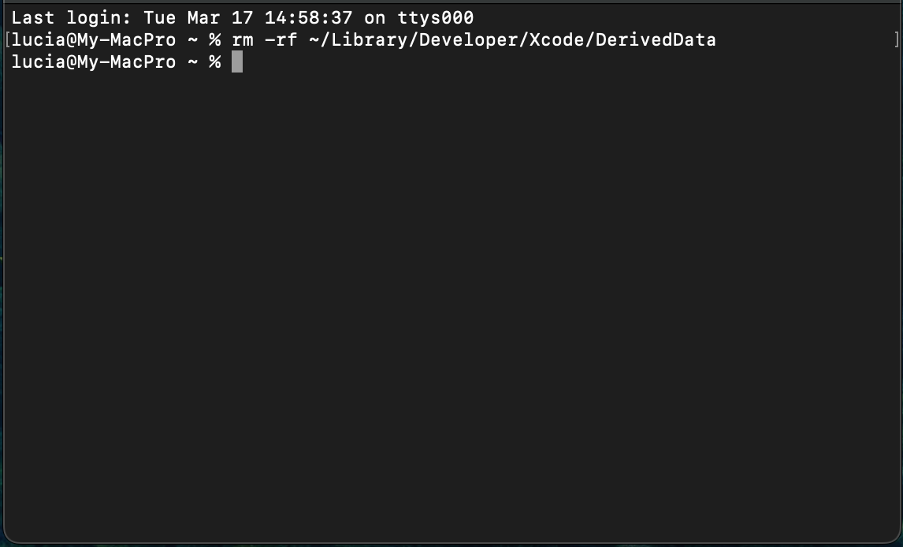
~/Library/Developer/Xcode/DerivedData fills up fast during active development. If you delete it, Xcode will rebuild during the next project compile. Still, it’s entirely safe to run the command and recover several gigabytes of space on your Mac.
Conclusion
Storage cleanup on a dev machine isn’t a one-time thing. Most of the efficiency comes from small habits—run docker system prune at project milestones, let brew cleanup run here and there, do a proper app audit every once in a while.
For a more thorough clean, you’ll want to spend more time trawling through leftover files and some cruft that has built up over the years. After all, a clean machine is a happy machine, and we all know happy machines are productive.

I’m a DevOps/SRE/DevSecOps/Cloud Expert passionate about sharing knowledge and experiences. I have worked at Cotocus. I share tech blog at DevOps School, travel stories at Holiday Landmark, stock market tips at Stocks Mantra, health and fitness guidance at My Medic Plus, product reviews at TrueReviewNow , and SEO strategies at Wizbrand.
Do you want to learn Quantum Computing?
Please find my social handles as below;
Rajesh Kumar Personal Website
Rajesh Kumar at YOUTUBE
Rajesh Kumar at INSTAGRAM
Rajesh Kumar at X
Rajesh Kumar at FACEBOOK
Rajesh Kumar at LINKEDIN
Rajesh Kumar at WIZBRAND
Find Trusted Cardiac Hospitals
Compare heart hospitals by city and services — all in one place.
Explore Hospitals