What should an IT administrator do when data suddenly disappears from an SSD? The logical solution is data recovery software. But with so many options available, choosing the right tool can be difficult. Different SSD recovery tools offer different capabilities, file system support, and recovery methods, which means not every tool works equally well in every scenario. To simplify the search, we created a list of the best SSD data recovery tools in 2026 to help IT teams choose the right solution.
How We Chose the Best SSD Recovery Tools
To build this list of the best SSD data recovery software, we evaluated several factors that matter in real IT environments. The goal was to include software that can handle common SSD data recovery situations such as deleted files, formatted drives, damaged partitions, or corrupted file systems.
We focused on the following criteria:
- Recovery capabilities were a primary factor, since the software must reliably restore files after deletion, formatting, or file system corruption. Many modern tools can reconstruct files even when metadata is missing by scanning storage sectors and detecting file signatures.
- File system support also played an important role, because a practical SSD recovery software should work across common file systems used in enterprise environments, including NTFS, exFAT, FAT32, APFS, and EXT-based systems. Broad compatibility makes the tool useful for mixed Windows, Linux, and macOS infrastructures.
- Scanning technology and recovery methods were another key consideration, since the best SSD data recovery tools offer multiple scan modes, deep sector analysis, and partition detection to recover data even when the file system structure is damaged.
- Ease of use influenced our evaluation as well, because IT administrators often need tools that can deliver quick results without a complicated workflow. Some solutions combine powerful recovery engines with intuitive interfaces that make recovery tasks easier to manage.
- Reputation and user feedback were also considered, since tools that consistently appear in professional rankings and independent reviews tend to deliver more reliable results. We browsed though different forums with discussion on recovering files from a SSD to see real opinions.
- Limitations such as licensing, learning curve, and scan time were also evaluated, because large NVMe SSDs can take hours to scan and some advanced tools require more technical expertise than others.
These criteria helped us narrow the list to tools that are practical for IT administrators who need reliable ways to recover SSD data.
5 Best SSD Data Recovery Software
Now that we’ve covered the evaluation criteria, let’s move on to the actual tools. The following list includes five SSD recovery tools that consistently appear in professional rankings and independent tests. Each tool below offers different strengths. Some focus on ease of use and fast recovery for common incidents, while others provide advanced disk analysis features designed for complex recovery scenarios.
1. Disk Drill
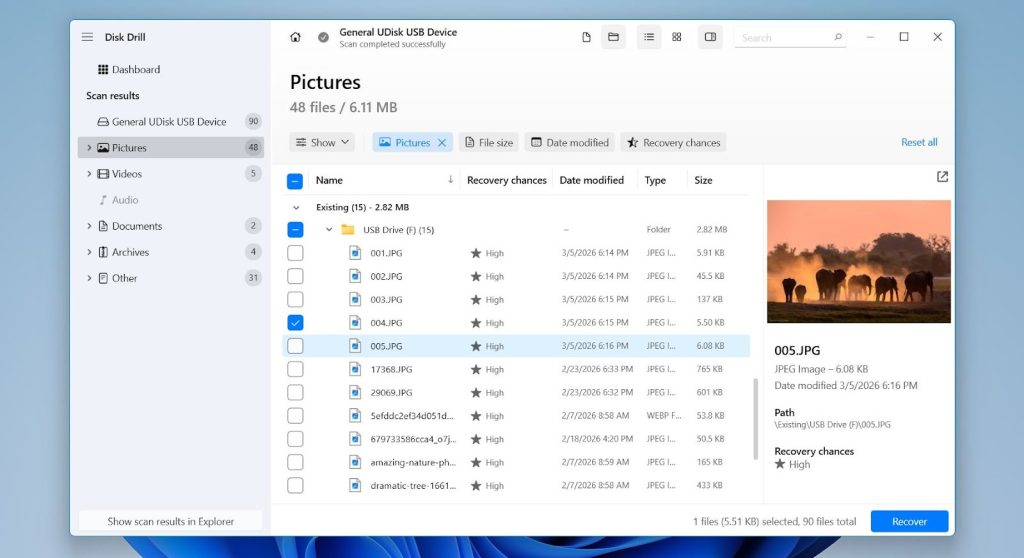
Disk Drill took the first place in our list after we tested it in several SSD recovery scenarios. From our experience, the software does a great job balancing strong recovery capabilities with a clean, easy-to-use interface. We were able to recover files not only after simple deletions but also from formatted SSDs and damaged partitions.
One feature we particularly liked is the byte-to-byte disk backup. Disk Drill lets you create a full image of the SSD before running recovery, so you can scan the copy instead of the original drive. This is very useful when working with unstable SSDs because it reduces the risk of further data loss. The software also handled common file systems like NTFS, exFAT, FAT32, APFS, and HFS+ without any issues.
Another thing we appreciated is the built-in S.M.A.R.T. monitoring, which quickly shows the health status of the SSD. Combined with its deep scan and straightforward recovery process, these features are the main reasons we placed Disk Drill first among the best SSD data recovery tools.
Pros
- Supports many file systems used on SSD drives
- Can recover data from formatted or corrupted SSDs
- Includes disk imaging for safer recovery
- Simple interface suitable for quick recovery tasks
- File preview helps verify recoverable data
Cons
- Deep scans on large NVMe SSDs may take time
User feedback about Disk Drill is generally very positive. In many reviews and community discussions, users highlight how quickly it can locate recoverable files on different types of drives, including SSDs. The interface and the preview feature often receive praise because they make it easier to verify files before recovery. Most criticism focuses on relatively minor issues.
2. UFS Explorer
In our experience, UFS Explorer feels like a tool built specifically for technical environments and complex recovery cases. While testing it, we noticed that it provides much more control over the recovery process than many typical recovery applications. Because of that, it seems particularly well suited for IT administrators and data recovery specialists who want detailed insight into how the recovery works rather than a simplified one-click workflow.
The tool supports a wide range of file systems, including NTFS, exFAT, APFS, EXT4, ZFS, and ReFS. This broad compatibility makes it useful for mixed operating system environments where administrators need to recover SSD data from Windows, Linux, or macOS systems.
UFS Explorer also includes advanced scanning algorithms that help reconstruct damaged file systems and locate lost data even when partition structures are corrupted. Another useful capability is the built-in disk imaging feature, which allows administrators to create a copy of an SSD before running recovery scans.
Pros
- Supports many file systems across different platforms
- Advanced file system analysis tools
- Disk imaging for safe recovery attempts
- Suitable for complex recovery scenarios
Cons
- Interface appears outdated compared with newer tools
- Steep learning curve for less experienced users
- Professional versions can be expensive
User feedback for UFS Explorer is generally positive, especially among IT professionals and data recovery technicians. Many users appreciate its powerful scanning engine and broad file system support, which allows it to handle recovery tasks that simpler tools cannot manage.
The most common complaints usually relate to the interface and complexity. Some users mention that the software feels technical and requires time to learn, particularly for those who only need occasional recovery tasks.
3. R-Studio
In third place we have R-Studio, a professional data recovery software for SSD drives often used by IT administrators and recovery specialists. It provides a large set of advanced recovery options and gives a lot of control when dealing with damaged or unstable storage devices.
Another thing that stood out was its broad file system support. R-Studio works with systems such as NTFS, FAT, exFAT, ReFS, HFS+, APFS, and EXT-based file systems, which allows it to recover data from SSDs used across Windows, Linux, and macOS environments. This flexibility makes it particularly useful in mixed infrastructure setups.
The tool also includes a powerful scanning engine that can analyze damaged file systems and recover files even when partitions are corrupted or missing. When the file system structure is heavily damaged, R-Studio can switch to signature-based scanning, which searches storage sectors for recognizable file patterns.
Pros
- Powerful recovery engine that handles corrupted file systems and damaged partitions well
- Supports many file systems, including NTFS, exFAT, ReFS, HFS+, APFS, and EXT variants
- Byte-to-byte disk imaging allows safer recovery from unstable SSDs
- Signature-based scan helps locate files when metadata is missing
- Suitable for professional and enterprise recovery scenarios
Cons
- Interface can feel technical and overwhelming for new users
- Trial version limits recovery to files smaller than 1024 KB
- Some scan processes can take a long time on large SSDs
User opinions about R-Studio are somewhat mixed but generally acknowledge the software’s strong recovery capabilities. In discussions on Reddit some users mention that R-Studio is still widely used in professional data recovery labs and performs well for logical recovery tasks, especially when scanning disk images rather than the original drive.
At the same time, several users criticize the licensing policy and activation restrictions, noting that licenses can be tied to a specific machine and may not transfer easily if hardware changes. While these concerns appear in reviews, most technical users still recognize R-Studio as a powerful recovery tool, particularly for advanced recovery scenarios where strong scanning capabilities matter more than interface simplicity.
4. Disk Genius
DiskGenius combines SSD data recovery software with disk management tools, which makes it useful when data loss is related to partition or disk structure problems.
The software supports common file systems such as NTFS, FAT, exFAT, and EXT, allowing administrators to recover files from many types of SSD storage devices.
DiskGenius also includes tools for rebuilding partition tables and repairing damaged partitions. These features are helpful when data becomes inaccessible because of disk structure problems rather than simple file deletion.
Another useful feature is disk cloning and imaging, which allows administrators to copy an SSD before performing recovery operations.
Pros
- Combines data recovery with disk management tools
- Can rebuild partition tables and repair partitions
- Supports common file systems used on SSD drives
- Includes disk imaging and cloning features
Cons
- Interface may feel technical for new users
- Free version limits recovery to very small files <64 KB
User feedback for DiskGenius is mostly positive regarding its functionality. Many Trustpilot users say the software works reliably for tasks such as disk cloning, partition management, and file recovery, with some reporting successful recovery from damaged drives or fast SSD cloning speeds.
At the same time, several reviews mention that the interface can be confusing and that certain features require upgrading to higher editions. Despite these concerns, many users still consider DiskGenius a dependable tool for disk management and recovery tasks.
5. PhotoRec
Finally, we also decided to include one free tool in this list. While most professional SSD data recovery software requires a paid license, many IT administrators still look for reliable open-source options for quick recovery attempts or testing.
During our testing, PhotoRec proved to be a surprisingly capable free SSD recovery tool, especially when dealing with heavily damaged drives. Instead of relying on file system metadata, the software scans storage sectors directly and searches for known file signatures. This approach allowed us to recover files even when the file system structure was partially missing or corrupted.
PhotoRec supports hundreds of file types, including photos, videos, documents, and archives, which makes it useful in many recovery scenarios. The tool itself works on Windows, macOS, and Linux, but it uses a text-based interface, which can feel challenging if you are not comfortable with command-line tools.
We also tried QPhotoRec, which provides a graphical interface for PhotoRec. It makes the recovery process much easier, though this GUI version is available only for Windows.
Pros
- Completely free and open source
- Supports many file formats
- Works across multiple operating systems
- Can recover files even when the file system is damaged
Cons
- Command-line interface may be difficult for beginners
- Does not restore original folder structures
User feedback for PhotoRec is generally positive among technical users who are comfortable with recovery utilities that rely on file carving. In discussions such as this Reddit thread people mention that the tool “works” and can recover files reliably, especially when the file system metadata is missing. At the same time, several commenters point out its limitations.
Since PhotoRec relies on signature-based recovery, it works best when files are not fragmented and when users do not need original filenames or folder structures. Some users also note that it performs well for recovering photos or similar files from media cards but may struggle with more complex recovery scenarios, such as formatted drives.
Final Verdict
All tools on this list can handle SSD data recovery in different scenarios. Disk Drill stands out as the best overall option because it balances powerful recovery capabilities with an easy-to-use interface. It supports many file systems, performs deep sector scans, and includes disk imaging, which helps protect unstable SSDs during recovery.
Other tools also offer strong capabilities for specific situations. UFS Explorer and R-Studio provide advanced analysis features that work well in complex recovery cases, while DiskGenius is useful when data loss involves partition problems. PhotoRec remains a reliable free option that can recover files using signature scanning, though its text-based interface may be less convenient.
FAQ
Why is SSD data recovery more difficult than HDD recovery?
SSD data recovery is often more difficult because SSDs manage data differently than traditional hard drives. Most SSDs use a feature called TRIM, which allows the operating system to mark deleted data blocks so the drive can clear them in the background. Once TRIM processes those blocks, the original data may no longer exist on the storage cells, which makes recovery much harder.
SSD controllers also distribute data across memory cells using wear-leveling algorithms, so files are not stored in predictable locations like on HDDs. Because of these factors, SSD data recovery tools sometimes have a smaller time window to recover deleted files.
Is it safe to use SSD recovery tools on a failing drive?
It can be safe, but precautions are important. When an SSD shows signs of failure, many experts recommend creating a disk image first and running the recovery scan on that image instead of the original drive. This approach reduces stress on the hardware and prevents additional damage during recovery attempts.
If the SSD becomes unstable, repeated scans may worsen the situation. In cases of severe hardware problems such as controller failure or electrical damage, professional recovery services may be a better option than software tools.
Are free SSD recovery tools reliable?
Some free SSD recovery tools can work well in simple recovery scenarios, such as restoring recently deleted files. Tools like PhotoRec are widely used and can recover many file types through signature scanning. However, free solutions often lack advanced features such as partition reconstruction, disk imaging, or detailed file system analysis. Because of these limitations, IT administrators usually rely on more advanced SSD data recovery software when dealing with formatted drives, damaged partitions, or complex recovery cases.

I’m a DevOps/SRE/DevSecOps/Cloud Expert passionate about sharing knowledge and experiences. I have worked at Cotocus. I share tech blog at DevOps School, travel stories at Holiday Landmark, stock market tips at Stocks Mantra, health and fitness guidance at My Medic Plus, product reviews at TrueReviewNow , and SEO strategies at Wizbrand.
Do you want to learn Quantum Computing?
Please find my social handles as below;
Rajesh Kumar Personal Website
Rajesh Kumar at YOUTUBE
Rajesh Kumar at INSTAGRAM
Rajesh Kumar at X
Rajesh Kumar at FACEBOOK
Rajesh Kumar at LINKEDIN
Rajesh Kumar at WIZBRAND
Find Trusted Cardiac Hospitals
Compare heart hospitals by city and services — all in one place.
Explore Hospitals