In this lesson, you will learn how to access the terminal window within the Red Hat OpenShift web console and use it to work with various OpenShift and Kubernetes resources that are available in the OpenShift cluster to which the web console is bound.
What you need to know
In order to get full benefit from taking this lesson, you need to:
- Have a basic understanding of the nature and use of Kubernetes as a container orchestration framework.
- Understand the relationship between OpenShift and Kubernetes.
- Have a basic understanding of the nature and purpose of the
kubectlCLI tool. - Know how to access your dedicated instance of the Developer Sandbox.
What you will learn
In this lesson you will learn:
- How to access the terminal window that’s embedded within the OpenShift web console.
- How to use the
kubectlandocCLI tools to interact with the various Kubernetes resources within the OpenShift cluster.
Access the terminal window
To reach the OpenShift terminal window within your no-cost Developer Sandbox cluster, complete the following steps:
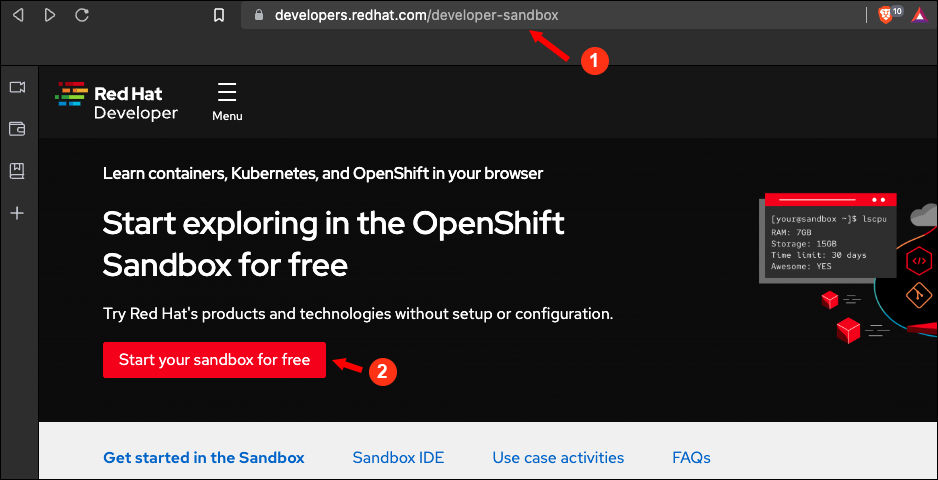
- Using your web browser, navigate here (Figure 1, Callout 1).
- Select Start your sandbox for free (Figure 1, Callout 2). Figure 1: The entry point for access.
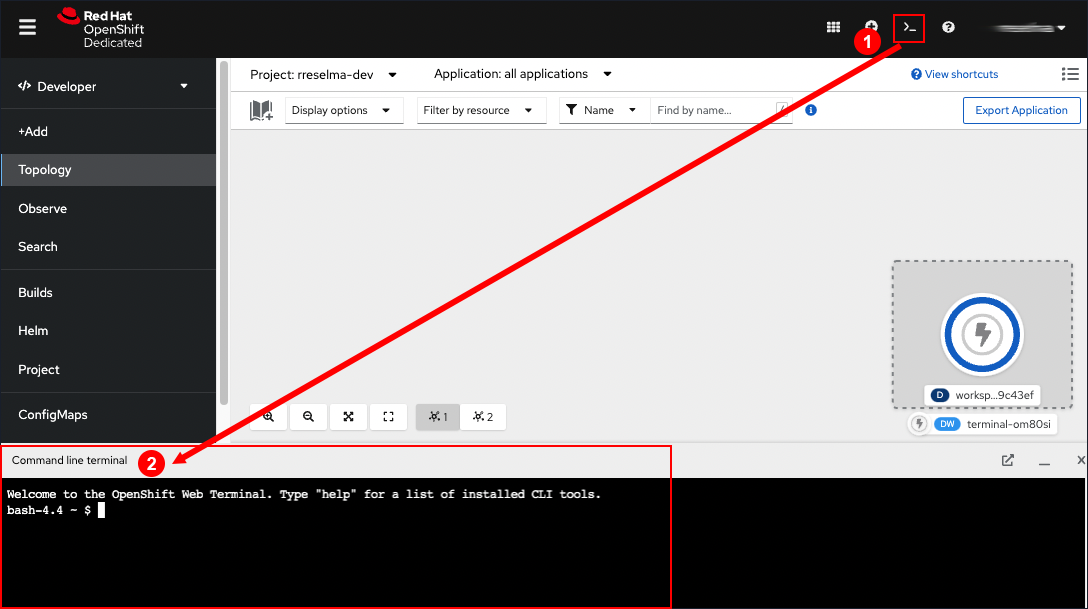
- Once you’re in the OpenShift web console, click the terminal prompt icon in the upper right corner of the web page (Figure 2, Callout 1) to display the command-line terminal (Figure 2, Callout 2). You can use the terminal window to interact directly with the underlying Kubernetes cluster powering the OpenShift instance. Figure 2: The OpenShift web console can display a terminal window that enables direct interaction with the underlying Kubernetes cluster in the OpenShift instance.
Work with the oc and kubectl CLI tools from within the terminal window
The terminal window that’s embedded within the OpenShift web console is a full blown instance of a Linux terminal. There, you can do the same command-line activities you would normally run in a standalone terminal. Also, the OpenShift web console terminal window allows you to work easily with the OpenShift instance and its underlying Kubernetes cluster.
OpenShift has both the oc and kubectl CLI tools pre-installed and configured to access the underlying Kubernetes cluster within the OpenShift instance. Thus, you can interact with OpenShift and the underlying Kubernetes from the command line.
The oc CLI tool has much of the same functionality that kubectl provides. However, oc can go a bit further and allow you to execute behavior that is special to OpenShift. For example, you can use oc to install an application into OpenShift without having to negotiate the complexities of application deployment in Kubernetes.
The following exercises demonstrate how to use the oc and kubectl CLI tools to execute basic tasks from the terminal window’s command line. The exercises also demonstrate the close relationship between OpenShift and Kubernetes.
Get version information
Run the following command in the OpenShift terminal to get version information about oc CLI tool:
oc versionYou will see output similar to the following:
Client Version: 4.10.6

Server Version: 4.10.28

Kubernetes Version: v1.23.5+012e945Code language: CSS (css)
The results of the oc version command display the version numbers of the oc CLI client, the server powering the current OpenShift instance and as well as the version number of the underlying instance of Kubernetes used by the cluster.
View resources using oc or kubectl
Run the following command in the OpenShift terminal to get a list of pods running in the current instance of OpenShift using the oc CLI tool:
oc get podsCode language: JavaScript (javascript)You will receive output similar to the following:
NAME                                        READY   STATUS    RESTARTS   AGE

workspace1e8db31dd59c43ef-8585ff4cc-24ww6   2/2     Running   0          22s
Run the following command in the OpenShift terminal to get a list of pods running in the current instance of OpenShift using the kubectl CLI tool:
kubectl get podsCode language: JavaScript (javascript)You will receive output similar to the following:
NAME                                        READY   STATUS    RESTARTS   AGE

workspace1e8db31dd59c43ef-8585ff4cc-24ww6   2/2     Running   0          22s
Notice that the output from executing oc get pods and kubectl get pods is identical. This is because both oc and kubectl are querying the same underlying Kubernetes cluster to get a list of pods. This is direct evidence of the tight relationship between OpenShift and Kubernetes.
Remember, OpenShift is a layer of components that “sit on top” of an underlying Kubernetes cluster. The important thing to understand is that the oc CLI tool provides functionality available in the kubectl CLI tool. In many cases, you can use oc and kubectl interchangeably.
Summary
In this lesson, you learned how to access the terminal window embedded in the OpenShift web console. Also, you learned how to use the terminal window to execute commands using the oc and kubectl CLI tools. You executed both oc get pods and kubectl get pods to list the same set of pods running in the Kubernetes cluster that’s foundational to OpenShift.

I’m Rajesh Kumar, a DevOps, SRE, DevSecOps, Cloud, and Platform Engineering expert passionate about sharing practical knowledge, real-world experiences, and industry best practices. I have worked at Cotocus and regularly write about technology, travel, investing, health, product reviews, and digital marketing through my various platforms.
I publish technical articles at DevOps School, travel stories at Holiday Landmark, stock market insights at Stocks Mantra, health and fitness guidance at My Medic Plus, product reviews at TrueReviewNow, and SEO and digital marketing strategies at Wizbrand.
Find Trusted Cardiac Hospitals
Compare heart hospitals by city and services — all in one place.
Explore Hospitals