
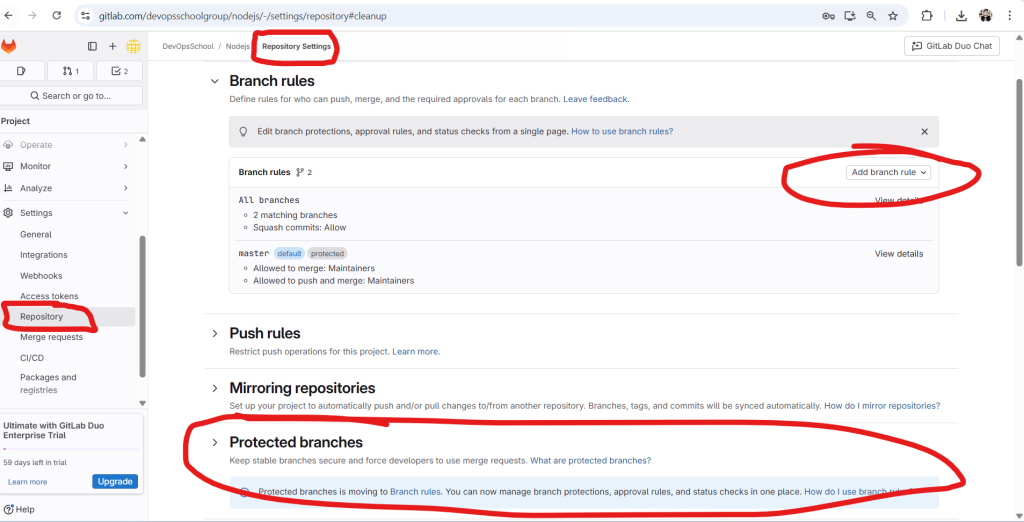
Here is a comprehensive tutorial for understanding and configuring Protected Branches in GitLab 18.0, based on the image you’ve provided and the latest official documentation.
🔐 GitLab Protected Branches – Tutorial Guide (v18.0)
📘 Purpose:
Protecting branches in GitLab helps teams:
- Prevent force pushes
- Restrict who can merge or push
- Enforce code review via merge requests
- Safeguard main/stable branches from accidental or unauthorized changes
🔑 What is a Protected Branch?
A protected branch is a Git branch that has rules and restrictions applied to prevent:
- Direct pushes (without approvals or pipelines)
- Deletion by mistake
- Bypassing CI/CD requirements
GitLab typically uses it for main, master, release/*, or production.
✅ Capabilities of Protected Branches
| Restriction | Description |
|---|---|
| Prevent Direct Pushes | Only selected roles can push |
| Prevent Force Pushes | Force-push is disabled |
| Restrict Who Can Merge | Only selected users/roles can merge |
| Require Merge Requests | Enforce review before integration |
| Status Check Enforcement (EE+) | Only allow merge if pipelines pass |
🛠️ How to Protect a Branch in GitLab (GitLab Cloud / v18.0+)
🔹 Option 1: Using Branch Rules (Recommended)
Step-by-Step:
- Go to your Project → Settings → Repository
- Scroll to Branch Rules
- Click “Add branch rule”
- In the modal:
- Branch name: e.g.,
mainorrelease/* - Allowed to push: Choose
Maintainers,Developers + Maintainers, or custom users/groups - Allowed to merge: Choose same
- Optionally enable:
- ✅ Require merge request approvals
- ✅ Require successful pipeline
- Branch name: e.g.,
- Click “Create”
🎯 Now the branch is protected under branch rules — future pushes & merges are restricted.
🔹 Option 2: [Legacy] Using Protected Branches Panel (Deprecated)
In GitLab 18.0+, this is deprecated and migrated under Branch Rules UI.
Still visible under:Settings → Repository → Protected branchessection.
Here:
- You can protect/unprotect branches
- Define who can push/merge
- Redirects to Branch Rules now
🎯 Best Practices
- ✅ Protect all main, release, and production branches
- ✅ Require merge requests to enforce peer reviews
- ✅ Require pipeline success before merge (CI/CD)
- ✅ Allow only maintainers to merge into protected branches
- 🚫 Avoid giving push access to Developers on protected branches unless justified
💡 Real-World Example: Protect main Branch
| Setting | Value |
|---|---|
| Branch name | main |
| Allowed to push | Maintainers only |
| Allowed to merge | Maintainers only |
| Require pipeline | ✅ Enabled |
| Require approvals | ✅ Enabled (2 reviewers) |
📎 CLI Tip (Git)
Once protected:
# Direct push will fail (if you're not allowed)
git push origin main
# You must open a Merge Request instead
Code language: PHP (php)
📷 Reference Screenshot Explanation (from your image)
- ✅ Branch Rules are shown for
main(default, protected) - ✅ Add new rules via “Add branch rule”
- 🔒 Protected Branches section redirects to branch rules (GitLab is deprecating old interface)
🧪 Need More?

I’m Rajesh Kumar, a DevOps, SRE, DevSecOps, Cloud, and Platform Engineering expert passionate about sharing practical knowledge, real-world experiences, and industry best practices. I have worked at Cotocus and regularly write about technology, travel, investing, health, product reviews, and digital marketing through my various platforms.
I publish technical articles at DevOps School, travel stories at Holiday Landmark, stock market insights at Stocks Mantra, health and fitness guidance at My Medic Plus, product reviews at TrueReviewNow, and SEO and digital marketing strategies at Wizbrand.
Find Trusted Cardiac Hospitals
Compare heart hospitals by city and services — all in one place.
Explore Hospitals